---
updatedAt: 2026-07-27T12:45:40.000Z
agentTools:
projectIndex: https://docs.umbrellacost.io/llms.txt
---
# JIRA Data Center Integration
# Overview
The Umbrella Cloud Cost enables you to get cost reports and alerts directly to Jira Data Center.
With Umbrella’s integration to Jira Data Center you can easily designate Umbrella alerts and reports to be open as an issue in a specific Jira Project with a given status.
Note - You may need to enable access based to our [Allow list article](https://anodot-cost.readme.io/docs/allowlist-anodot-cost-servers#/)
## Defining a Jira Data Center channel in Umbrella Cost
### In Jira Data Center
Create a Personal API token (PAT) for the user you wish to use for this integration. See instructions [here](https://confluence.atlassian.com/enterprise/using-personal-access-tokens-1026032365.html)
This user must have access to list Jira projects and create issues in these projects.
You need not have mandatory custom-fields in your "create issue" form - as Umbrella will not fill them and the process will fail. The create issue form must be allowed to be saved with the basic built-in fields which JIRA requires.
### In Umbrella Cost
1. Click the user icon in the top right corner, and select **Account**.
2. In the **Channels** tab, click **Add Channel** and choose Jira Data Center
3. Choose between adding a new Jira Data Center connection or connecting to an existing one
4. Fill in the required fields:
* Umbrella Cost Channel Name
* The URL to the Jira Data Center instance you wish to connect to
* The Personal API token (PAT) you have gathered from Jira Data Center.
5. Click connect
6. Choose a project from the list of projects (The list is populated based on the Jira user's projects)
7. Choose the issue type you wish to use
8. Click the **+Add Channel** button
After you have configured the channel, you can choose it from the list of channels as a destination for reports and alerts. Go to the relevant alert/report and choose
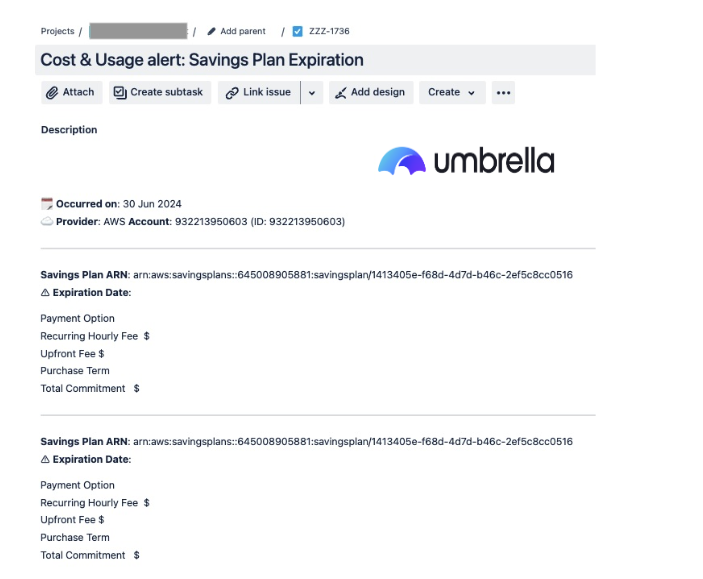
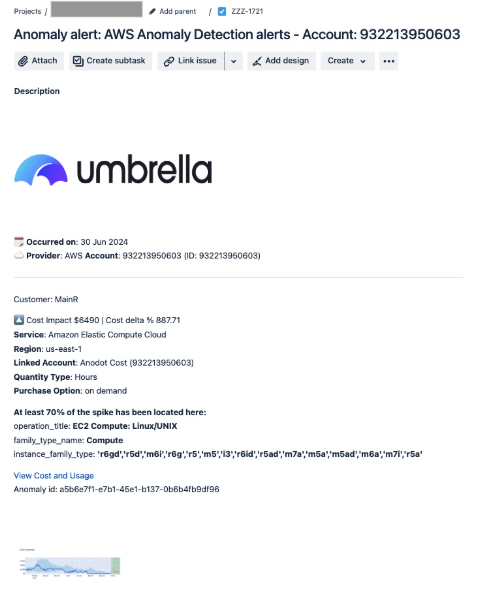
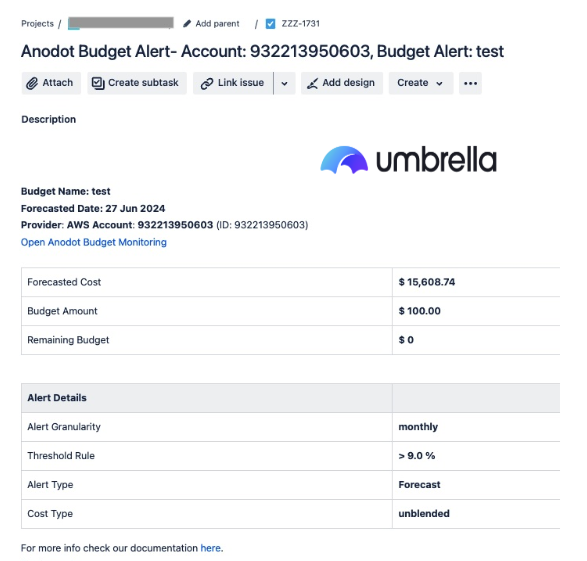
## Jira issue examples
### Anomaly Alert in Jira
### Budget Alert In Jira
### SP & RI Expiration Alerts in Jira