
June 2026 - Product Updated
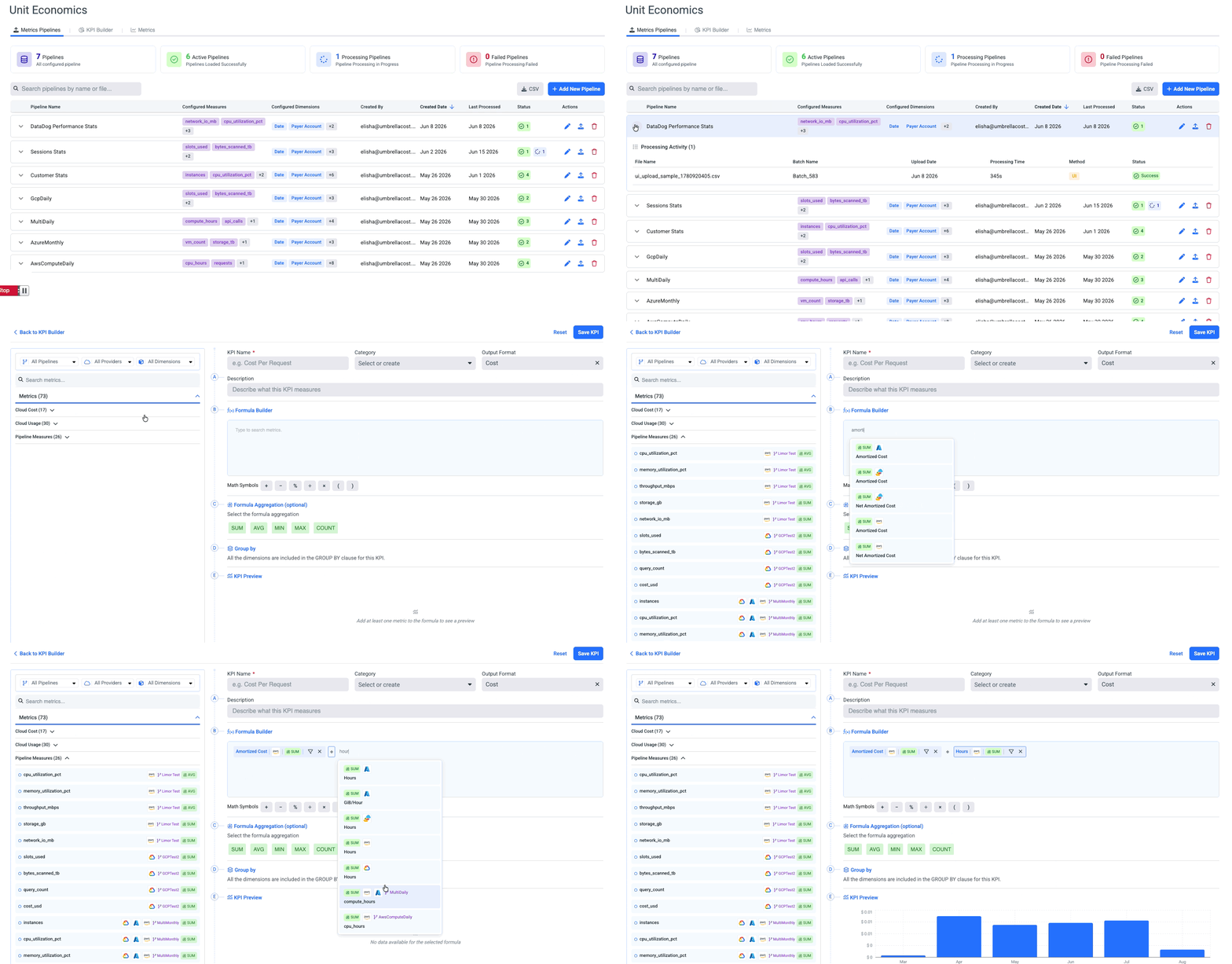
Unit Economics (Beta)
Stop guessing what your infrastructure actually costs per customer, transaction, or API call. Unit Economics connects your business and usage telemetry - active users, API requests, CPU, memory, and more - directly to your cloud cost data, so you can answer the questions that matter: What does it cost to serve one customer? What's our cost per 1M API requests?
The workflow is three steps:
- Bring in your telemetry via CSV or API.
- Define a KPI that combines a cost metric with a usage or business measure.
- Analyze or allocate cost based on real usage patterns - no more arbitrary splits.
AvailabilityUser Management 2.0 only. To enable this for your customers, contact support at [email protected].
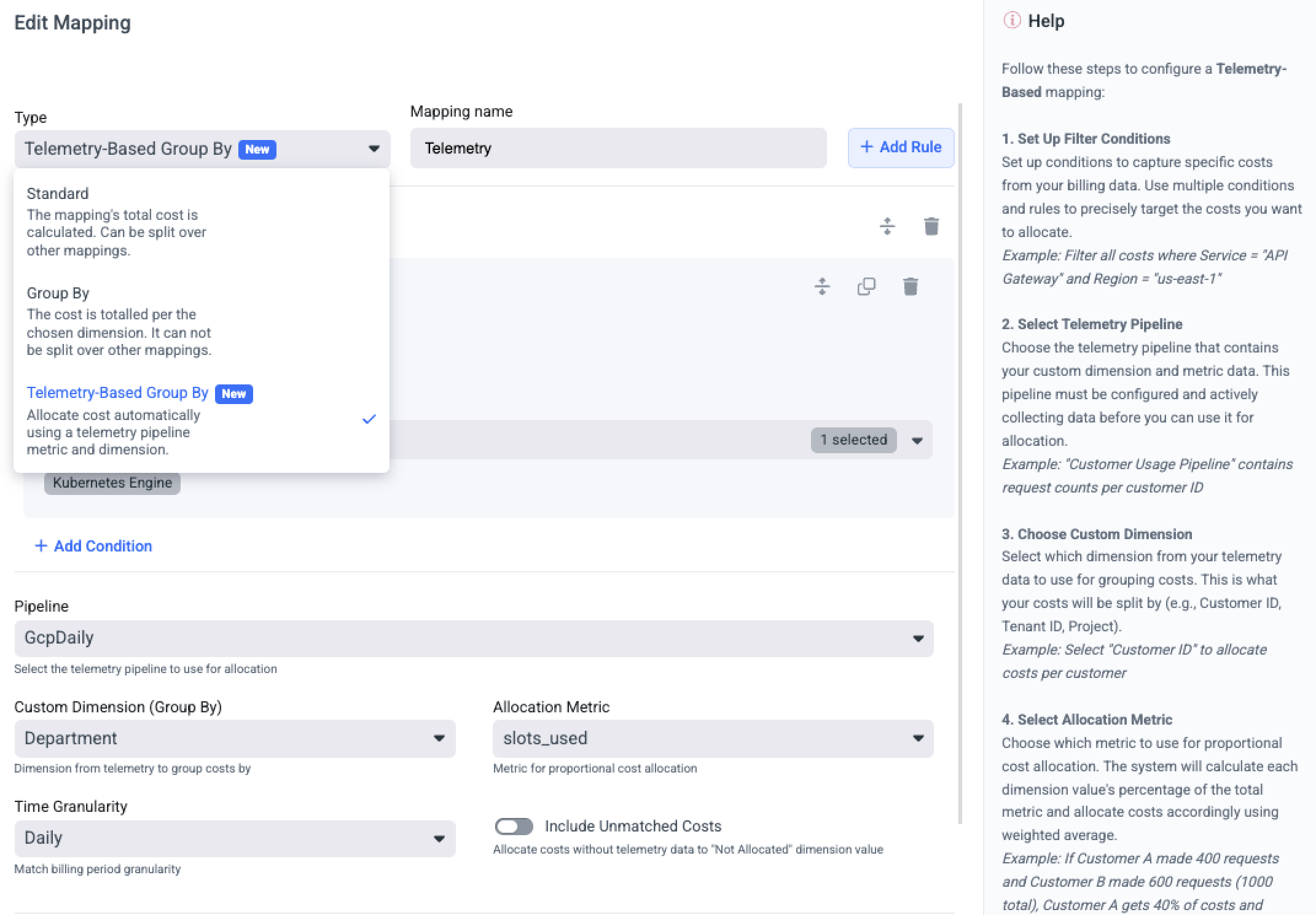
Business Mapping Telemetry Based
Allocating shared costs by custom dimensions like Customer ID, Tenant ID, or API usage previously required creating two separate mappings and connecting them together. Telemetry-Based Mapping consolidates this into a single configuration.
Define your billing filter conditions and your telemetry allocation rules in one place. Select the telemetry pipeline, choose the custom dimension to group costs by, and pick the allocation metric (Request Count, CPU Hours, API Calls, and more). Costs are distributed proportionally based on actual usage, with unmatched costs routed to a dedicated Not Allocated dimension.
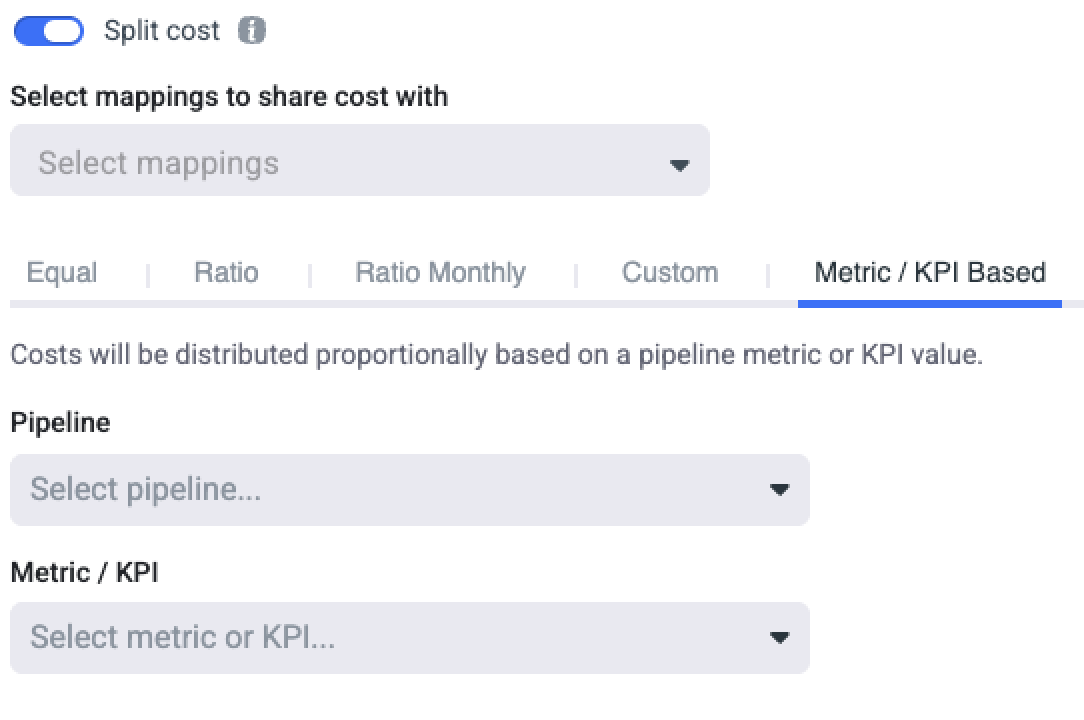
Business Mapping Split Cost by Metric/KPI
Allocate shared costs proportionally based on real usage data. When configuring a mapping rule, choose the Metric/KPI Based split method and select any telemetry pipeline metric or Unit Economics KPI as the distribution key. Costs are divided across mapped groups in proportion to actual consumption, not arbitrary ratios.
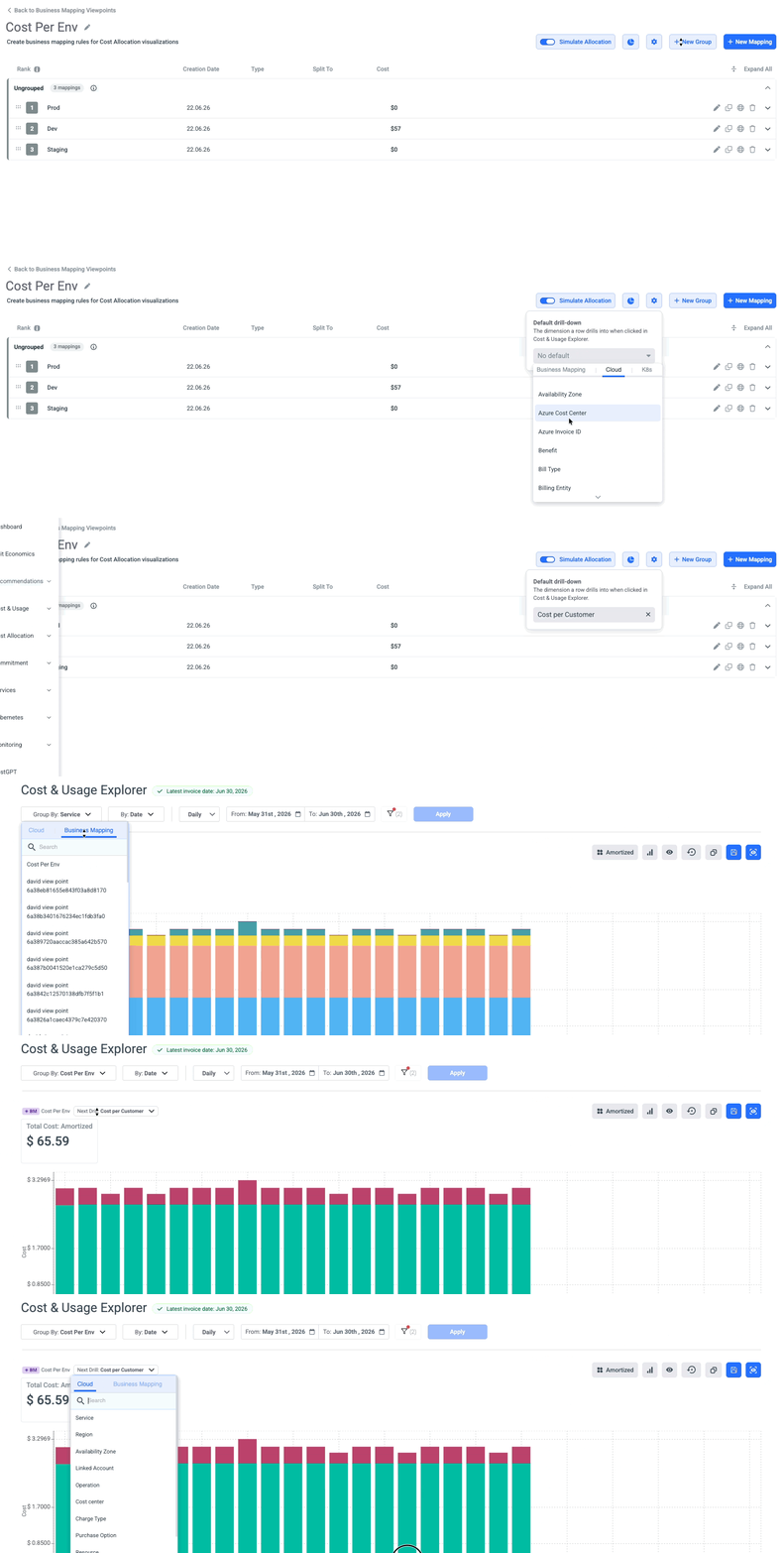
Business Mapping Drill-Down Configuration
Set a default drill-down dimension per viewpoint on the Business Mapping settings page, so your team lands on the right next level automatically. When no default is set, the picker appears inline so users can choose their own path on the fly.
MSP
Tiered Billing Rules (Margin)
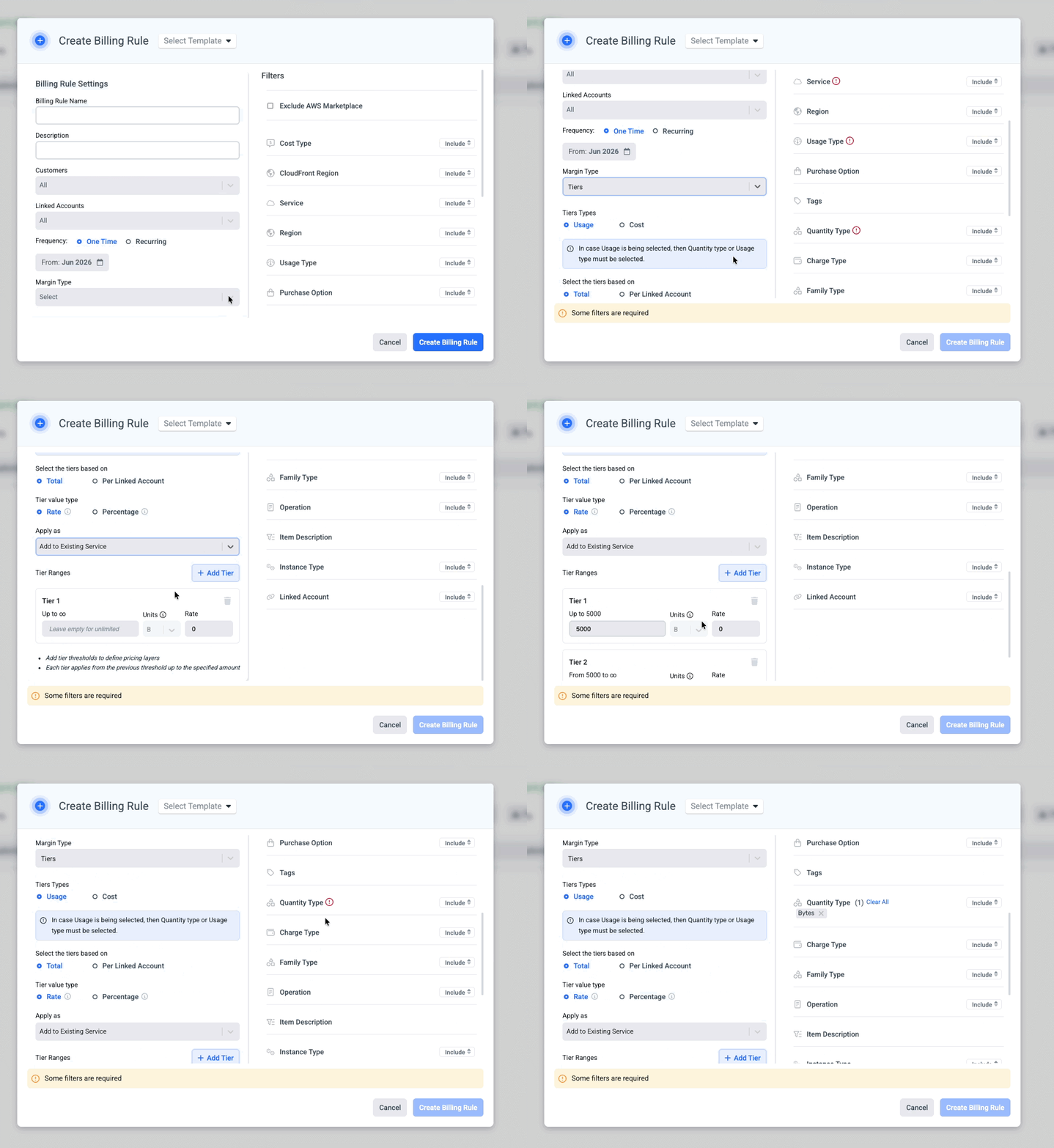
Give your customers volume-based pricing that mirrors how cloud providers actually charge. Tiered Billing Rules let you define cost adjustments and discounts that kick in automatically based on usage or spend thresholds - so you can model free-tier allocations, graduated discounts, or custom markup structures without manual intervention.
Configure rules using fixed rates or percentages, stack multiple tiers with Add Tier, and choose whether adjustments appear as a separate line item or apply directly to existing services under the Tiers family type.
Customer Selection in BYOD
MSPs can now onboard BYOD / Native SaaS accounts and associate them directly with a specific customer during the onboarding flow.
Cloud & Data Source Coverage
Snowflake Native Integration (Beta)
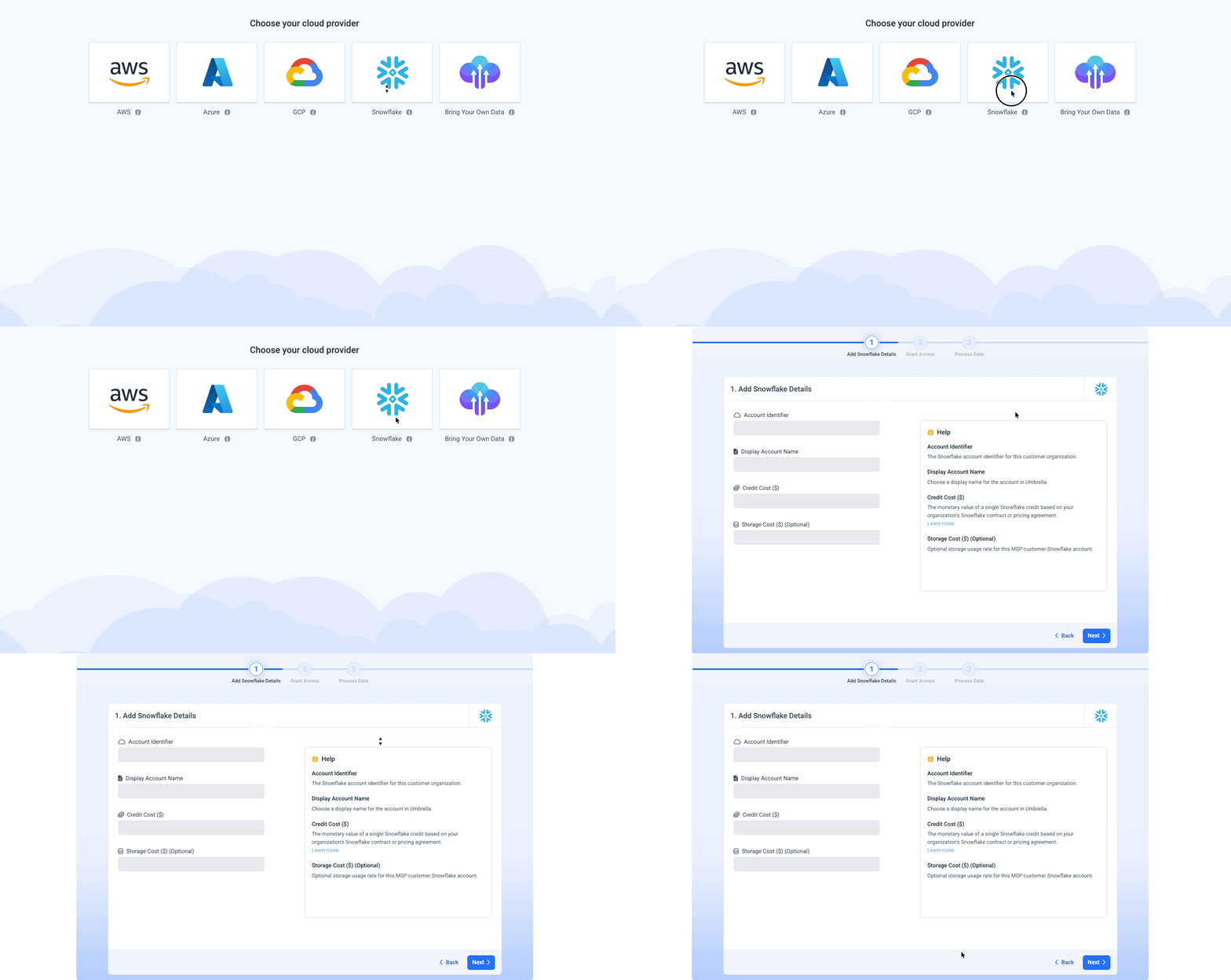
Connect your Snowflake account to Umbrella through a guided onboarding wizard and get full visibility into your Snowflake costs alongside your other cloud providers.
Azure GovCloud
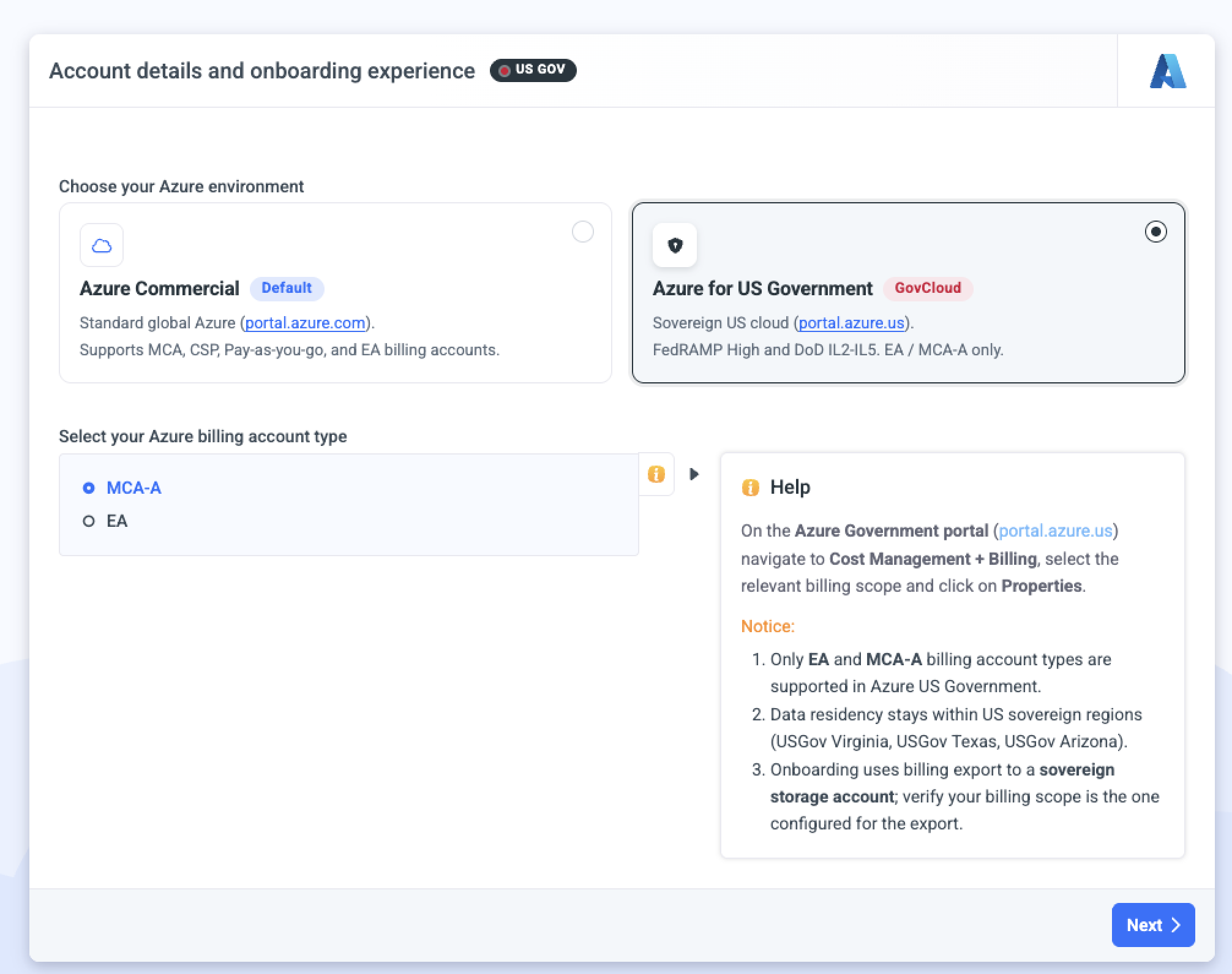
Umbrella now supports Azure Government Cloud, enabling public sector organizations and regulated industries to onboard their Azure Gov environments and get full visibility into their cloud costs. Connect your accounts through the standard onboarding wizard and analyze spend alongside your other cloud providers.
GCP: View Costs by Usage Date or Invoice Month
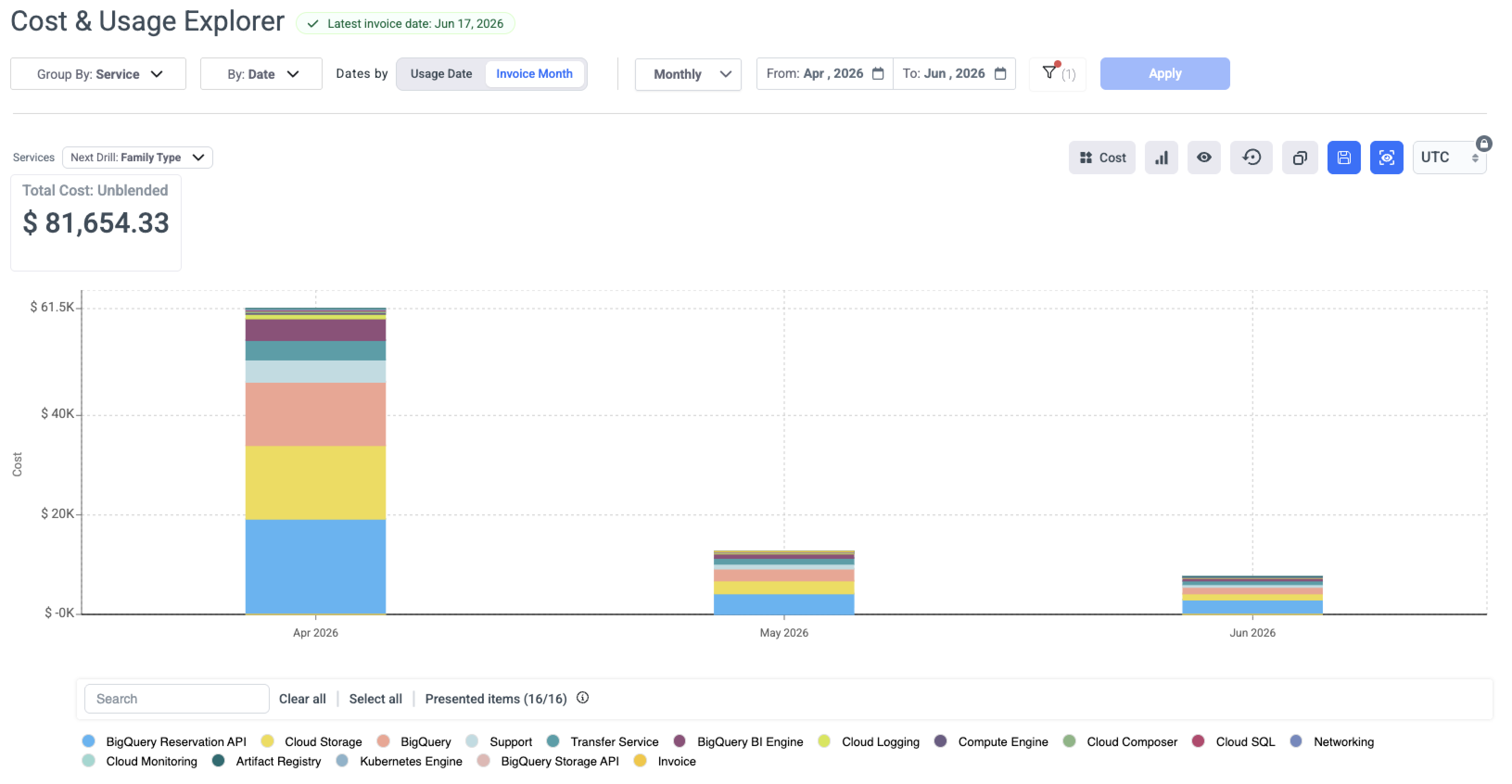
You can now choose how the Cost & Usage Explorer and Assets place GCP spend on the timeline - by Usage Date (when resources were consumed) or Invoice Month (the month Google billed them). Switch to Invoice Month to reconcile directly against your official GCP invoice.
GCP: Visibility Into 'Not Available' Project Cost
GCP charges that aren't associated with any project - and were previously captured as 'Not Available' - are now surfaced under a dedicated project identifier, grouped by billing account. Every dollar is now accounted for and can be assigned to the relevant customer or team. These projects appear under the naming convention BillingAccount-{Billing Account ID}-Project, making them easy to identify.
Cost & Usage Explorer
Unified Cloud/K8s Filters (AWS)
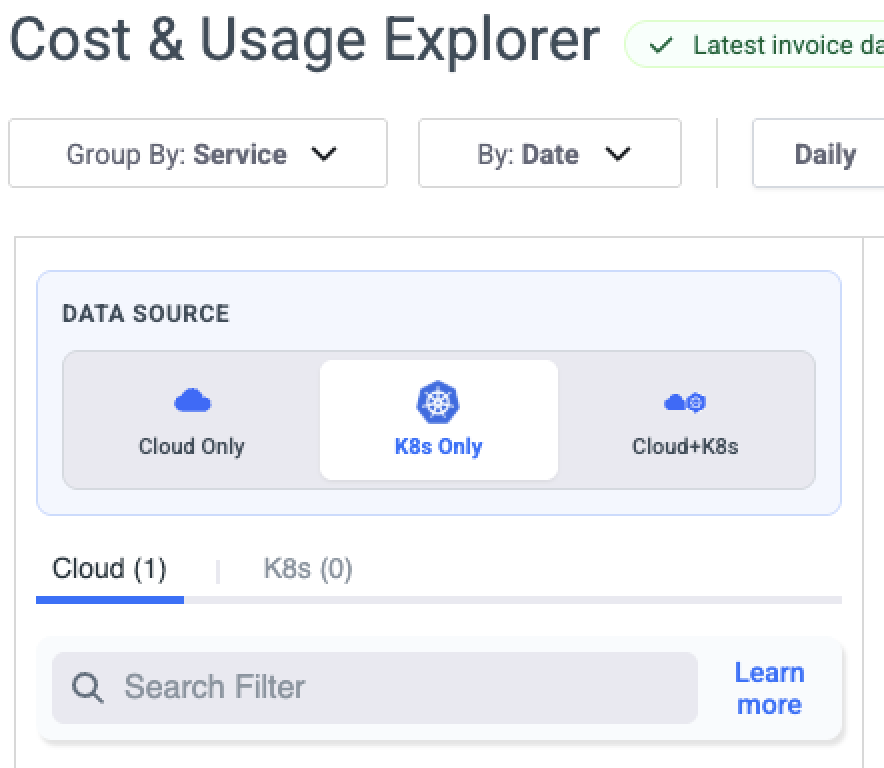
Switch between Cloud Only, K8s Only, and Cloud + K8s views directly in the Cost & Usage Explorer. Analyze your Kubernetes costs in isolation, your cloud spend on its own, or bring both together for a unified picture of total infrastructure spend. Available in CUE, Assets, and Budgets.
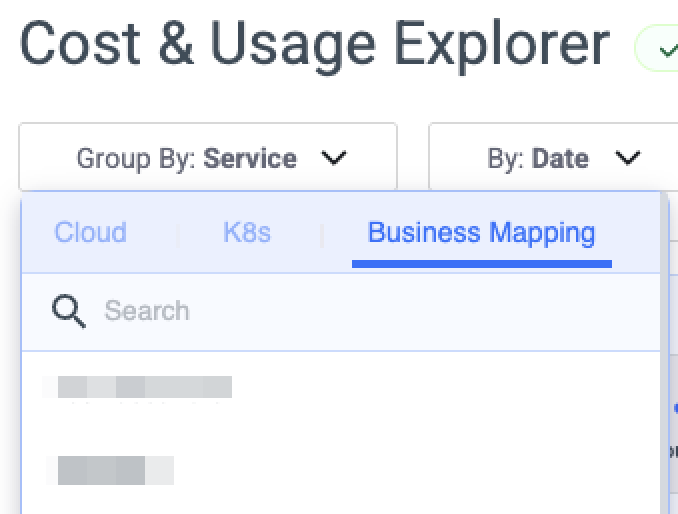
Business Mapping Group By Tab
Business Mapping viewpoints are now available in a dedicated tab within the Cost & Usage Explorer, for easier access and navigation.
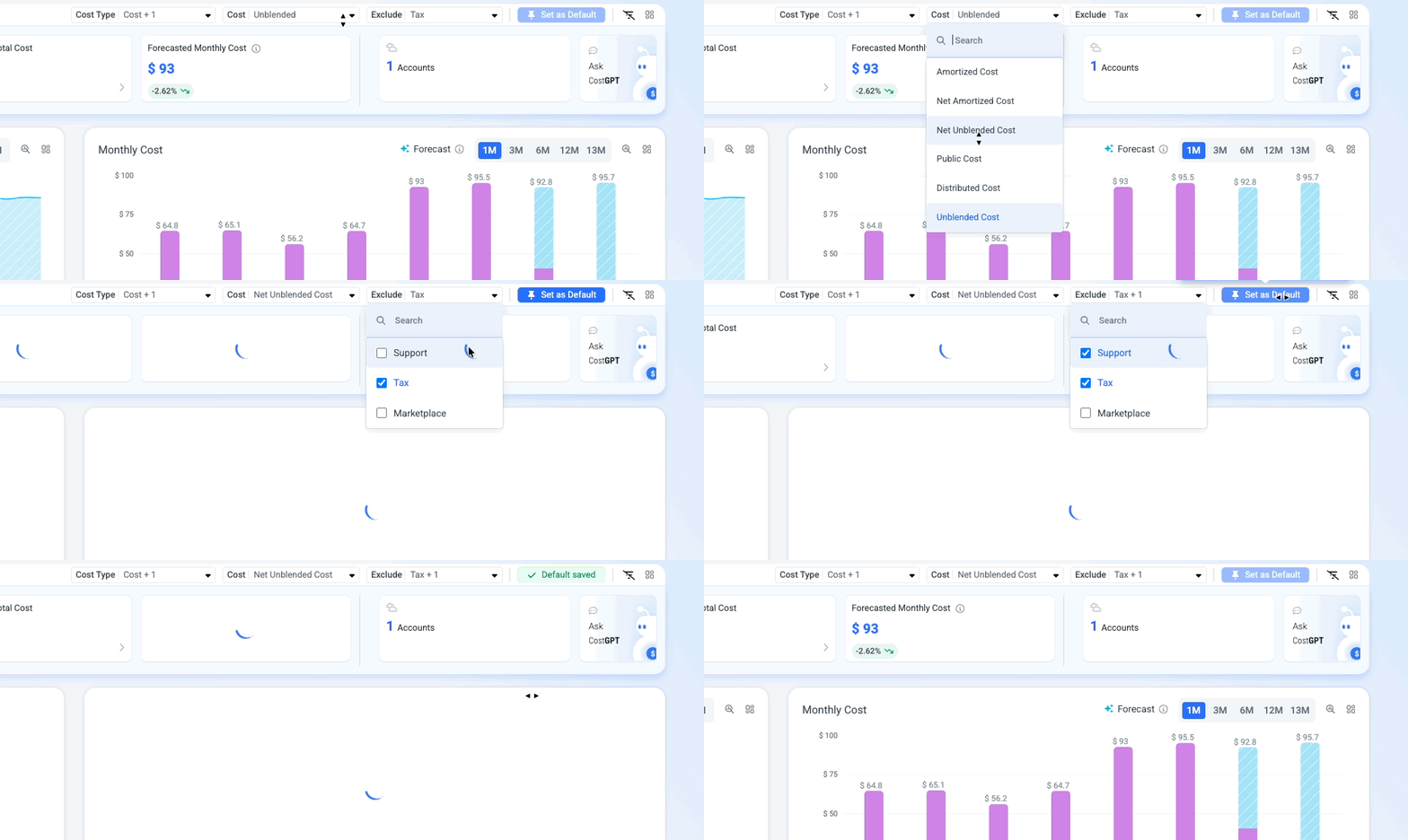
Main Dashboard
Set Default Filters
Set your preferred cost type - such as Net Amortized - and any other filters as the default view across your entire organization or on a per-account basis. Every team member lands on the right context the moment they open the dashboard.
Exclude AWS Tax/Support in Multi-Cloud
Choose to exclude AWS Tax and Support charges from your Multi-Cloud main dashboard view, so your cost data reflects actual workload spend without noise from overhead line items.
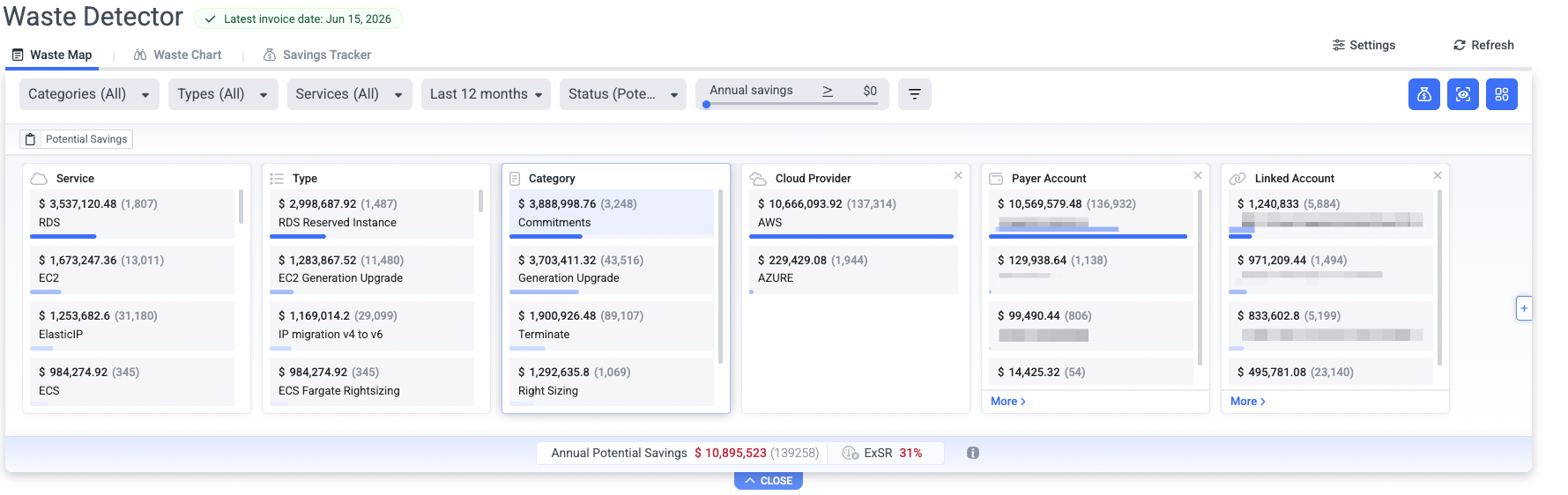
Waste Detector
Assign Recommendations (Multi-Cloud and All Accounts)
Assign recommendations to specific users in your organization. Assignees receive an email notification with the recommendation details and a direct link to review and act on it.
Recommendation URL
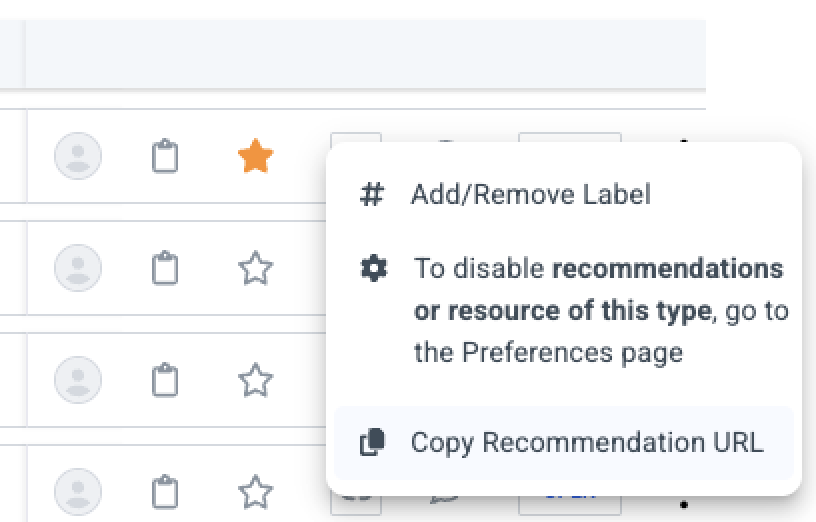
Share any recommendation directly with a teammate by copying its unique URL straight from the recommendations table. No more navigating back to find the right resource - just copy and send.
Account Settings
Fiscal Year Calendar
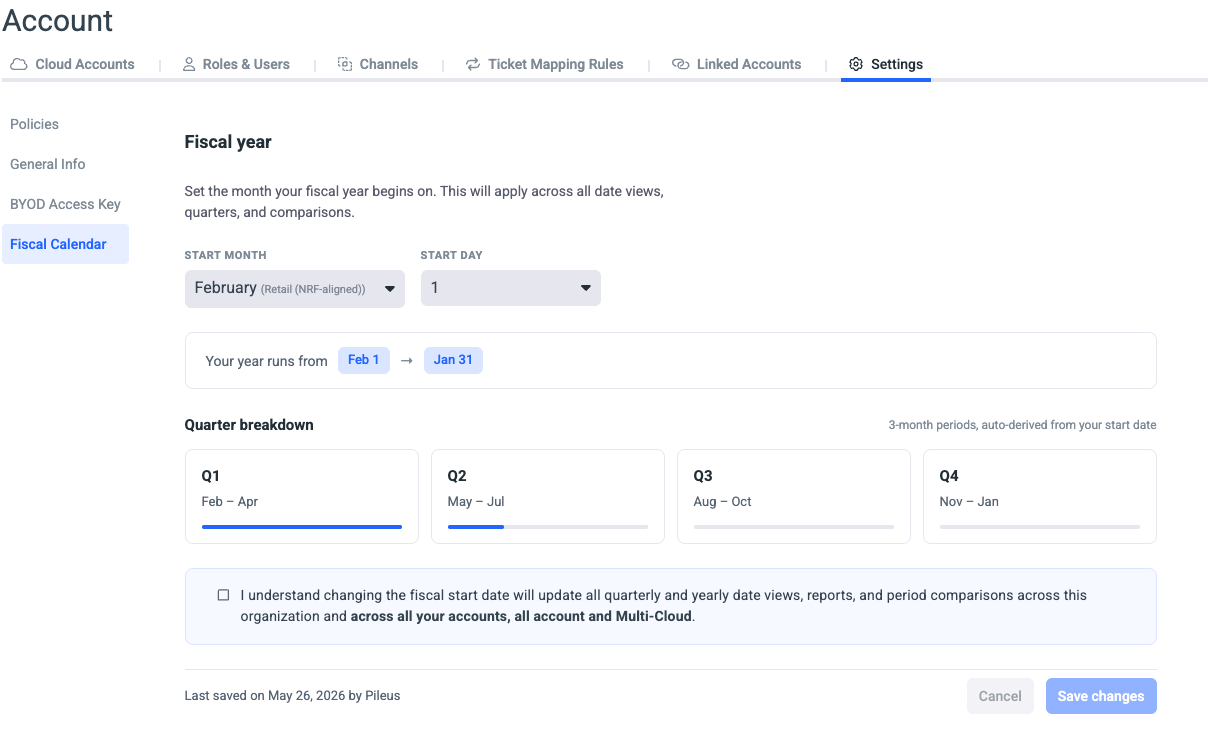
Define your organization's fiscal year once, and every quarterly and yearly view in Umbrella re-aligns automatically across all platform capabilities. Quarters, period comparisons, and reporting ranges all follow your accounting calendar instead of the default January to December cycle.
Kubernetes
Network Cost Allocation Enhancement
Network cost attribution for Kubernetes workloads is now more precise. Previously, pods running on the host network were attributed the full node-level network traffic, inflating their reported usage and costs. Now, only pods with their own isolated network namespace contribute to per-pod network cost, giving you an accurate picture of which workloads are actually driving network spend.
Behavior changeEffective May 14th, costs that were previously reported as network costs are now assigned to compute. As a result, the reported compute costs of other Pods/Namespaces may increase.
Budgets & Alerts
Cost Type Filter
Budgets can now be scoped by cost type, giving you precise control over what spend counts toward each budget - available across each cloud provider and Multi-Cloud. Alerts can now be filtered by cost type as well, so you get notified on exactly the spend that matters, available across each cloud provider.