
Business Mapping Telemetry Based
Overview
Allocating shared costs by custom dimensions such as Customer ID, Tenant ID, or API usage was previously not possible, since this data is often not included in billing data or required creating and linking two separate mappings. Telemetry-Based Mapping consolidates this into a single configuration.
AvailabilityAs part of the unit economics and in user Management 2.0 only.
Why it matters
Allocating costs by a telemetry dimension previously required two chained mappings: a standard mapping to filter the billing costs, and a separate split mapping to distribute them by telemetry, connected together. That flow was complex and error-prone to maintain. Telemetry-Based Group By consolidates both steps into one configuration.
How allocation works
Costs are distributed by weighted average against the selected metric. If Customer A consumed 400 units and Customer B consumed 600 (1,000 total), A is allocated 40% of the filtered cost and B 60%. Allocation tracks actual consumption rather than fixed ratios.
Weighted average is the allocation method and is applied automatically - there is no setting to change it.
Set up a mapping
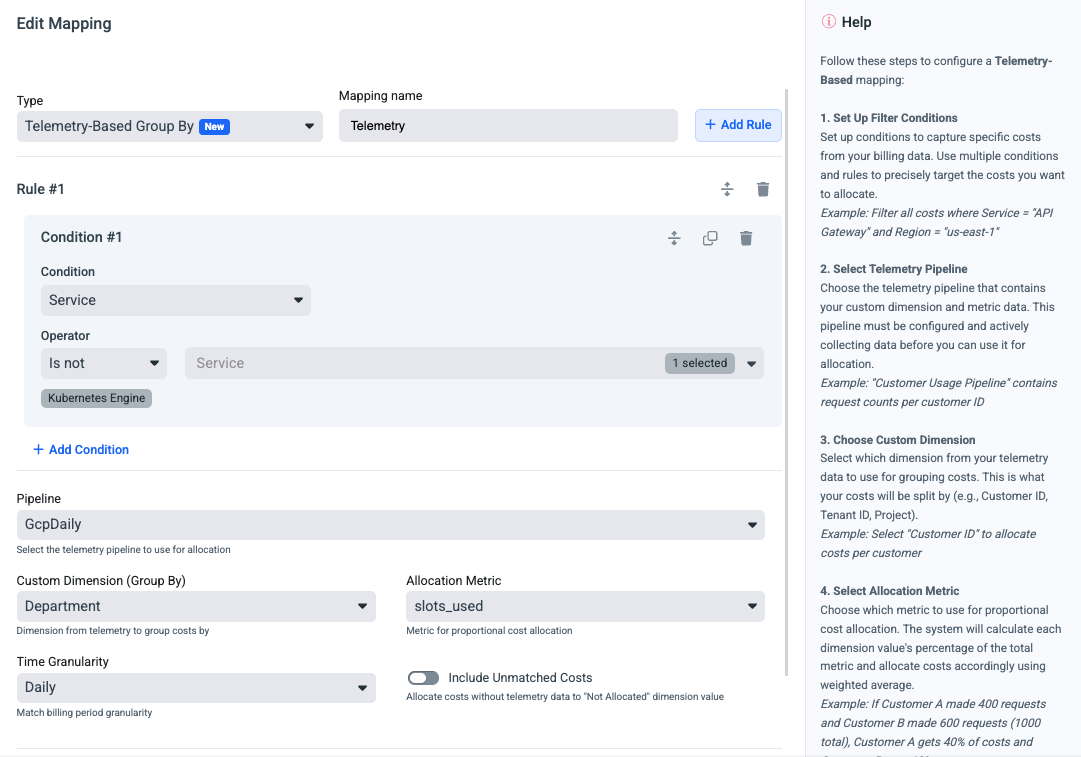
- Type - select Telemetry-Based Group By.
- Add Rule → Conditions - build the billing filter. Each condition pairs a dimension (for example, Service), an operator (for example, Is not), and one or more values (for example, Kubernetes Engine). Use Add Condition to stack conditions within a rule.
- Pipeline - select the telemetry pipeline to use for allocation (for example,
GcpDaily). - Custom Dimension (Group By) - select the telemetry dimension to group costs by (for example, Department).
- Allocation Metric - select the metric used for proportional allocation (for example,
slots_used). - Time Granularity - set the granularity to match the billing period (for example, Daily).
- Include Unmatched Costs - when enabled, costs with no matching telemetry data are allocated to a "Not Allocated" dimension value instead of being dropped.
PrerequisiteThe telemetry pipeline must be configured and actively collecting dimension and metric data before it can be used for allocation. See Telemetry Pipeline Onboarding.
The in-product Help panel walks through the same sequence: set up filter conditions, select the telemetry pipeline, choose the custom dimension, select the allocation metric, and complete the remaining steps.