
Telemetry Pipeline Creation
Ingesting Telemetry Metrics into Umbrella
Telemetry pipeline is how you bring measures (such as cpu_utilization_pct or customer requests) and their dimensions (such as Region or Service) into Umbrella. You set one up with a guided 5-step wizard. Once the pipeline is processing, you can build KPIs on its measures and use them across the platform.
Start from the Metrics Pipelines tab of Unit Economics and click + Add New Pipeline.
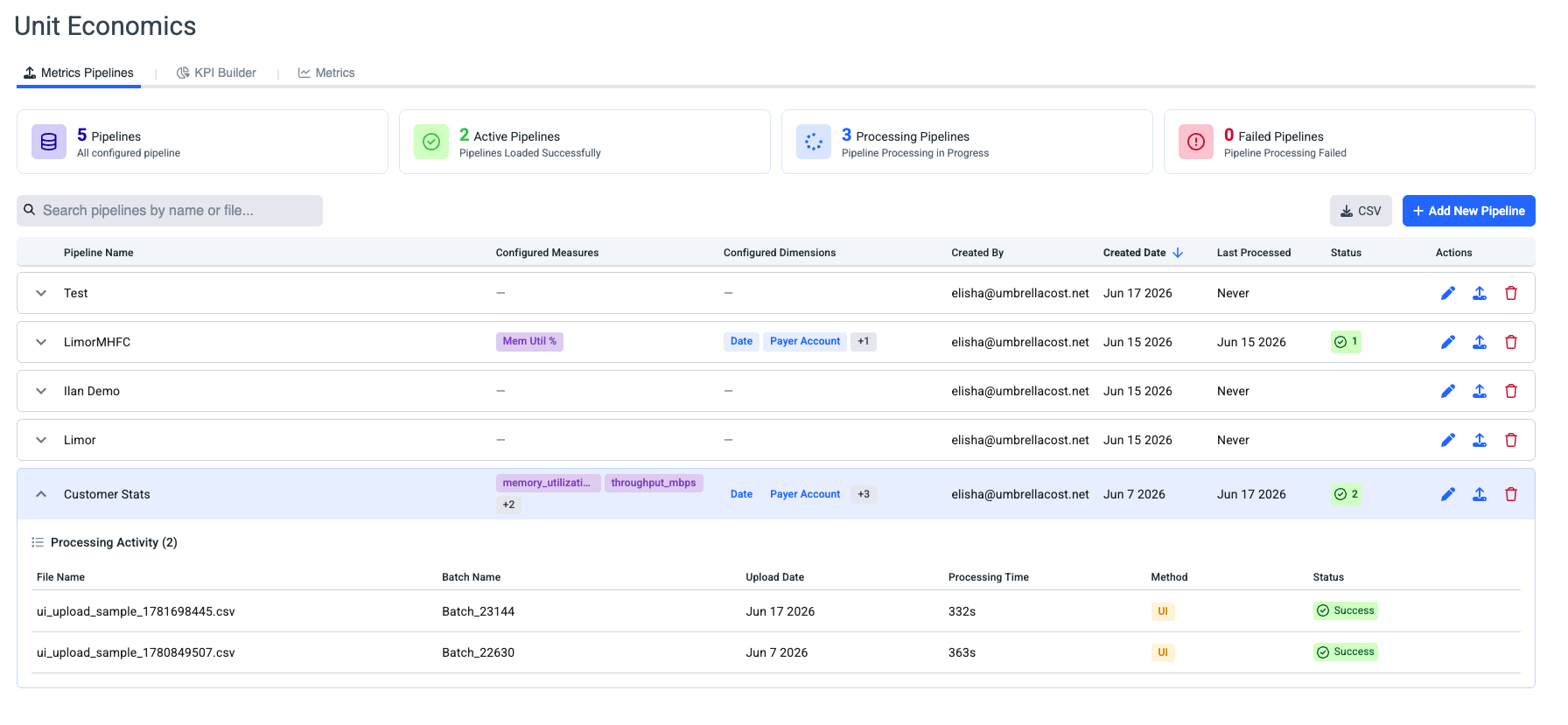
The onboarding flow at a glance
| Step | What happens |
|---|---|
| 1. Get Started | Overview of the wizard and a few things to know before you begin. |
| 2. Upload & Config | Name the pipeline, copy your S3 bucket, retrieve an access key, and upload a sample CSV. |
| 3. Review & Mapping | Preview the file and map each column to a role. Umbrella suggests mappings for you. |
| 4. Measure Config | Define your measures, set an aggregation for each, and assign units. |
| 5. Summary | Review everything, validate, and start processing. |
Good to know before you start
- Each pipeline supports a maximum of 5 measures.
- Each pipeline supports a maximum of 5 dimensions.
- After pipeline creation, you can load data via the UI or S3 file load.
- Pipeline name, dimension mapping, and measure display names can all be edited later.
Step 1: Get Started
The first screen summarizes what the wizard will walk you through. Review it, then click Get Started.
Step 2: Upload & Configuration
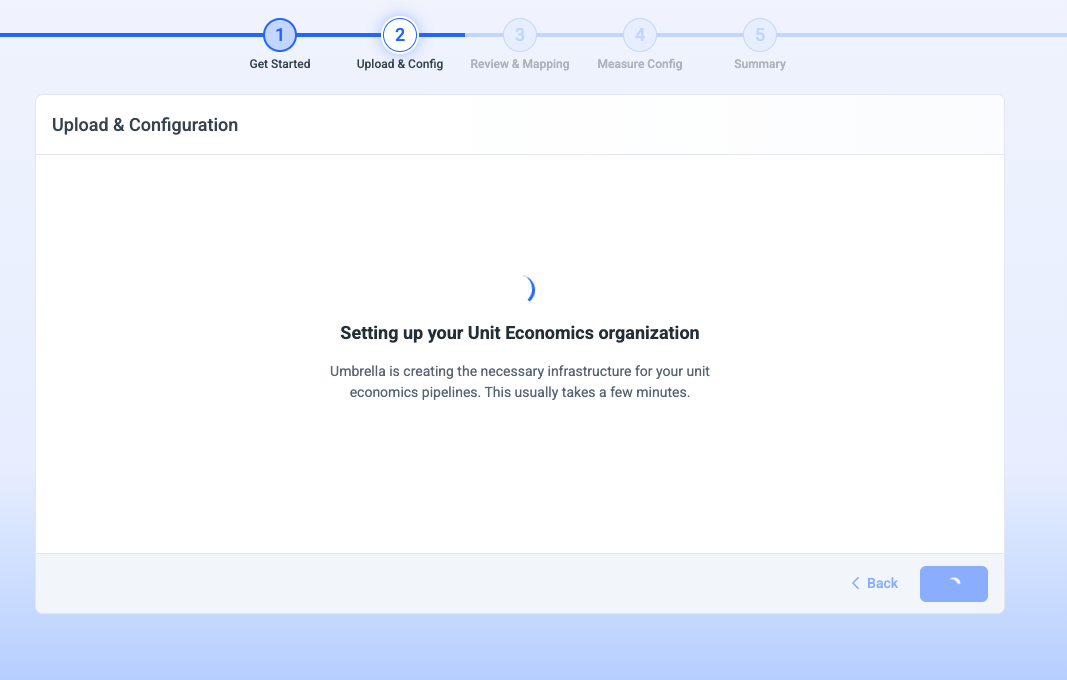
2.a Unit Economic Organization
Umbrella performs this setup automatically in the background the first time you configure a Unit Economics pipeline.
2.b Pipeline Name & Load Sample file
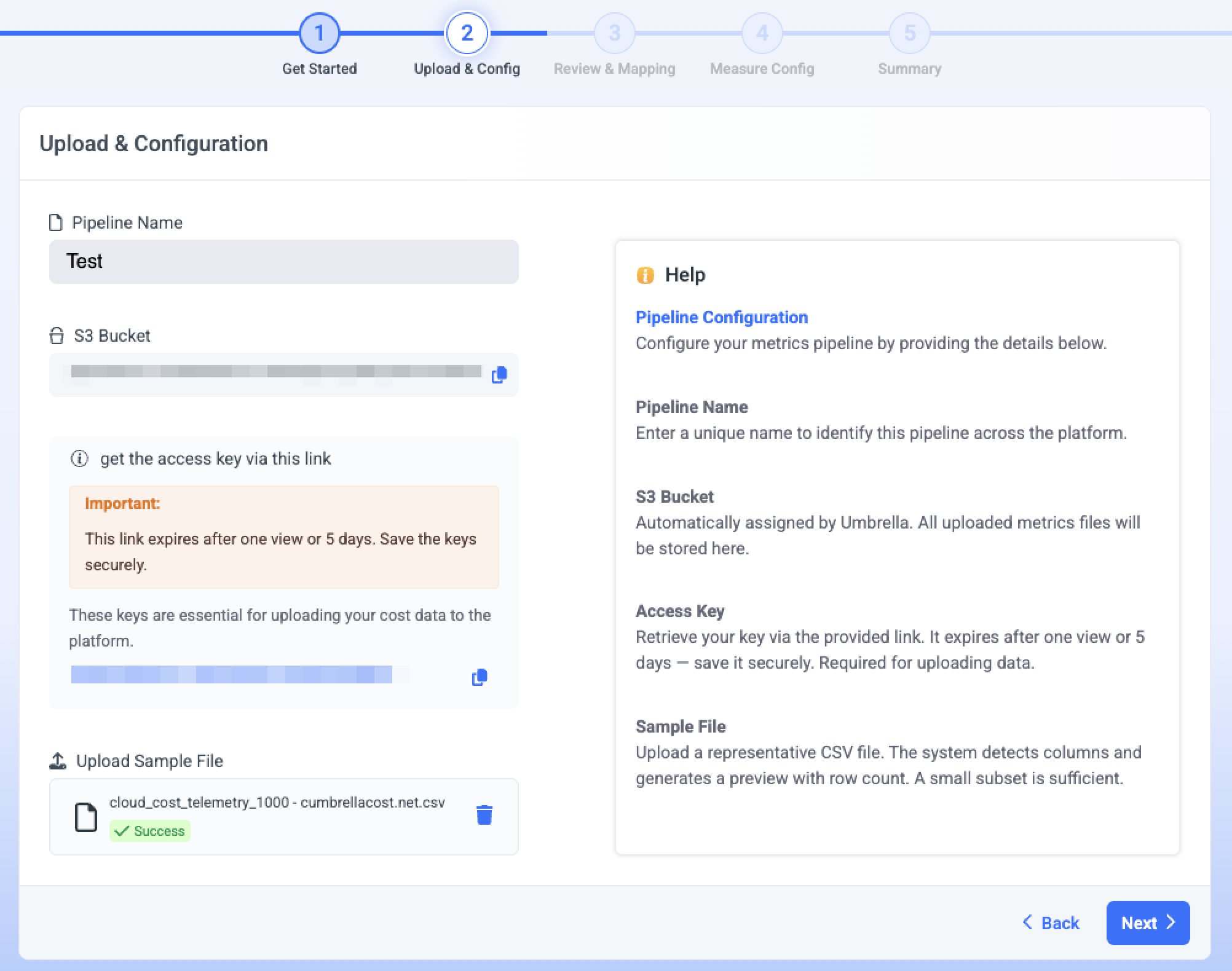
- Enter a Pipeline Name - a unique name that identifies this pipeline across the platform.
- Umbrella generates an S3 bucket where all uploaded metrics files are stored for periodic uploads.
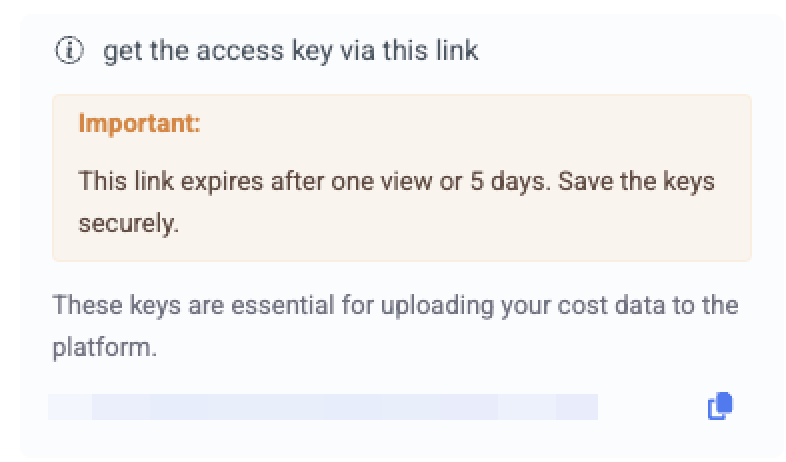
- Retrieve your Access Key using the get the access key via this link link.

- Under Upload Sample File, click or drag a representative CSV. Umbrella detects the columns and generates a preview with a row count.
- Click Next.
Step 3: Review & Mapping
Umbrella displays a File Preview (including sample rows and detected row and column counts) to help you confirm the file was parsed correctly. You can then map each column to a pipeline role: Date, Account ID, Measure, or Dimension (Cloud/Custom Dimension).
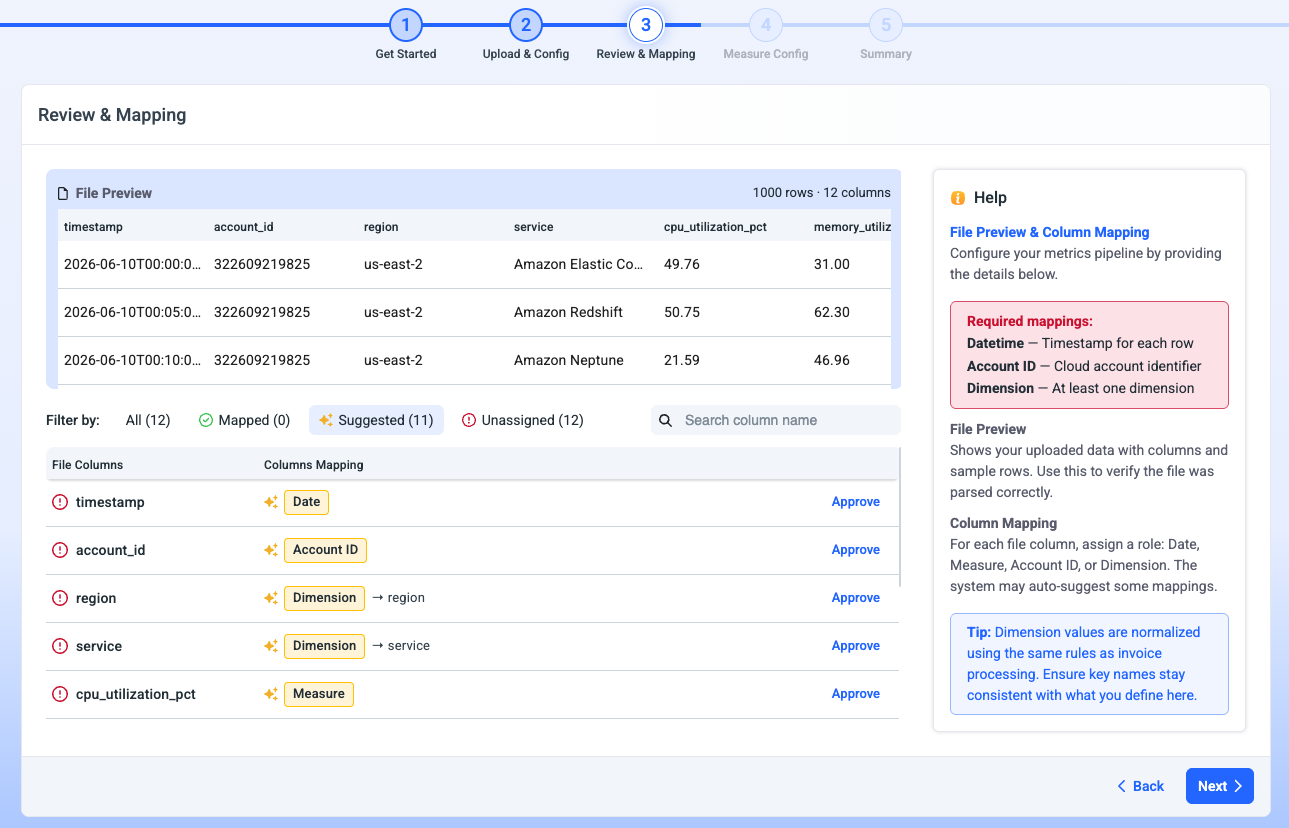
Filter By
- All: View and map all input columns.
- Mapped: View columns that have already been mapped.
- AI-suggested mappings: Umbrella automatically suggests a role for each column (marked with a ✨ icon and grouped under Suggested). Approve the suggestion to accept it as-is, or map it manually.
- Unassigned: View columns that are not yet mapped.
⚠️ Required Dimensions & Mappings
Four mappings are mandatory:
| Mapping | Requirement | Description |
|---|---|---|
| Datetime | One per row | The timestamp for each row, in RFC 3339 format - for example 2026-05-27T15:04:05Z or 2026-05-27T15:04:05+07:00. |
| Account ID | Required | The cloud account identifier corresponding to the injected measure or dimension. Injected metrics are visible in the relevant account based on this relationship. |
| Dimension | At least 1, up to 5 | At least one dimension, and up to five, in the same pipeline. Values mapped to Region, Family Type, and Services must match Umbrella's predefined values (see Dimension Value Mapping Requirements).
|
| Measures | At least 1, up to 5 | At least one measure, and up to five, in the same pipeline. |
⚠️ Dimensions Values Requirements
The pipeline data mapped to Region, Family Type, and Services dimension values must match Umbrella's predefined values. Use the list below to align your injected data with the values used to match cost data.
| Dimension | Values must match |
|---|---|
| Region | Umbrella predefined value→ |
| Family Type | Umbrella predefined value→ |
| Services | Umbrella predefined value→ |
| Operation | Umbrella predefined value→ |
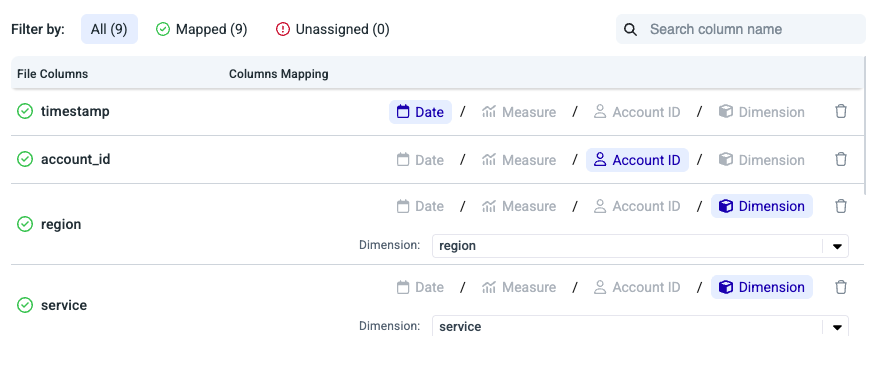
Step 4: Measure Config
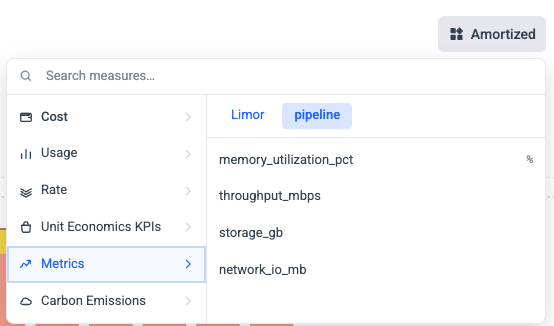
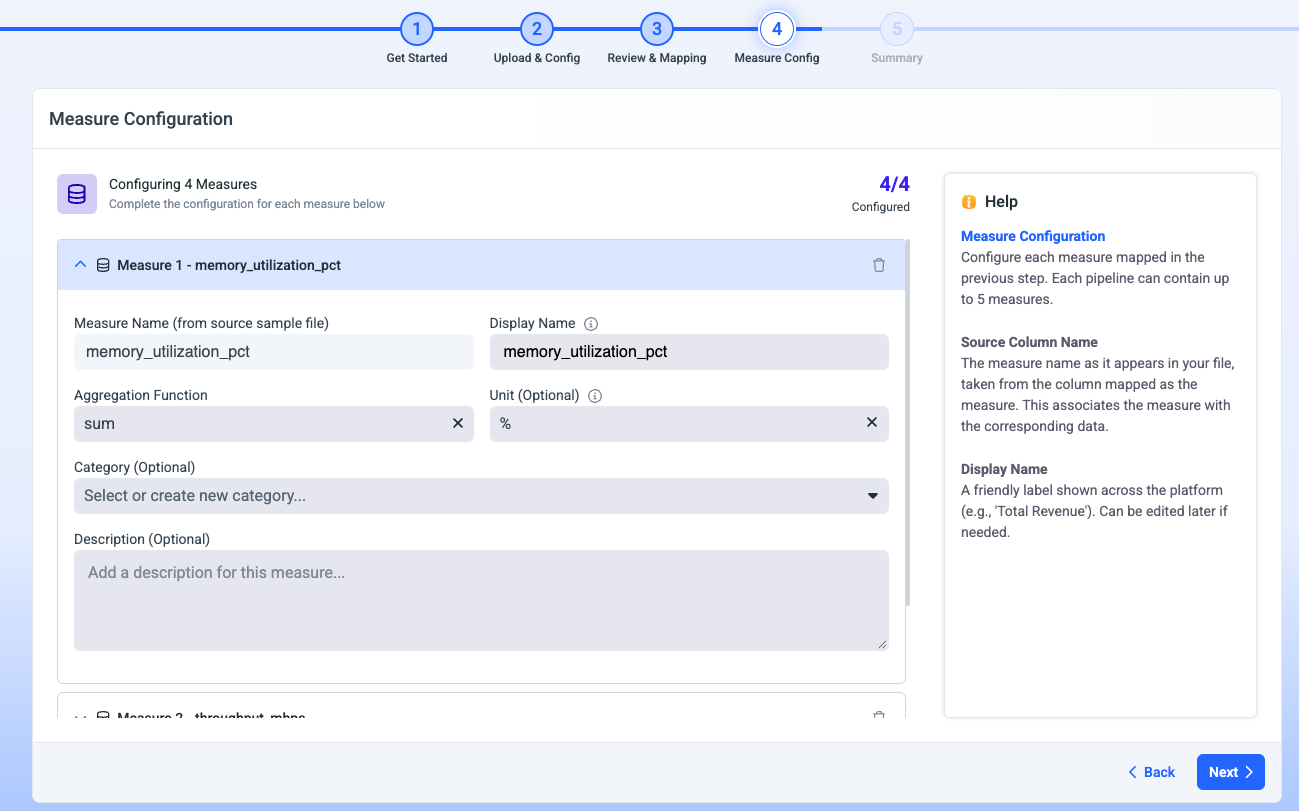
Define your measures - the numeric values you're tracking (for example, throughput_mbps, storage_gb, Memory_util). For each measure, set an aggregation function (Sum, Average, Min, or Max) and assign a unit. You can configure up to 5 measures per pipeline. Click Next.
The aggregation function is mandatory as it is used for data rollup in Cost & Usage Explorer/Assets.
Category is used to create different folders in Cost & Usage Explorer that organize your injected measures.
Step 5: Summary
- Review the full configuration - pipeline name, file name, S3 bucket, loading method, row count, columns detected, measures, and dimensions.
- Keep the email notification option selected (and confirm the address) if you want to be told when processing finishes.
- Click Finish to validate the file and start processing.
What validation doesThe system checks your file against the pipeline configuration. Missing mapped columns fail the process; extra unmapped columns are safely ignored.
After processing: success or failure email
When processing finishes, Umbrella emails the address you configured.
-
On success, you'll get a confirmation that processing is complete, with shortcuts to Open Umbrella Cost or Create KPIs. You can now start monitoring metrics, creating KPIs, and scheduling the data for periodic loading.

-
On failure, you'll get an email describing the issue with a Verify your pipeline configuration link, plus a path to support if you need help.

Load more data later
Once a pipeline exists, keep it fed via UI upload or the S3 file load.
- Update existing data by uploading the same dimensions + timestamp with new values.
- Delete data by sending the same time range with null values.
Limits and reference
| Item | Value |
|---|---|
| Measures per pipeline | Up to 5 |
| Custom dimensions per pipeline | Up to 5 |
| Required mappings | Datetime, Account ID, at least one Dimension |
| Aggregation functions | Sum, Average, Min, Max |
| Upload formats | CSV (UI), CSV/JSON |
| Max file size | 5 GB |
| Editable after creation | Pipeline name, dimension mapping, measure display names |
Editing Pipelines
Click the edit icon to modify the pipeline, including its name, column mappings, measure names, aggregation, unit, and category.

Manual Data injection
Upload data via the UI by clicking the icon and selecting a file.

Pipeline Data Validation
- The system checks your file content against the pipeline configuration, column names, datetime format and account id values.
- Missing mapped columns will fail the process; extra unmapped columns are safely ignored.
Account ID ValidationIn case the accounts mentioned in the file are unknown and doesn't exist in the organization the processing will fail

Processing
Once validated, metrics data processing begins. You'll receive an email notification on success or failure.
Next stepOnce a pipeline is processing, build a KPI on its measures.
MSP scenarios
- MSP users can inject Unit Economics telemetry on the MSP organization.
- MSP users can inject telemetry into a customer organization on the customer's behalf.
- MSP customers can inject telemetry into their own customer organization.
Cloud dimensions
Payer Account ID
Payer Account Name
Region
Service
Linked Account
Customer
Family Type
Instance Type
Operation
Purchase Option
Cost Center
Tags
Business Mapping
Cluster
Node Group
Node
Workload
Namespace
Resource
Pods
Payer Account ID
Payer Account Name
Region
Service
Subscription
Customer
Meter Name
Sub Meter Category
Operation
Purchase Option
Instance Type
Cost Center
Tags
Business Mapping
Resource Group
Cluster
Node Group
Node
Workload
Namespace
Resource
Pods
Payer Account ID
Payer Account Name
Region
Service
Project
Instance Type
Operation
Family Type
Label Name
Cost Center
Tags
Business Mapping
Cluster
Node Group
Node
Workload
Namespace
Resource
Pods
Updated 3 months ago