For AI agents: visit https://docs.umbrellacost.io/llms.txt for an index of all pages formatted in Markdown and endpoints in OpenAPI. Append .md to any documentation page URL to get its markdown version.
An UmbrellaCost admin manages the organization, invites users, defines the roles, the cost centers and manages the overall structure of the organization.
As an UmbrellaCost reseller admin, you serve as an admin to your own organization, as well as your customers. To keep it simple, the organization management area (⚙️) for reseller admins includes several components to allow you managing your own organization, or your customers, in the same place, yet with clear distinction between them.
Manage Customers
Go to the customers tab and manage your accounts and customers.
Manage My Organization or my Customers
Use the simplified tabs to administer your own organization or your customers.
Manage Customers
The Customers tab allows you to
View your customers
Add new customers
Click on +Add Customer to add new customers under your organization.
Assign accounts to customers, shared or dedicated.
Search for sub accounts to find their assignment to customers.
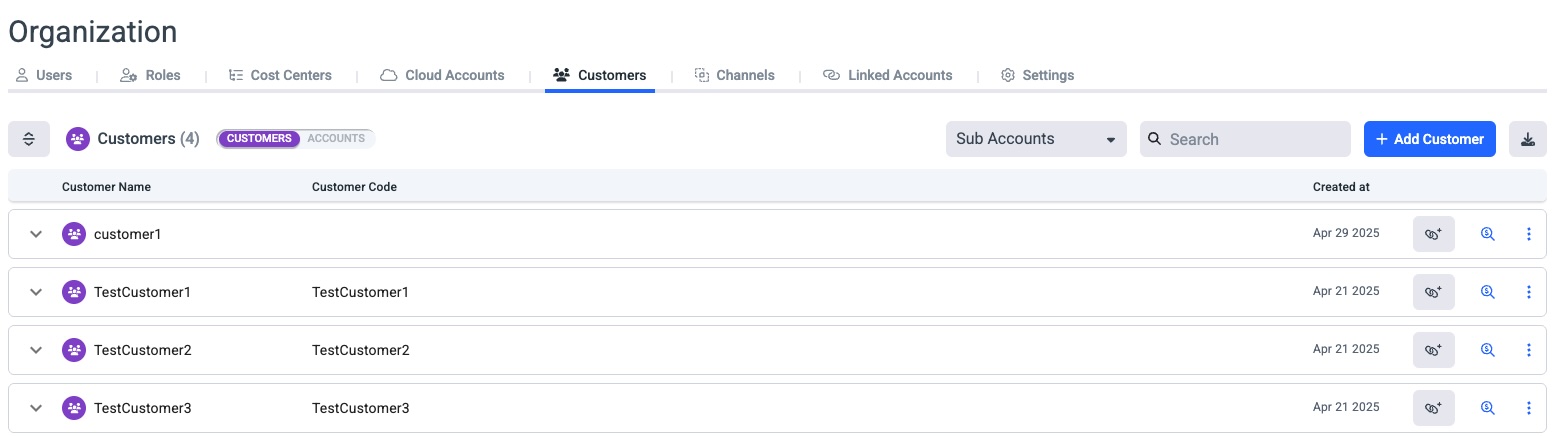
Customers View
This view lists all customers.
Click on a customer name to expand and view accounts that are assigned to that customer.
Customers Tab -Customers View
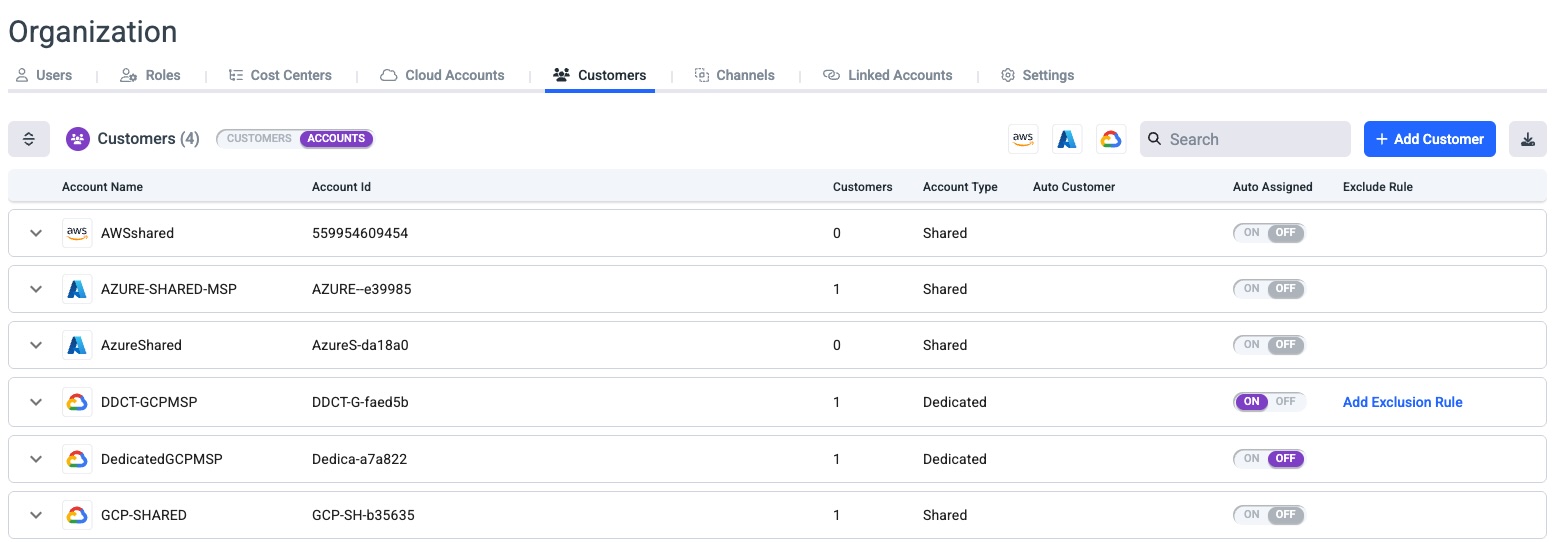
Accounts View
This view lists all the accounts.
The information for each account:
Account Name - The account name as it was onboarded.
Account Id
Customers - the number of customers this account is assigned to
Account Type - Shared or dedicated. Marking the account as a dedicated account for one customer, or shared between several customers.
Auto customer - Marking whether customers are automatically created from the billing file. This is relevant for:
Azure CSP program customers
AND the account is defined in the partner portal with Auto customer
AND the account is defined as a shared account.
Auto Assigned - An on/off switch to determine whether new sub accounts added to this account are automatically assigned to the customer. Relevant to dedicated accounts in AWS and Azure.
Exclude Rule - Exclude expression for accounts. Relevant to
Dedicated accounts
AND defined as Auto Assigned
Click on an account to view the customers it is linked to.
Customers tab - Accounts View
Manage your own organization or your customers
✅
The My Org / Customer switch
Find it in the Users, Roles and Cost Centers Tabs.
Switch left to administer your own org, switch right and choose a customer to administer that customer.
My Org OR Customer Switch
As a reseller admin, you can view your own users/roles/cost centers, as well as your customers.
Each customer admin can manage their own users, roles and cost centers, they see only their own organization's users, roles and cost centers.
Manage Users
ℹ️
Add users to your own organization
Add a user to my org
Or, switch to right, and choose a customer and invite users to that customer organization.
Add a user to a customer org
Manage Roles
ℹ️
Add Roles to your own Organization
Add roles to my organization
Or, switch to customers and add roles to one of your customers
Add Roles to a customer
Manage Cost Centers
ℹ️
Manage your own organization's Cost Centers
My Org Cost Centers
Or, switch to customers and choose a customer to manage their Cost Centers
Customer Cost Centers
Customer Organization (Optional)
Customer Organization is an optional configuration used only when multiple customers are required under the same organization to support separate billing invoices for different departments under the same customer and domain.
In this model, one customer acts as the Customer Organization, serving as the organizational and domain anchor, while additional customers are created under it for individual billing and invoicing.
✳️
When to Use This Feature
Use Customer Organization only when multiple customers must exist under the same organization for billing purposes. Each customer requires separate billing and invoices.
Key Characteristics
The Customer Organization:
Does not have rebilling, cost visibility, or usage data.
Acts only as an anchor for the organization and domain.
Each associated customer:
Has its own linked accounts.
Has its own associated users, and can be cross-customer users.
Receives separate billing and invoices.
Configuration Flow
Follow these steps to configure a Customer Organization:
Create the Organization Customer
Create a customer that will later serve as the Customer Organization.
This customer must be activated to be selectable.
Create the Billable Customer
Create the customer who will own the linked account(s) and receive billing/invoices.
During customer creation (or update), select the relevant Customer Organization from the dropdown.
Associate Linked Accounts
Associate the required linked accounts with the billable customer (not the organization customer that is read-only for linked account additions in the UI).
Create customer users
Create a user under the parent organization and assign him a role with permission to view this customer data.
✳️
Important Rules and Behavior
The Customer Organization can be identified in the customer list by the value “Parent Organization = Yes”.
Customer Organization selection is permanent: Once a Customer Organization is set for a customer, it cannot be changed.
If an update is required, the customer must be deleted and recreated with the correct Customer Organization.
Activation requirement: Only activated customers can be selected as a Customer Organization in the customer creation or update wizard.
MSP view:New users will be created for the customer and associated with the parent organization, which will now appear in the customer list.
MSP view: If there are existing users for customers that are now associated with the parent organization, those users will appear under the parent organization in the user page.