
Tiers Billing Rules
Overview
Tiered Billing Rules allow you to apply cost adjustments or discounts based on usage or cost thresholds. This feature is particularly useful for implementing free-tier allocations, volume-based discounts, or graduated pricing models similar to cloud provider offerings.
The rule adjusts costs according to tiered margin logic and can either create a new custom service line in the account or apply directly to the service classified as a Family Type called "Tiers".
Key Features
- Usage-based or Cost-based Tiers: Configure rules based on actual usage quantities or total costs.
- Flexible Margin Types: Apply discounts or markups using either fixed rates or percentages.
- Free Tier Support: Provide 100% discounts for initial usage amounts.
- Custom or Inline Application: Choose to create separate custom service line items or apply adjustments directly to existing services.
- Multi-tier Support: Define multiple pricing layers with the "Add Tier" functionality.
Creating a Tiered Billing Rule
Step 1: Select Margin Type
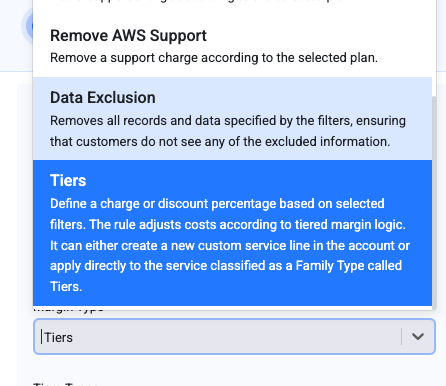
From the "Create Billing Rule" dialog, select Tiers from the Margin Type dropdown.
Step 2: Choose Tier Type
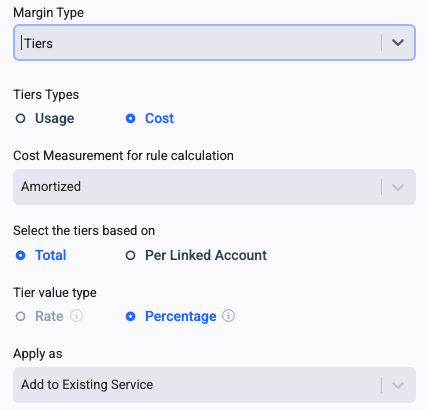
Select between two tier types:
- Usage-Based Tiers: Configure tiers based on actual usage quantities. When selecting Usage:
Required
At least one of Quantity Type or Usage Type must be selected.
A validation message will appear: "At least one of Quantity Type or Usage Type filters must be selected"
-
Cost-Based TiersConfigure tiers based on total cost amounts. When selecting Cost:
- Cost Measurement: Choose how costs are calculated (e.g., Amortized).
- No mandatory filter requirements - any filter combination can be applied.
Step 3: Configure Tier Calculation
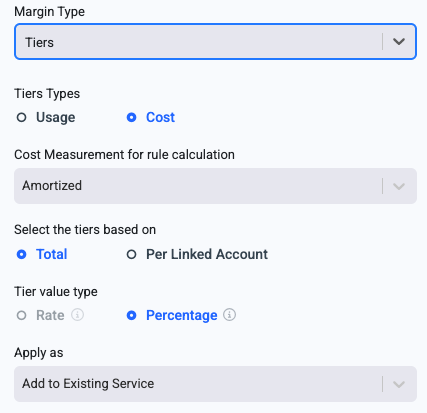
Select the tiers based on:
- Total: Apply tiers across the entire account.
- Per Linked Account: Apply tiers separately for each linked account.
Tier Value Type:
- Rate (Default): Apply a fixed cost amount per unit based on the billing currency (e.g., $0.20 per GB-second).
- Percentage: Apply a percentage markup or discount to the base cost (e.g., 20% markup or -10% discount).
Step 4: Choose Application Method
Apply as:
- Add to Existing Service: The margin is inserted as a Family Type called "Tier" within the existing service line item
- Custom Service: Creates a separate custom service line item in the account for better visibility
Step 5: Define Tier Ranges
-
Click "+ Add Tier" to define your pricing tiers.
-
For each Usage Tier type, specify:
- Up to [amount]: The threshold for this tier (e.g., "Up to 4 B" or "Up to 4")
- Units: (For usage-based tiers only) Select the unit of measurement.
- Percentage (%) **or Rate: The margin value for this tier
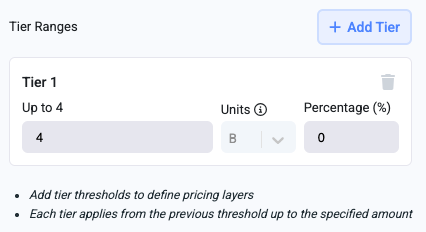
Usage Tiers Type Range
- For each Cost Tier type, specify:
- Up to [amount]: The threshold for this tier (e.g., "Up to $4" or "Up to 4")
- Percentage (%) **or Rate: The margin value for this tier.
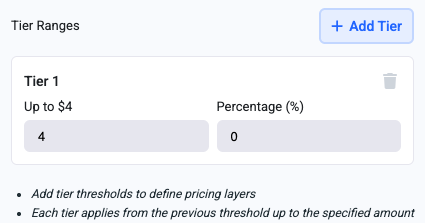
Cost Tiers Type Range
Important Notes
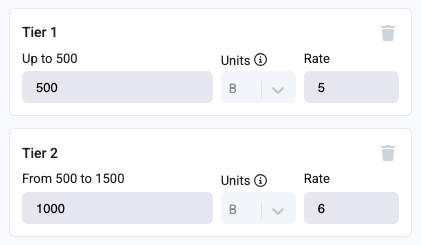
- Each tier applies from the previous threshold up to the specified amount.
- You can add multiple tiers to create graduated pricing structures.
Step 6: Apply Filters
Use the filter panel on the right to specify which services and resources the rule applies to.
Filters marked with a red warning icon are required based on your tier configuration.
Unit Selection for Byte-Based Quantities
When Quantity Type "Bytes" is selected, a Units dropdown becomes available allowing you to specify the unit of measurement:
Binary Units (IEC):
- B (Byte)
- KiB (Kibibyte)
- MiB (Mebibyte)
- GiB (Gibibyte)
- TiB (Tebibyte)
- PiB (Pebibyte)
- EiB (Exbibyte)
- ZiB (Zebibyte)
- YiB (Yobibyte)
Decimal Units (SI):
- KB (Kilobyte)
- MB (Megabyte)
- GB (Gigabyte)
- TB (Terabyte)
- PB (Petabyte)
- EB (Exabyte)
- ZB (Zettabyte)
- YB (Yottabyte)
Note
The unit dropdown is only enabled when "Bytes" is selected as the Quantity Type.
A tooltip indicates: "Choose 'Bytes' as the Quantity Type to select the desired unit".
Rule Frequency
Choose when the rule applies:
- One Time: Apply the rule for a specific billing period starting from a selected date
- Recurring: Apply the rule continuously for all future billing periods
Validation Rules
The system enforces the following validations:
- Usage Selection: If "Usage" is selected, either Quantity Type or Usage Type must be specified. An info banner states: "In case Usage is being selected, then Quantity type or Usage type must be selected."
- Custom Service Application: If applying as a custom service within a selected service, the service field must be populated (applies to both Usage and Cost selections).
- Unit Selection: The unit dropdown is only enabled when Quantity Type "Bytes" is selected.
- Required Filters: A warning banner at the bottom states "Some filters are required" if mandatory filters are not yet configured.
- Service Selection: When Usage Type is marked with a warning icon, the Service filter becomes required.
Updated 8 months ago