
Dashboard Templates
You can use a dashboard template to define a common panel that can be used by various users/accounts within your organization.
Dashboard templates automatically adapt to the account in which they are used, eliminating the need to recreate the same dashboard for each account.When a dashboard is saved as a template, a snapshot of its current configuration is created. Any changes made to the dashboard after the template is saved will not be reflected in the existing template unless it is saved again.
To access your dashboard templates, navigate to Cost & Usage > Dashboards and then click on the Dashboard templates tab.

Create a dashboard template
- Navigate to Cost & Usage > Dashboards.
- In the far right column of the row of the dashboard you want to save as a template, click the More info icon and then select Save as template.
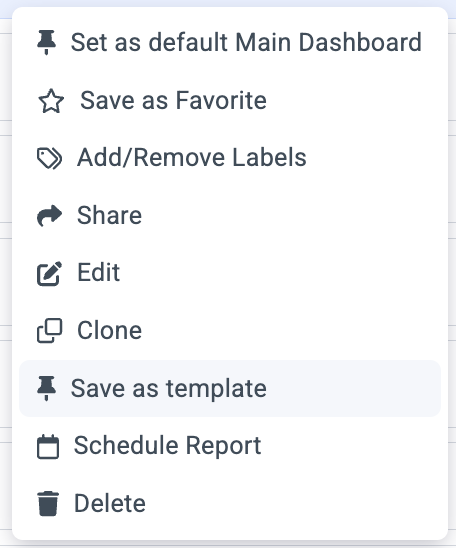
The dashboard is added to the Dashboard Templates tab.
NoteThe following prerequisites for saving a dashboard as a template dashboard:
- The dashboard can’t contain tags, virtual tags or customer tags.
- The dashboard can’t contain multi-cloud panels.
Clone a dashboard template
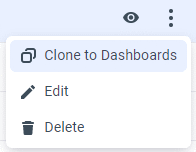
In order to customize the dashboard template you can clone the template to a dashboard (in the row of the relevant dashboard template, click the More info icon and select Clone to Dashboards) and customize it as you wish; from that moment on it will be available as a dashboard.
Edit a dashboard template layout
The dashboard template layout can be edited. In order to edit the panels, you can clone the template to the dashboard and customize it as a dashboard. For these types of dashboards, the “Save as template” option is disabled.
Updated 2 months ago