
Databricks
Overview
Connect a Databricks account to Umbrella to bring Databricks cost and usage into the platform alongside your other cloud providers. Umbrella reads billing data from Databricks Unity Catalog system tables (system.billing, system.access) through a SQL warehouse in one of your workspaces, using an OAuth service principal for authentication.
Onboarding is a three-step wizard: Add Databricks Details → Grant Access → Process Data. You can configure the connection manually, or automate it with the Databricks onboarding Terraform module.
Databricks bills through a separate metering path than your cloud providers, and its granular cost data lives in Unity Catalog rather than a cloud bill. Onboarding surfaces Databricks spend broken out by workspace, SKU, and usage in the same views as AWS, Azure, GCP, and Snowflake - available for Cost & Usage Explorer, Business Mapping, Budgets, and Waste Detector.
What Umbrella reads
Umbrella queries these Unity Catalog system tables through the SQL warehouse you specify:
system.billing- usage and cost records.system.access- identity and workspace access records used for attribution.
The connection is read-only. Nothing is written back to your Databricks account.
Onboarding Prerequisites
Have the following ready on the Databricks side:
- Account admin access to the Databricks Account Console.
- A workspace with Unity Catalog enabled and the
system.billingandsystem.accessschemas turned on. - A SQL warehouse in that workspace - Umbrella queries the system tables through it.
- A service principal on your Databricks account, or the ability to create one.
Manual Onboarding
Step 1: Add Databricks Details
Open the wizard from Cloud Accounts → Create Cloud Accounts → Databricks.
At the top, choose how to connect:
- Manually - fill in the fields below.
- Automatically (Terraform) - use the pileus-cloud/byod-databricks-onboarding-terraform module to provision the service principal and grants, then complete the form using its outputs. See Automate setup with Terraform.
Fill in the fields:
| Field | What it is | Where to find it |
|---|---|---|
| Display Account Name | The label this account carries in Umbrella. | Any name that identifies the account for your team. |
| Databricks Account ID | The UUID of your Databricks account. | Databricks Account Console - top-right corner. Requires account admin credentials. How to find Databricks Account ID |
| Workspace URL | The workspace hosting the SQL warehouse and Unity Catalog system tables. | Your Databricks workspace URL, e.g.
|
| SQL Warehouse ID | The warehouse Umbrella uses to query system.billing and system.access. | In the workspace, open SQL Warehouses and copy the ID.
|
| OAuth Client ID (Application ID) | The Application ID (UUID) of the service principal used for OAuth. | Account Console → User Management → Service Principals → the service principal's Application ID.
|
| OAuth Secret | The OAuth secret paired with the Application ID. | In the Account Console, go to User Management > Service Principals > your SP > Credentials & secrets and click Generate secret. Copy it immediately — Databricks shows it only once. If lost, generate a new one.
|

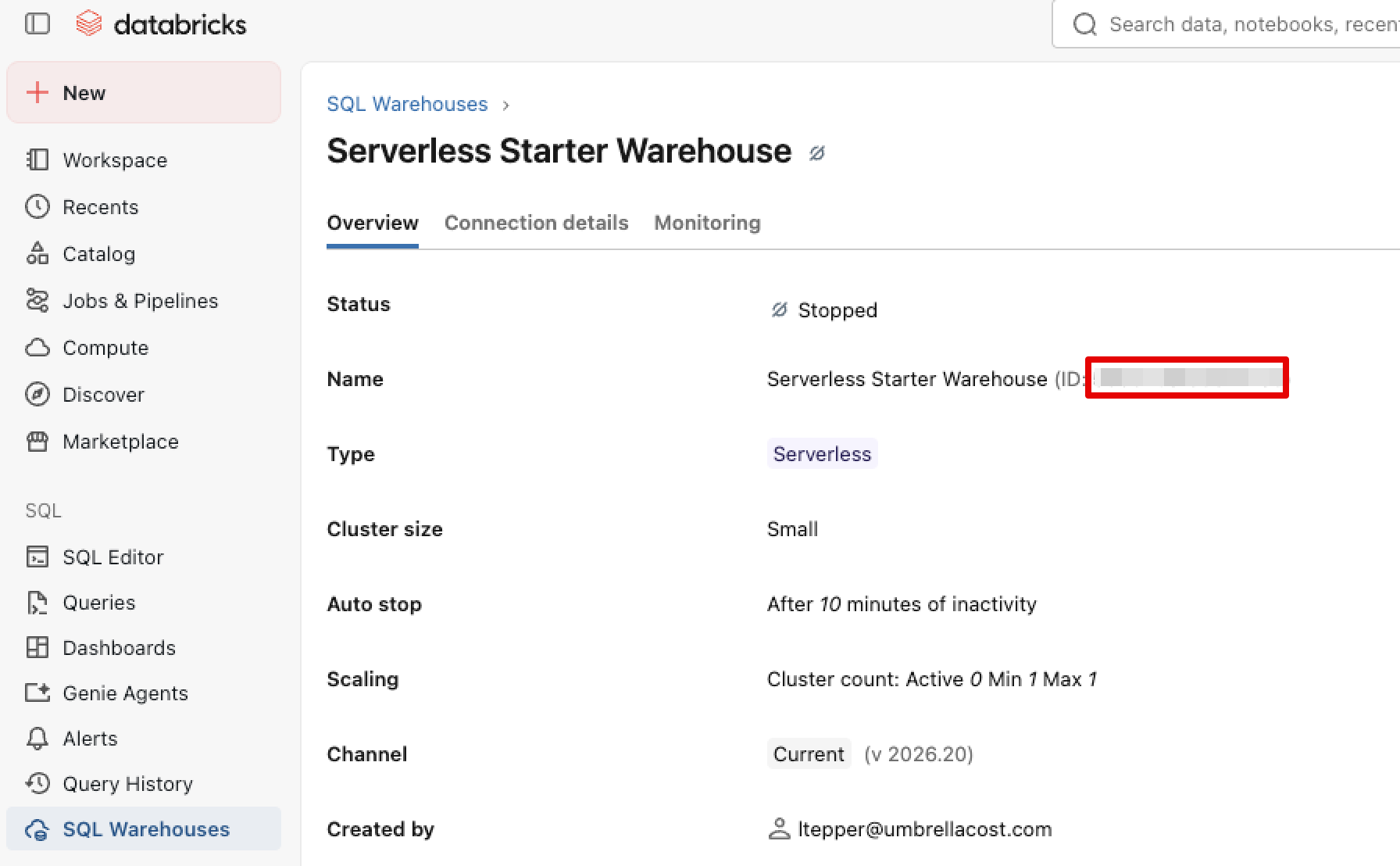
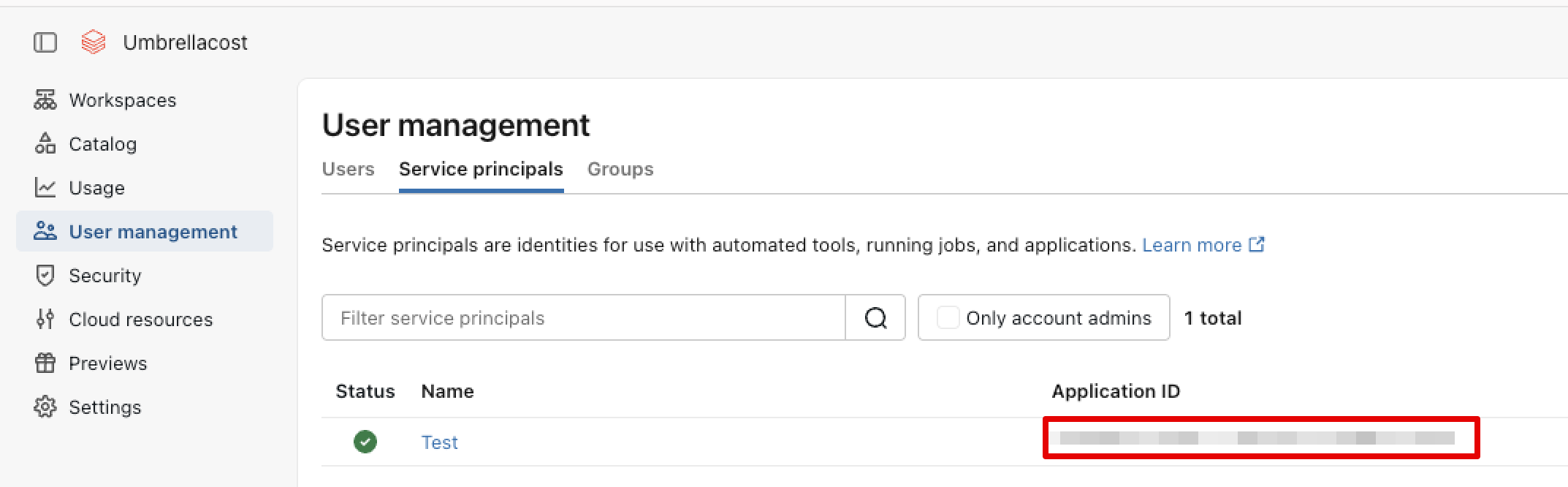
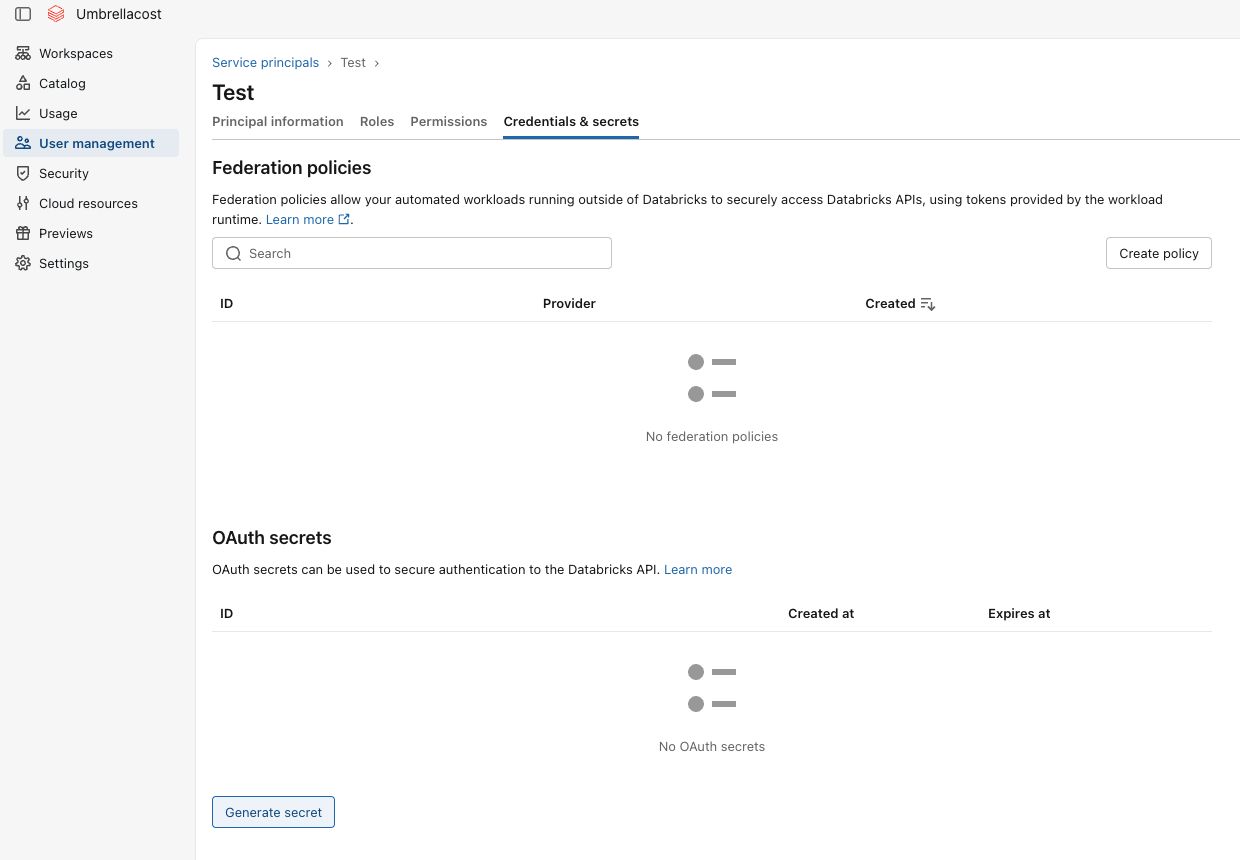
Click Next.
Application ID, not Service Principal IDDatabricks shows two identifiers on a service principal. Umbrella needs the Application ID (a UUID) - not the numeric Service Principal ID. Using the wrong one causes authentication to fail in Step 3.
The secret is available for up to 730 days, after that the session will be expired and can be updated in Umbrella Secret update under the Account setting per Databricks account.
Step 2: Grant Access
Umbrella reads cost and usage from Unity Catalog system tables. Read-only, five objects, one warehouse.
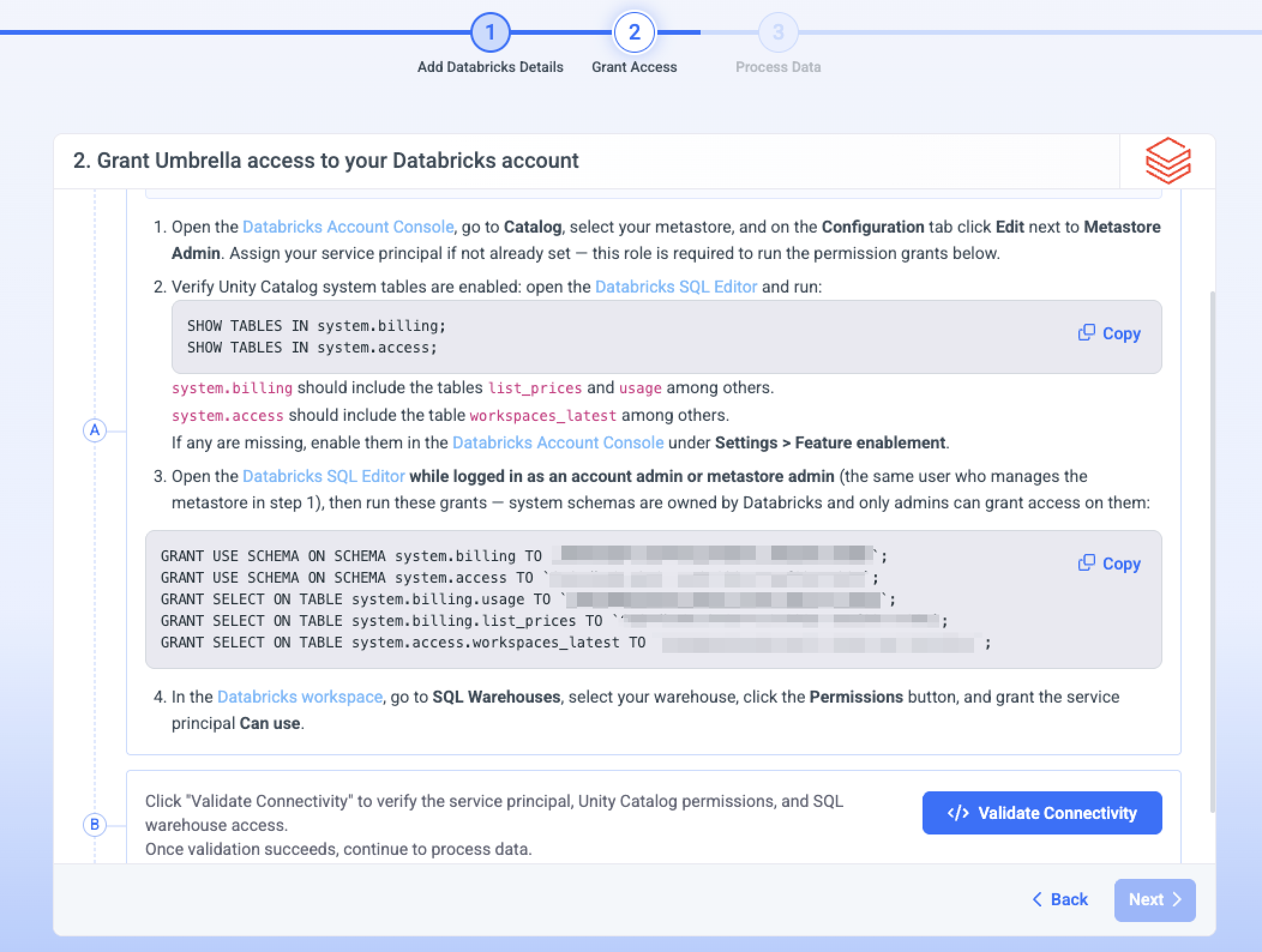
Steps 2 and 3 must be run by an account admin or metastore admin - the same user who manages the metastore in step 1. System schemas are owned by Databricks, so only admins can grant on them.
1. Assign the service principal as Metastore Admin
Databricks Account Console > Catalog > your metastore > Configuration tab, click Edit next to Metastore Admin, assign your service principal.
2. Verify system tables are enabled
In the Databricks SQL Editor:
SHOW TABLES IN system.billing;
SHOW TABLES IN system.access;
system.billing must include list_prices and usage. system.access must include workspaces_latest. If any are missing, enable them under Settings > Feature enablement.
3. Grant read access
In the SQL Editor, as an account admin or metastore admin:
GRANT USE SCHEMA ON SCHEMA system.billing TO `<service-principal>`;
GRANT USE SCHEMA ON SCHEMA system.access TO `<service-principal>`;
GRANT SELECT ON TABLE system.billing.usage TO `<service-principal>`;
GRANT SELECT ON TABLE system.billing.list_prices TO `<service-principal>`;
GRANT SELECT ON TABLE system.access.workspaces_latest TO `<service-principal>`;
usage drives cost, list_prices prices it, workspaces_latest resolves workspace names.
Grant on these five objects only. A broader grant on thesystemcatalog is not required and won't pass most security reviews.
4. Grant use of a SQL warehouse
Databricks workspace > SQL Warehouses > your warehouse > Permissions, grant the service principal Can use. Umbrella queries the system tables through this warehouse.
Step 3: Process Data
Umbrella verifies the connection and starts ingesting data.
- A successful test confirms the SQL warehouse is reachable and the system tables are readable.
- Once processing starts, the account appears in Cloud Accounts. Databricks spend then flows into Cost & Usage Explorer, Assets, Business Mapping, Budgets, and Waste Detector.
Automate setup with Terraform
For teams standardizing onboarding across many Databricks accounts, use the pileus-cloud/byod-databricks-onboarding-terraform module. It provisions the service principal and required grants declaratively, so the manual clicks in Databricks are replaced by terraform apply.
Typical flow:
-
Clone or reference the module.
-
Provide your Display Account Name
-
Run the Umbrella Databricks Terraform module,
-
Paste the output of
terraform output -json credsbelow.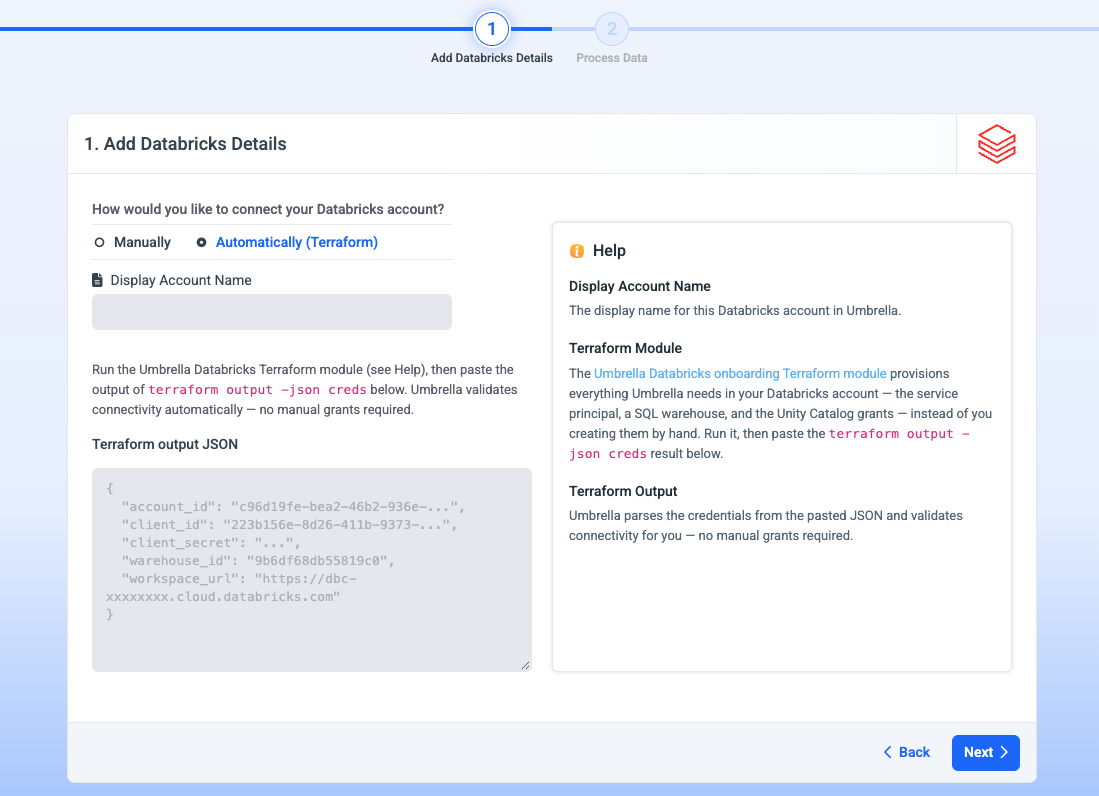
-
Umbrella parses the credentials from the pasted JSON and validates connectivity for you, no manual grants required.
-
Click next to start the data processing.
Troubleshooting
- Connection test fails. Confirm the Workspace URL is the one hosting the SQL warehouse, the SQL Warehouse ID matches an active warehouse, and the service principal has
CAN_USEon that warehouse. - No billing data appears. Confirm Unity Catalog system tables are enabled on the workspace, and that the service principal has
SELECTonsystem.billing. - Invalid credentials. Regenerate the OAuth secret on the service principal and re-enter it. Verify you used the Application ID, not the numeric Service Principal ID.
Updated about 2 months ago