
Set as default Main Dashboard
Available in user managment 2.0
What is the Umbrella's main dashboard?
Your main dashboard is the view Umbrella opens whenever you land on the product after signing in.
Setting one means less clicking and more time on the numbers that matter to you.
Any dashboard in your dashboards list can become the main one. You set it from the dashboard's row in that list, not from inside the dashboard itself.
You might already have oneIf an administrator has assigned a main dashboard to your role or your organization, that one opens for you until you set your own.
Setting your own personal default always wins over a default someone else assigned to you.
Settings Per Permission
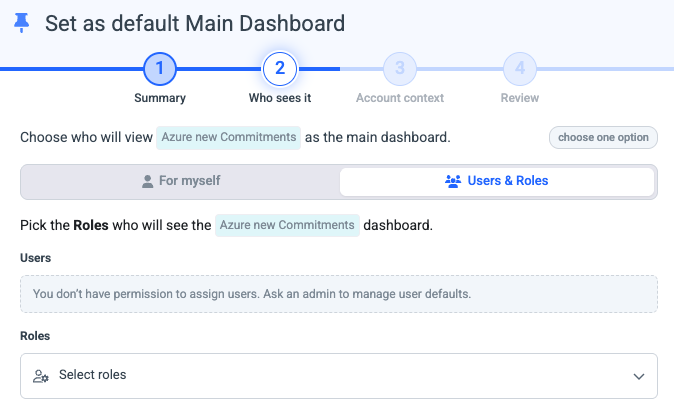
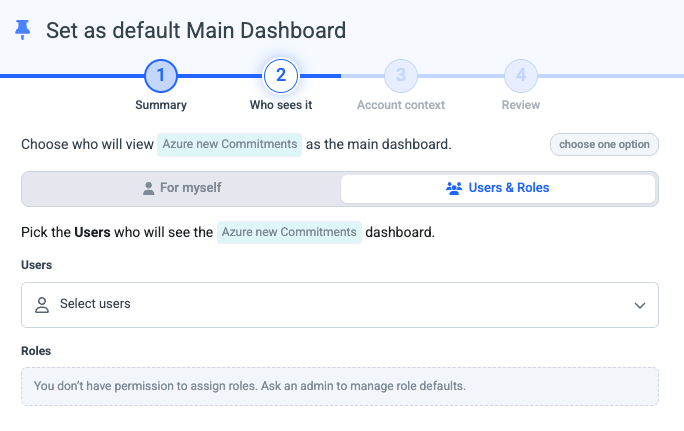
What you can do in the settings dialog depends on your assigned permissions.
| Permission Per Entity | What you can set |
|---|---|
| Dashboard (Edit/Create) Only | Set a personal main dashboard for yourself.
|
| Role (Edit/Create) Only | Set a personal main dashboard for yourself and for specific Role.
|
| User Management (Edit/Create) Only | Set a personal main dashboard for yourself and for specific User.
|
| Organization Management Only | Set a personal main dashboard for yourself and for the whole Organization.
|
| Organization + Role + User Managment + Dashboard (Edit/Create) | Set a personal main dashboard for yourself, per Role, User and for the whole Organization.
|
Setting precedenceWhen more than one rule could apply to the same person, Umbrella always prefers the most specific one:
Your personal default → Direct user assignment → Role default → Organization default → Umbrella Overview (fallback)
In plain words: your own pick beats everything an admin sets for you, and Umbrella always has a safe fallback - the Umbrella Overview - so you never land on a blank screen. If you have more than one role with a default, the role whose name comes first alphabetically wins; a direct user assignment is the clean way to override that.
Setting a main dashboard for yourself
This is the everyday case - you found a dashboard you like and want it to greet you every morning.
-
Open the Dashboards list. Use the left navigation, or click the Umbrella logo to go home and open Dashboards.
-
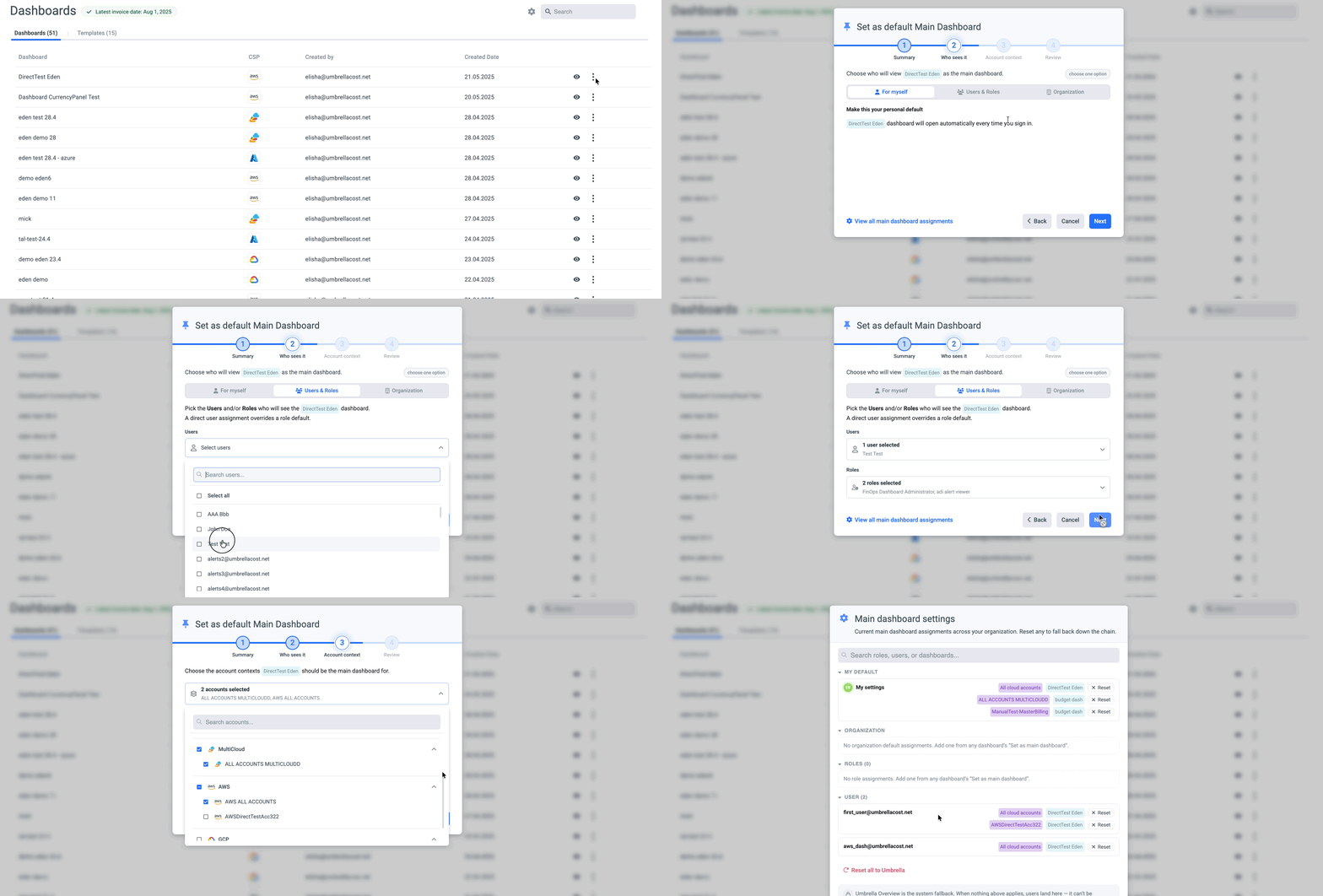
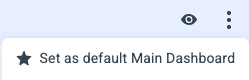
Open the row menu. Hover the dashboard's row, click the three-dot menu at the right edge, and pick Set as main dashboard. The wizard opens.
-
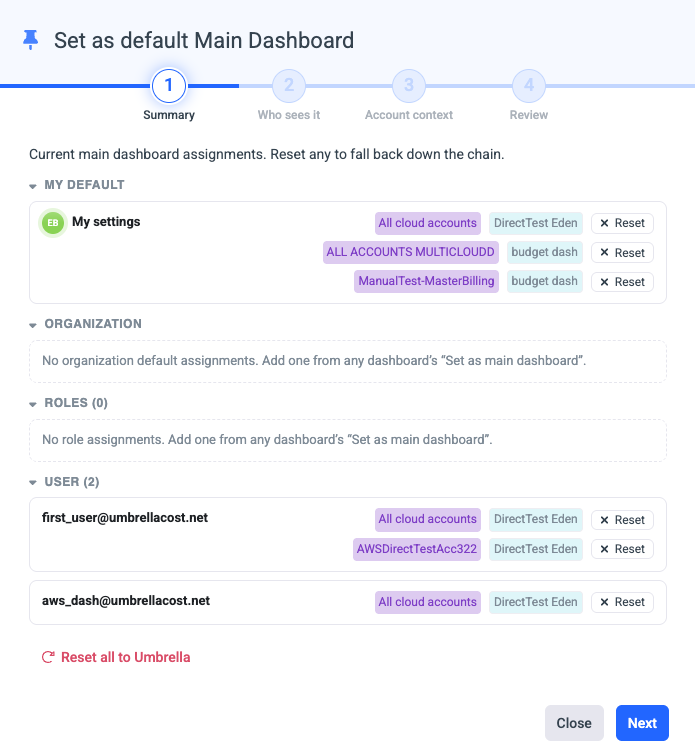
Step 1 - Summary. The wizard opens on Summary, showing your current assignments under My default. Reset any you want to clear, then click Next.
The Summary step follows the same rule: you only see and can reset the assignment groups your permissions allow.
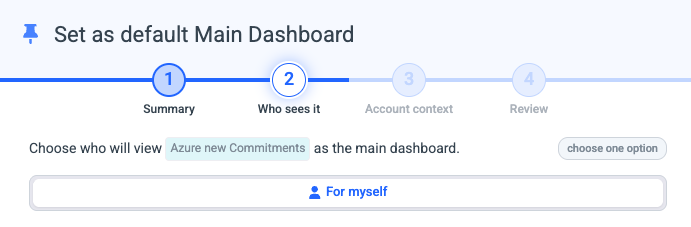
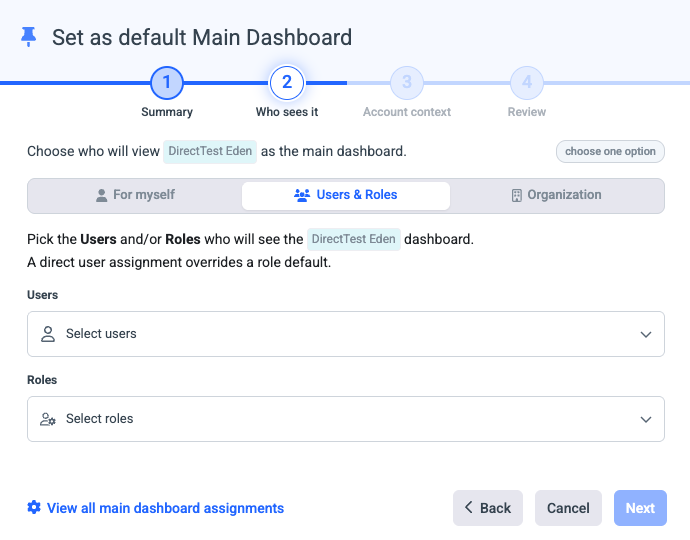
- Step 2 - Who sees it. Leave the scope on For myself - the only option available with dashboard-edit permission. Click Next.
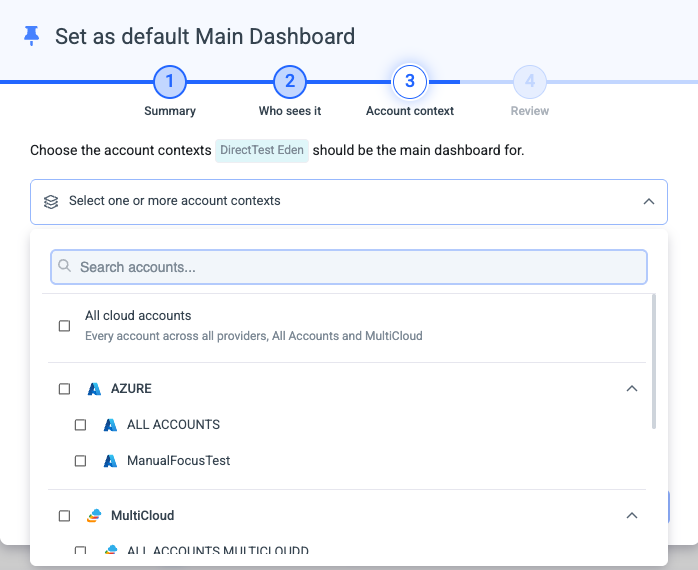
- Step 3 - Account context. Leave All cloud accounts to make this your default everywhere, or pick specific accounts if you only want it active when you're looking at, say, your AWS production estate. Click Next.
-
Step 4 - Review. The summary names the scope, the account context, and the dashboard. Click Set as main dashboard. A confirmation appears and you're done.
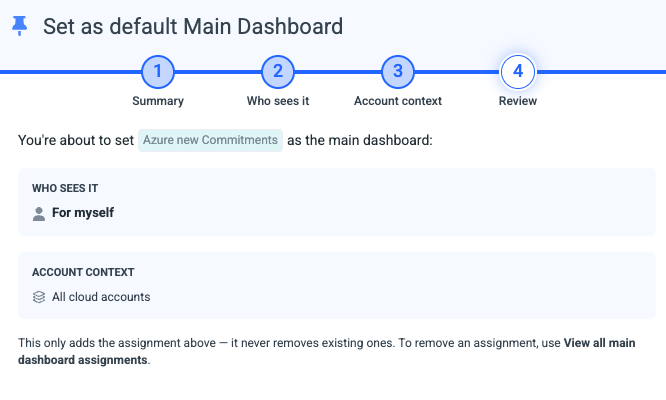
Replacing an existing defaultYou can have one personal default per account context, but a different account context can have a different default - e.g. one dashboard for AWS, another for Azure. If you already had a default for this context, the Review step tells you which dashboard is being replaced.
Setting a main dashboard for other people (Roles/Users/Organization)
Admins see the same wizard with two extra scopes in Who sees it: Users & Roles and Organization. Use them when the default should take effect for someone other than yourself.
For roles, specific users, or both
- Open the wizard from the dashboard's row menu - Set as main dashboard.
- Step 1 - Summary. Review current assignments, then click Next.
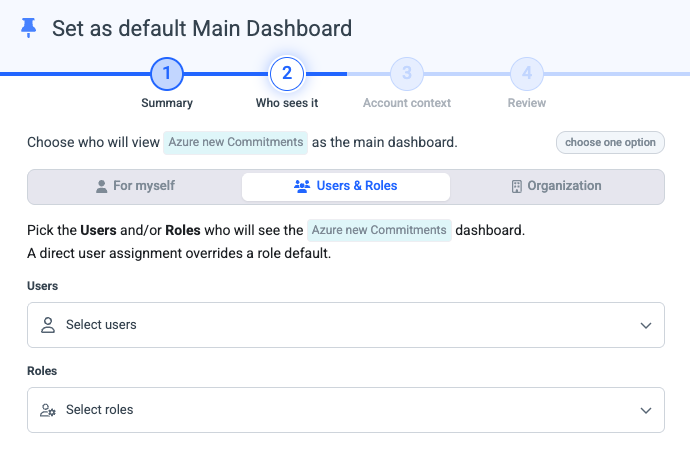
- Step 2 - Who sees it. Click Users & Roles. Pick people from the Users dropdown and/or roles from the Roles dropdown - you can combine both in one save. A direct user assignment overrides a role default, so it's the cleanest way to resolve a user whose multiple roles have conflicting defaults. Click Next.
- Step 3 - Account context. Choose All cloud accounts, a whole cloud provider, or one or more specific accounts. Click Next.
- Step 4 - Review. Confirm the scope, account context, and counts, then click Set as main dashboard.
For the whole organization
- Open the wizard from the row menu.
- Step 1 - Summary → Next.
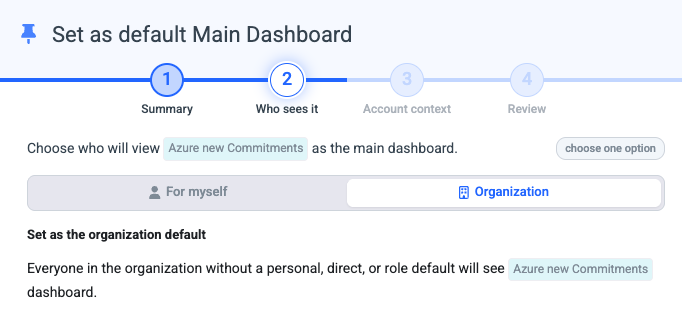
- Step 2 - Who sees it. Click Organization. Everyone in the organization without a personal, direct, or role default will land on this dashboard. Click Next.
- Step 3 - Account context → choose, then Next.
- Step 4 - Review → Set as main dashboard.
Org main dashboard is visible to everyoneMake sure the dashboard you pick is something every user in the organization is allowed to view. If someone doesn't have access to the underlying data, they will see 'No Data' in the dashboard panels.
What the dialog is telling you
A few small details look decorative but each one is doing a job.
- The pin icon next to the dashboard name confirms which dashboard you're acting on. If you opened the wizard from the wrong row, close it and start again from the right one. The "Account context" step defaults to All cloud accounts. Switch it when the dashboard only makes sense in a specific cloud or account - an AWS-specific commitment report shouldn't auto-open while you're browsing Azure.
- The Review step is a read-only preview of exactly what saving will do. It names one scope, one account context, and (for Users & Roles) the number of targets selected - so there's no ambiguity at the moment you commit.
- The "current" or "replaces" tags appear when your action will overwrite an existing assignment. Read them before you confirm; you can save right away, but the previous assignment is gone after that.
View all main dashboard assignments
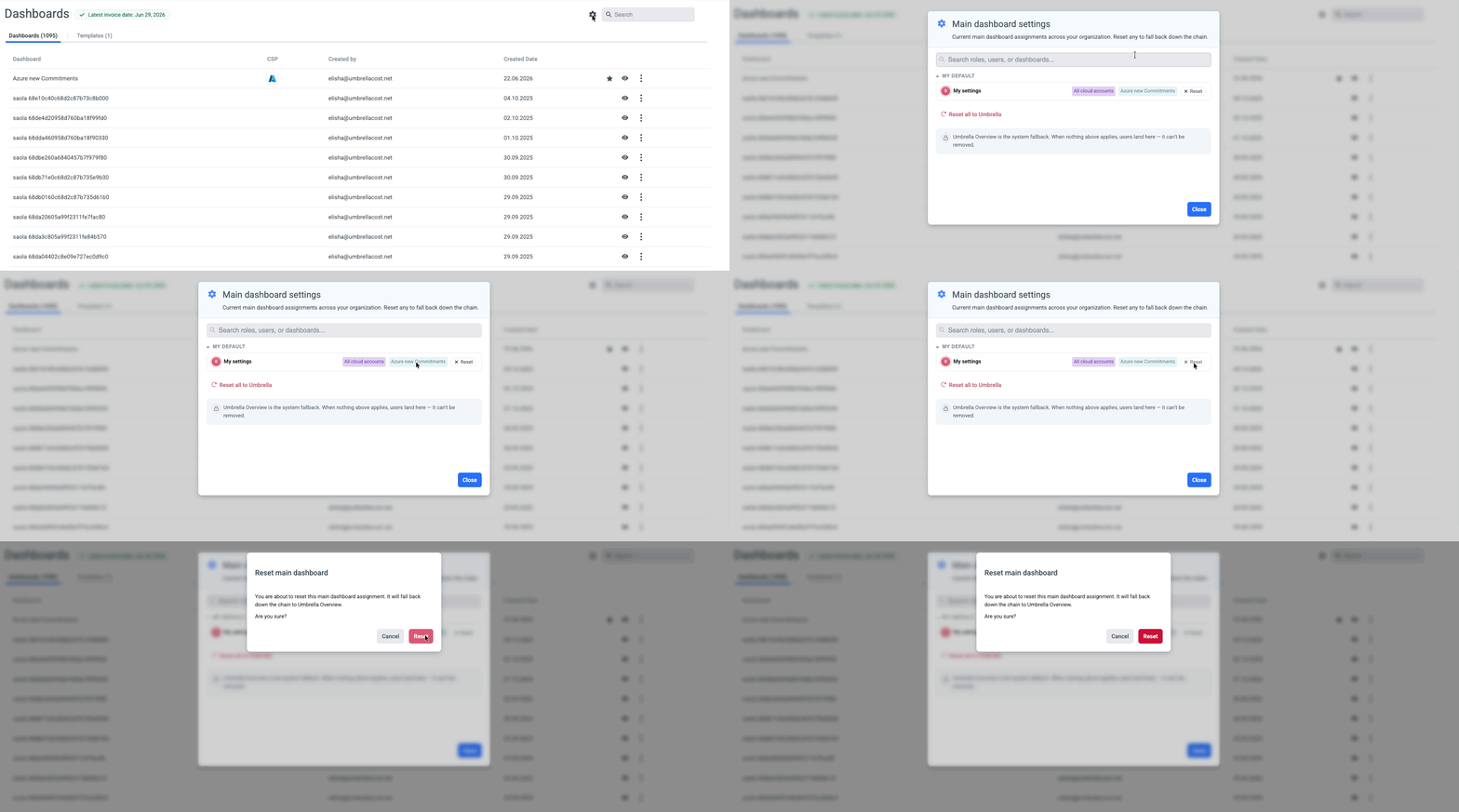
Step 1 of the wizard - Summary - is where assignments are reviewed and reset. You can also reach it from the View all main dashboard assignments link shown in the later steps. It shows the assignments your permissions allow, grouped as:
- My default - your own personal pick, if any (can be set by users with 'Dashboard' Edit permission).
- Organization - the org-wide default, if set.
- Roles - every role that has a default attached.
- User - every direct user assignment.
Each row shows the dashboard, the account context it applies in, and a Reset button. Resetting doesn't leave the person with nothing - it falls them back to the next rule in the chain (their role default, then the org default, then the Umbrella Overview).
A Reset all to Umbrella link clears every assignment at once.
Common questions
I set a personal default, but I still see a different dashboard. Why?
Check the account context. A personal default attached to a specific cloud account only applies while you're inside that account - in other contexts, your role or organization default takes over. Switch the account picker at the top of Umbrella and you should see your pick.
My admin set a default I don't like - am I stuck with it?
No. A personal default always beats anything an admin sets for your role or org. Pick the dashboard you prefer and use Set as main dashboard → For myself.
I have multiple roles with different defaults. Which one wins?
The role whose name comes first alphabetically. If that's not what you want, ask your admin to give you a direct user assignment - that overrides any role default automatically.
Can I have different main dashboards for different cloud accounts?
Yes. Set the dashboard once with the account context narrowed to that cloud or account, then repeat for the others. Each combination of scope and account context holds its own assignment.
I deleted my personal default. Did I lose the dashboard itself?
No. Resetting a default only removes the "always open this one" rule. The dashboard is still in your Dashboards list and can be opened or re-pinned at any time.
What if no defaults apply to me at all?
You land on the umbrella main dashboards with a built-in summary view that's always available. It can't be removed, so new users always have somewhere to start.
Updated 2 months ago