
Umbrella Cost Managment MCP
Overview
The Umbrella MCP Server enables cloud cost management within Claude using the Model Context Protocol (MCP). This integration provides real-time cost & usage insights, budget and recommendations across AWS, Azure, and GCP from within your Claude chatbot experience.
MCP (Model Context Protocol) is an open standard that allows Claude/Curdor/OpenAI to connect to external tools and services via remote MCP servers.
Supported Entities
- Cost & Usage (MSP/Direct).
- Recommendations.
- Budgets.
Accessing Claude
You can use Claude in one of the following ways:
- Claude Web Version – access Claude directly in your browser https://claude.ai/
- Claude Desktop Application – download from: 👉 https://www.claude.com/download
Both options fully support MCP connectors.
Prerequisites
Before setting up the Umbrella MCP Server, ensure the following:
- You are using Claude Web or Claude Desktop.
- You have an active Claude Pro plan or Enterphraise or Teams, since adding a custom connector requires these.
- The Umbrella MCP Server must be added via Claude Connectors.
Setup Instructions
Step 1: Open Claude
- Open Claude Web in your browser or launch the Claude Desktop application.
Step 2: Open the User Menu
- Click your profile/user menu.
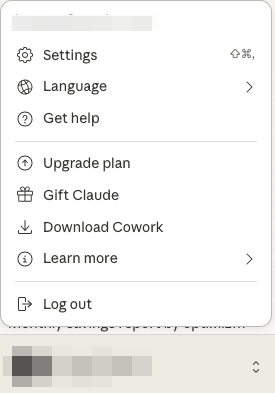
Step 3: Go to Connectors
- Select Connectors from the user menu.
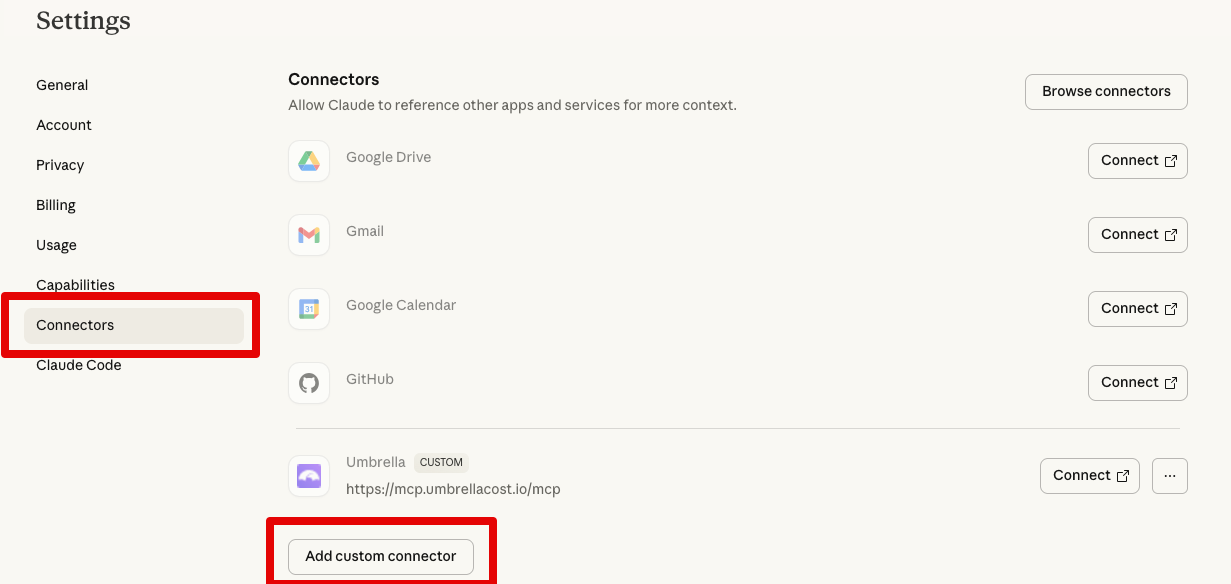
Step 4: Add a Custom Connector
-
Click Add custom connector.
-
Enter Umbrella MCP Details & Configure Authentication.
- Name= Umbrella MCP.
- MCP Server URL
https://mcp.umbrellacost.io/mcp
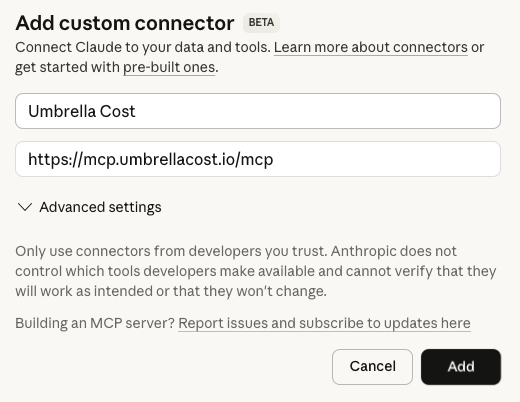
Step 5: Save & Connect
- Click Save.
- Then click Connect to activate the Umbrella MCP Server.

- Sign in to the Umbrella Cost Management MCP.
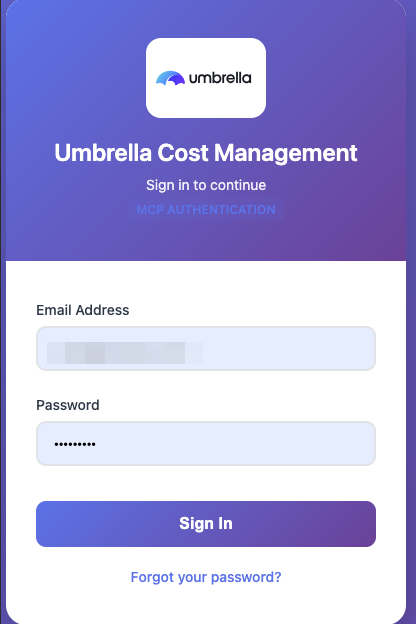
Step 6: Verify Connection
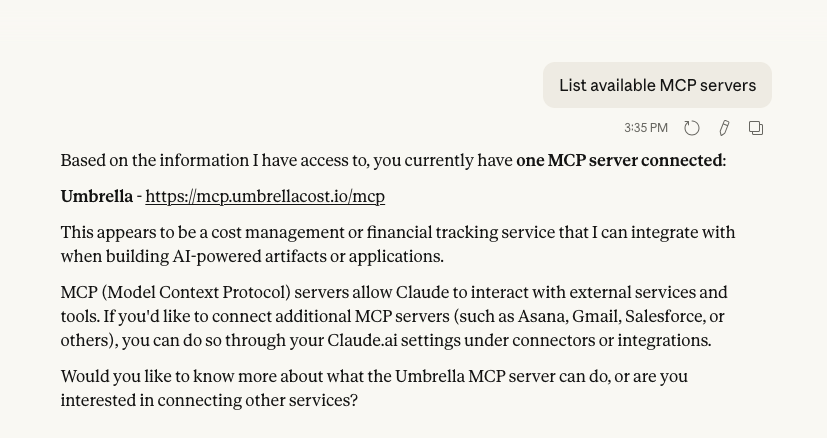
You can verify the connection by asking Claude a question such as:
- List available MCP servers.
- You should see Umbrella MCP listed.
Setup - Umbrella MCP with Claude Code
1. Install Claude Code

  npm install -g @anthropic-ai/claude-code

  2. Add the Umbrella connector at claude.ai

  The Claude Code CLI cannot complete OAuth on its own for Umbrella — the connector must first be registered with your Anthropic account via the web.

  	1. Go to https://claude.ai/settings/connectors
  	2. Click Add custom connector
  	3. Fill in:
    	- Name: umbrella
    	- URL: https://mcp.umbrellacost.io/mcp
  	4. Click Add
  	5. A browser tab opens to the Umbrella login page → sign in with your Umbrella credentials
  	6. Click Allow on the consent screen
  	7. The connector now shows Connected in claude.ai settings

Note: Connecting via claude.ai authenticates your web session only.
The Claude Code CLI is a separate session — it will still show as not authenticated until you complete step 4 below.

  3. Start Claude Code

  claude

  4. Authenticate the CLI session

  Inside Claude Code, type:
  /mcp
  - Select umbrella (it will show as 'Needs authentication')
  - Choose Authenticate
  - A browser opens → sign in to Umbrella → click Allow
  - Return to the terminal — you'll see Authentication successful. Connected to claude.ai umbrella.

  Run /mcp again to confirm status is now ✓ Connected.

  5. Try it - Ask a question

  What is my AWS cost per month?
Umbrella Cost Insights - Ask Claude
Once connected, you can ask Claude natural-language questions about your cloud costs, for example:
- Show AWS and GCP costs for Q4, filter by production environments, and highlight savings opportunities.”
- “Compare this quarter’s spend to last quarter and create PDF report.”
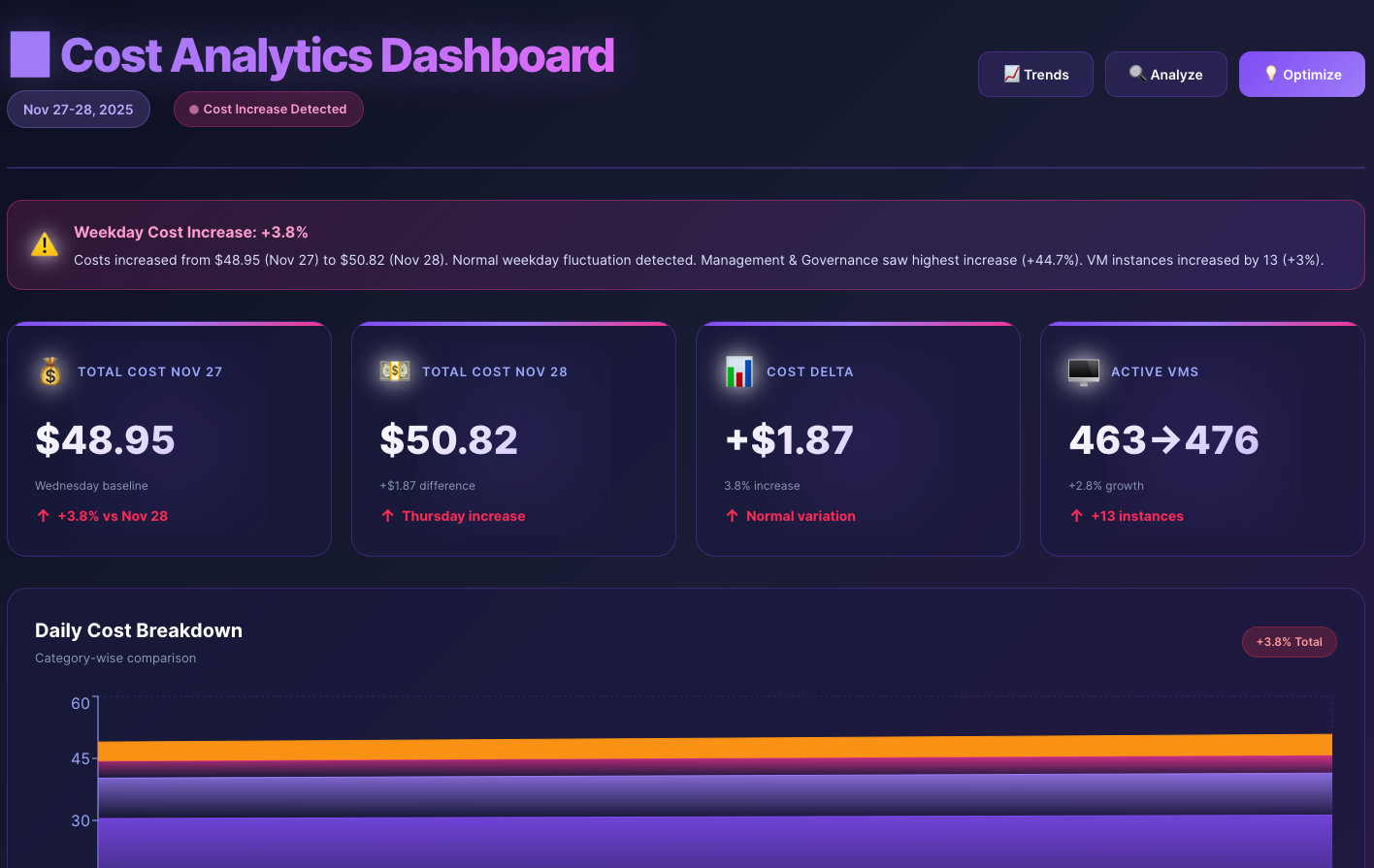
- “Analyze Azure cost trends and create a dashboard”.
- “Identify cost-saving opportunities in GCP”.
- “Compare cloud spend between environments”.
Claude will use the Umbrella MCP Server to retrieve and analyze the relevant data.
Troubleshooting
Connector Not Visible
- Confirm you are on a Claude Pro plan.
Connection Issues
- Verify the MCP server URL is correct.
- Ensure network access to the MCP endpoint.
- Retry the connection after logging out and back in.
Authentication Errors
- Re-run the authentication flow.
- Ensure required permissions were granted.
- Clear browser cache if using the web version.
Updated 19 days ago