
Ticket Mapping Rules
Overview
The new ticket mapping rules feature allows users to customize ticket details when creating Jira tickets from Umbrella. It supports mapping for recommendations, enabling full workflow visibility to customer custom Jira fields. This ensures that all relevant information is captured and aligned with your existing Jira processes.
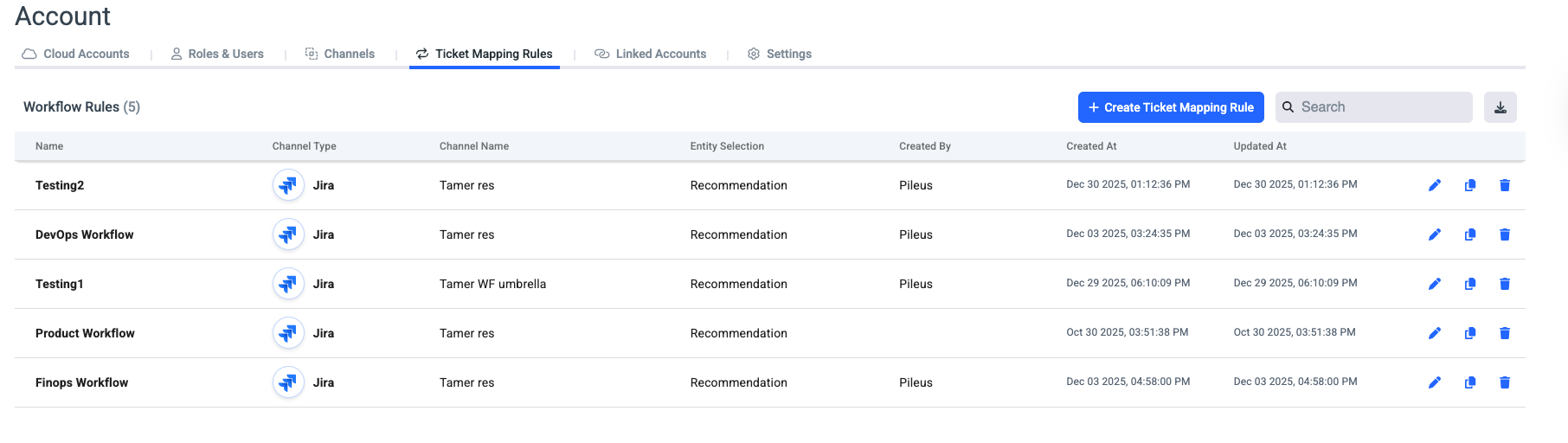
Creating Ticket Mapping Rules
- Click Create Ticket Mapping Rules.
- Enter a name for the mapping rule.
- Select the entity (currently, only recommendations are supported).
- Select the channel (currently, only Jira channels are supported).
- Click on '+ Add Field' and set the mapping:
- Choose a Umbrella field you want to map or add constant value you want to map, the resented values are common recommendation fields.
- Choose a Jira field. you want the value to be mapped to, it can be either Jira default or customized fields.
- Delete the mapping that needs to be removed.
Tips
- Make sure the Jira fields being mapped follow proper data type conventions, meet validation requirements, and can handle the mapped values.
- The default Umbrella ticket mapping will be overridden by the mapping rules defined for the selected fields.
- Ensure all mandatory fields are mapped. If any are left unmapped, Umbrella will populate them with default values.
- Adding Constant Values to the recommendation description will not override the mapped recommendation details; instead, they are appended to the bottom.
Using the Ticket Mapping Rules
After creating a ticket mapping rule, you can start using it in the Waste Detector.
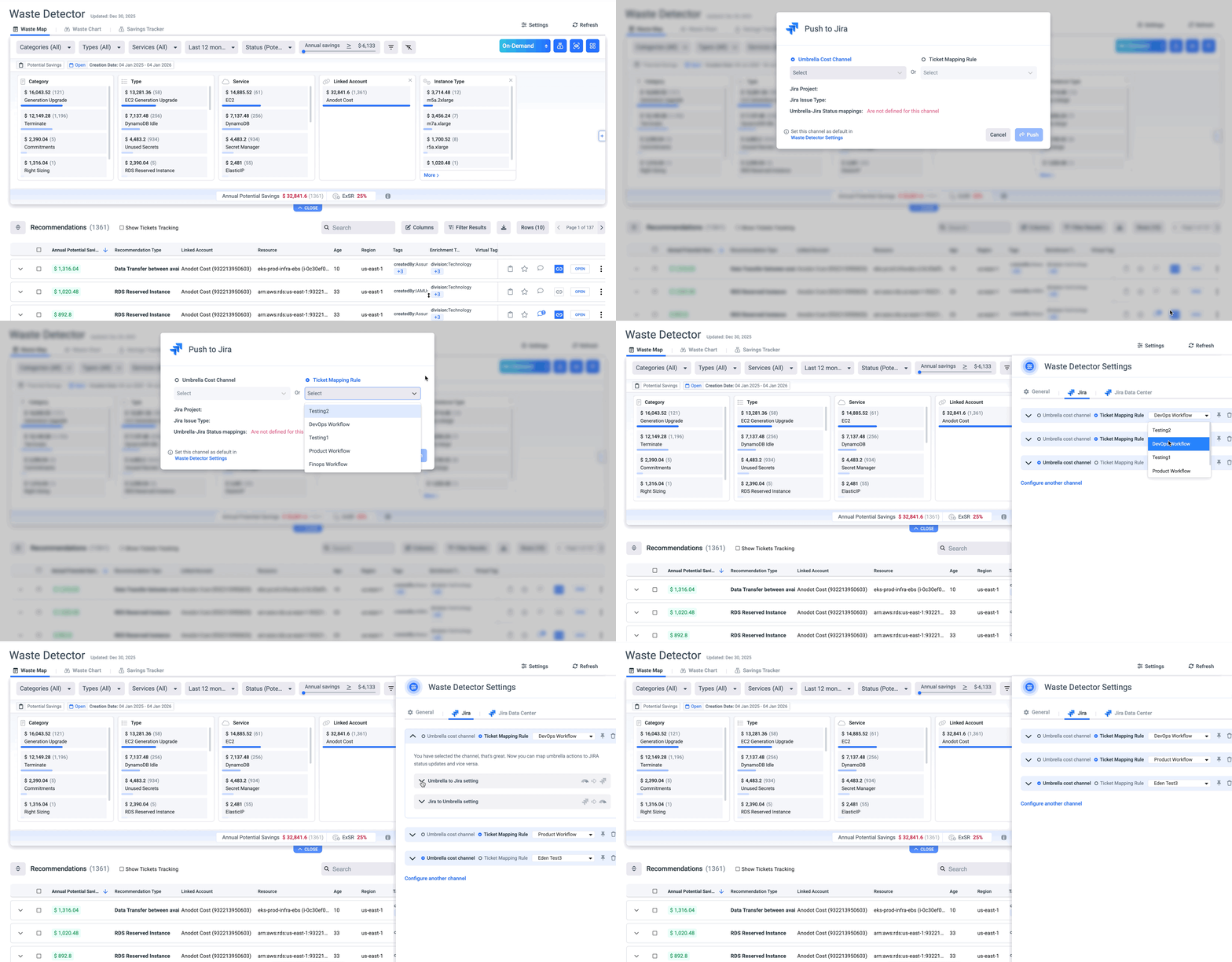
Set bi-directional workflow for a ticket mapping
Configure bi-directional status synchronization for a ticket mapping rule:
-
Open the waste detector settings.

-
Navigate to the Jira or Jira Data Center tabs.
-
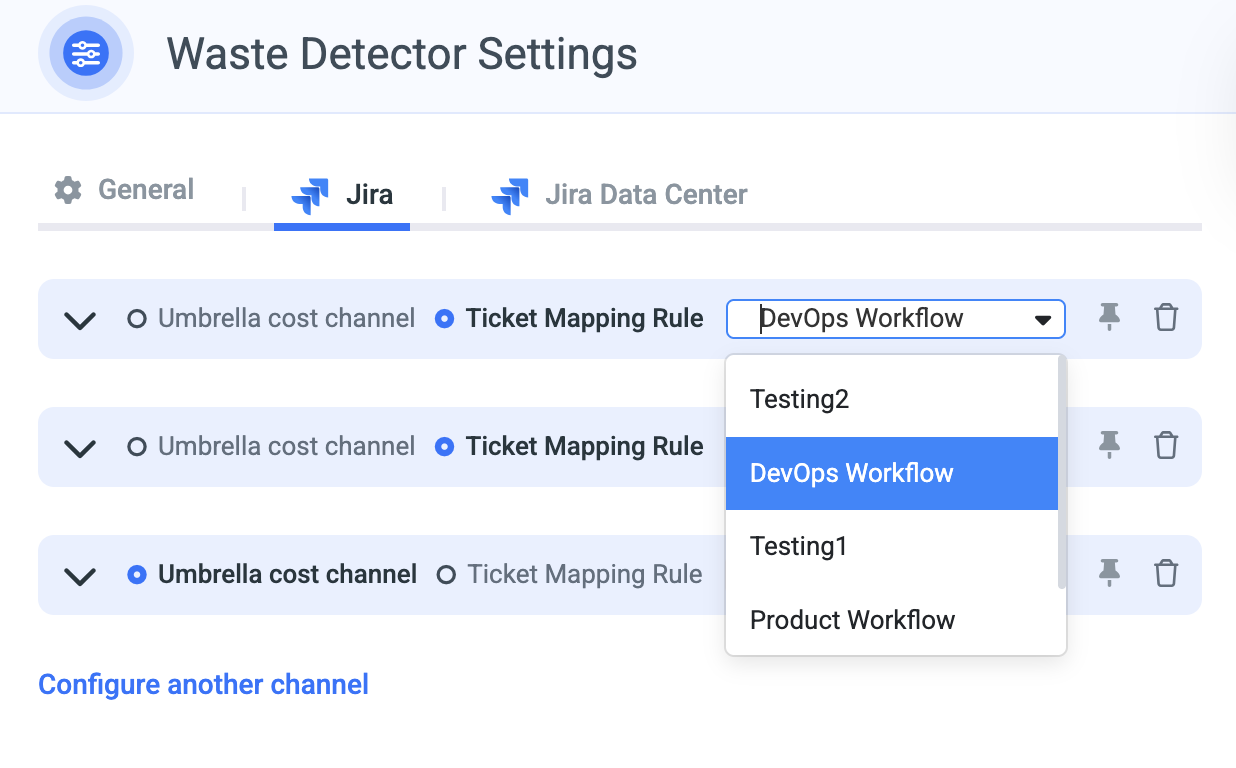
Select either Cost Channel or Ticket Mapping Rules from the list to define the default channel and other bi-directional settings.
-
Configure the Jira ↔ Umbrella status mappings.
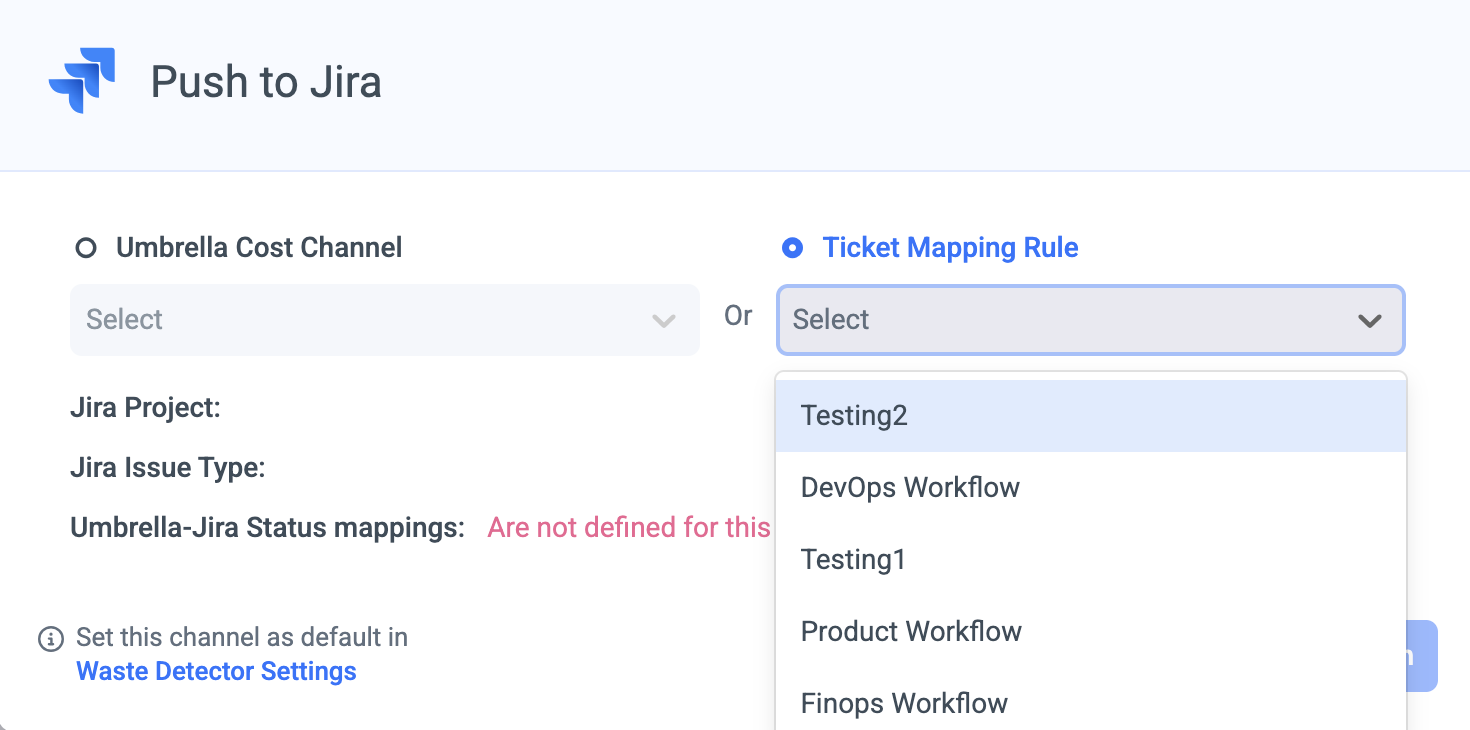
Selecting a Ticket Mapping When Opening a Recommendation
-
Click the Open Ticket button in the recommendation row.

-
Choose whether to open the ticket using a specific ticket mapping rule.
-
The ticket mapping will apply the customer mapping and the bi-directional status updates if these were configured.
Updated 2 months ago