
Tag Groups (former Virtual Tags)
Unify inconsistent cloud tags into meaningful, reusable groupings
Overview
In modern cloud environments, inconsistent tagging is a common challenge. Different teams, tools, or automation scripts may use variations of tag keys and values — making it hard to filter, group, or report consistently across your cloud assets.
To solve this, Umbrella introduces Tag Groups: a powerful feature that lets you define and standardize tag key groups.
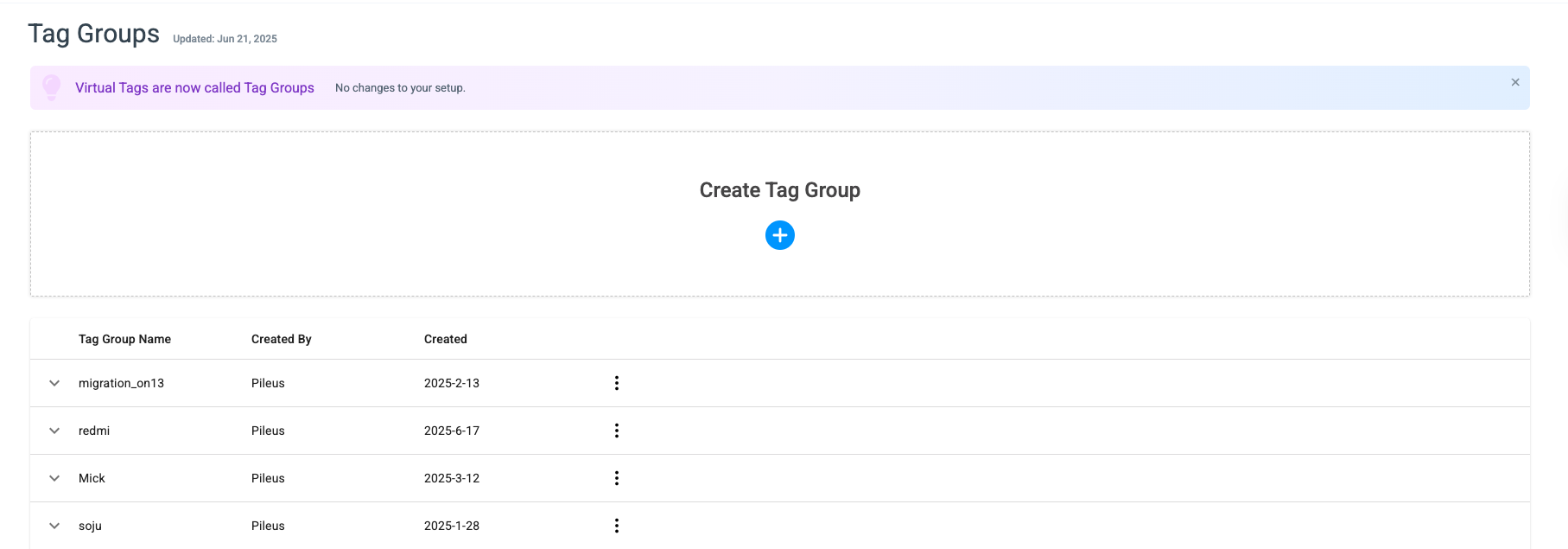
What Are Tag Groups?
Tag Groups allow you to:
- Map multiple tag keys along with all their values into a single tag key.
- Use these unified groups across filters, dashboards, reports, savings plans, budgeting, and recommendations.
- Cleanly represent inconsistent or messy tag data — without changing the source tags on the cloud provider.
Tag Group are supported in:
- Cost & Usage
- Assets
- Business Mapping
- Budget
- Waste Detector
Note: This is not intended for selecting or managing specific tag values. If you need to choose or filter by specific values, you should use the Tags feature directly, not Tag Groups.
When deciding how to organize or aggregate your tag data, it's important to choose the right tool for the task:
- Use Tag Groups when your goal is to combine or standardize tag keys.
Tag Groups are ideal for situations where multiple tag keys represent the same meaning and should be treated as one logical key.- Use Business Mapping when your goal is to combine or categorize tag values.
Business Mapping is better suited for grouping, renaming, or reorganizing values under a tag key—for example, mapping multiple department names into a single business unit.- Use Virtual Tags when you need to apply tag-like metadata to resources that do not have native cloud tags or have incomplete tagging.
In summary, Tag Groups unify keys, while Business Mapping unifies values.
🔧 Use Cases
- Let’s say your teams have the following inconsistent environment tags across AWS, GCP and Azure:
| Key |
|---|
| Environment |
| env |
| ENV |
With Tag Groups, you can create a group called:
- Group Name: Environment
- Group Values will be the Tag keys: Environment, Env, ENV
Now, whenever you use the Tag Group: Production in filters or reporting, all resources matching any of these values will be included.
- Automatically include all values under a specific tag key
If you want to consider all values under a specific tag key, such as Department, without selecting each value individually, you can create a Tag Group based on that tag key.
This approach is useful when:
- You want to automatically include every existing value under the key.
- You want the system to automatically include new values added to the tag key in the future.
- You want to use the grouped tag key consistently across different platform features.
- Unifying Multiple Tag Keys With the Same Meaning
Tag Groups can also be used to combine multiple tag keys that represent the same concept.
For example, you may have tag keys like Env, ENV, and environment that all refer to the environment type.
By creating a Tag Group, you can:
- Combine these tag keys into one logical grouping.
- Standardize reporting and filtering across all variations.
- Ensure consistent behavior in dashboards, cost analysis, and filters.
This use case essentially creates a unified tag key from several inconsistent or duplicated tag keys.
How to Create a Tag Group
- Navigate to Cost Allocation → Tag Groups
- Click “Create Tag Group”
- Provide:
- Group Name (e.g., Enviourmment)
- Add the tag keys that should be mapped to this group
(e.g., Env, ENV, Enviourmment) - Click Save
Updated 10 months ago