
Unit Economics Shared Cost
Allocate cost per customer walkthrough
Overview
Umbrella can allocate cost to any custom dimension - customers, tenants, products, features - even when that dimension isn't in your billing data. This walkthrough shows the full end-to-end pattern using customers as the example: bring in customer usage from an external source, build a Business Mapping that uses that usage as the allocation key, then view Cost per Customer in the Cost & Usage Explorer.
Why it matters
Customer names and most other business dimensions rarely appear on cloud bills. Tag-based allocation forces you to tag every resource, keep those tags in sync, and accept that shared resources (multi-tenant databases, load balancers, Kubernetes clusters) get split by proportions that don't reflect actual consumption. Unit Economics changes the input: you bring in the usage data you already have - throughput, requests, memory, transactions - and Umbrella distributes cost by real consumption.
How it works
Three stages, in order:
- Inject customer usage data into Umbrella as a telemetry pipeline.
- Map the cost you want to allocate, using a Telemetry-Based Business Mapping that references the pipeline.
- View the allocated cost as a new group-by dimension in the Cost & Usage Explorer.
Each stage has its own detailed article; this page walks the pattern with a concrete example.
Step 1: Inject customer usage as a telemetry pipeline
Bring your customer usage data into Umbrella. The source can be anything you already collect - a data warehouse export, an application metrics database, a billing system - as long as each row ties a customer identifier to a usage measure with a timestamp and cloud account.
In the example, the pipeline Customer Stats carries:
- Dimensions:
Date,Payer Account, and the customer identifier (e.g.Limors Customer), plus additional attributes. - Measures:
memory_utilization,throughput_mbps, and others.
Upload via CSV or API, then confirm the pipeline is Active on the Metric Pipelines page (Unit Economics → Metrics Pipelines).
See Telemetry Pipeline Onboarding for the full field-by-field setup, supported formats, and required mappings.
PrerequisiteThe pipeline must be actively collecting the customer identifier dimension and the usage measure before it can be used for allocation.
Step 2: Create a Telemetry-Based Business Mapping
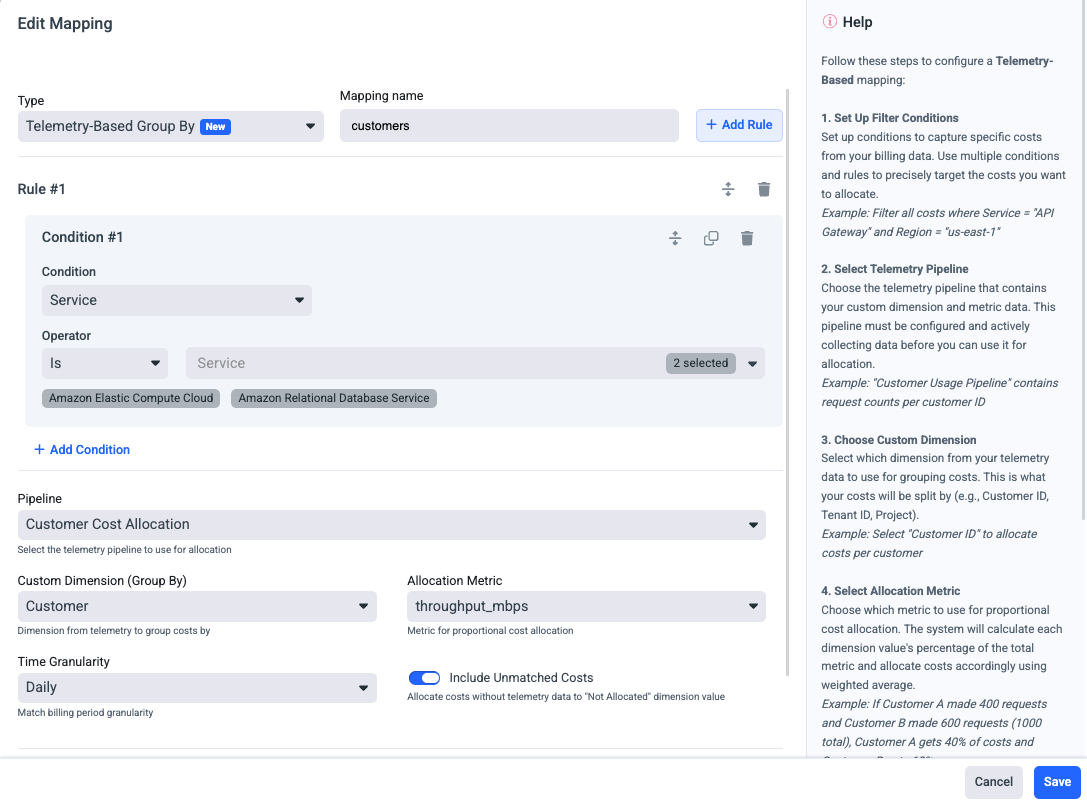
Now define which cost to allocate and how to distribute it. Open Business Mapping, create a new mapping, and set Type = Telemetry-Based Group By.
Using the same example:
| Field | Example | Purpose |
|---|---|---|
| Rule → Condition | Service Is Amazon EC2, Amazon RDS, Amazon S3 | The cost slice to allocate. |
| Pipeline | Customer Stats | Where the usage data lives. |
| Custom Dimension (Group By) | Customer | The field the cost will be broken out by. |
| Allocation Metric | throughput_mbps | The measure that determines each customer's share. |
| Time Granularity | Daily | Match the billing period granularity. |
| Include Unmatched Costs | On | Costs with no matching usage are placed in a "Not Allocated" bucket instead of being dropped. |
Name the mapping something recognizable - the mapping name becomes the group-by option in the Cost & Usage Explorer. In the example, the mapping is named Cost per Customer.
Umbrella distributes the filtered cost across customers by weighted average against the allocation metric. A customer accounting for 40% of the throughput on a given day receives 40% of that day's filtered cost.
See Business Mapping: Telemetry-Based Group By for the full setup, field descriptions, and rule construction.
Step 3: View cost per customer in the Cost & Usage Explorer
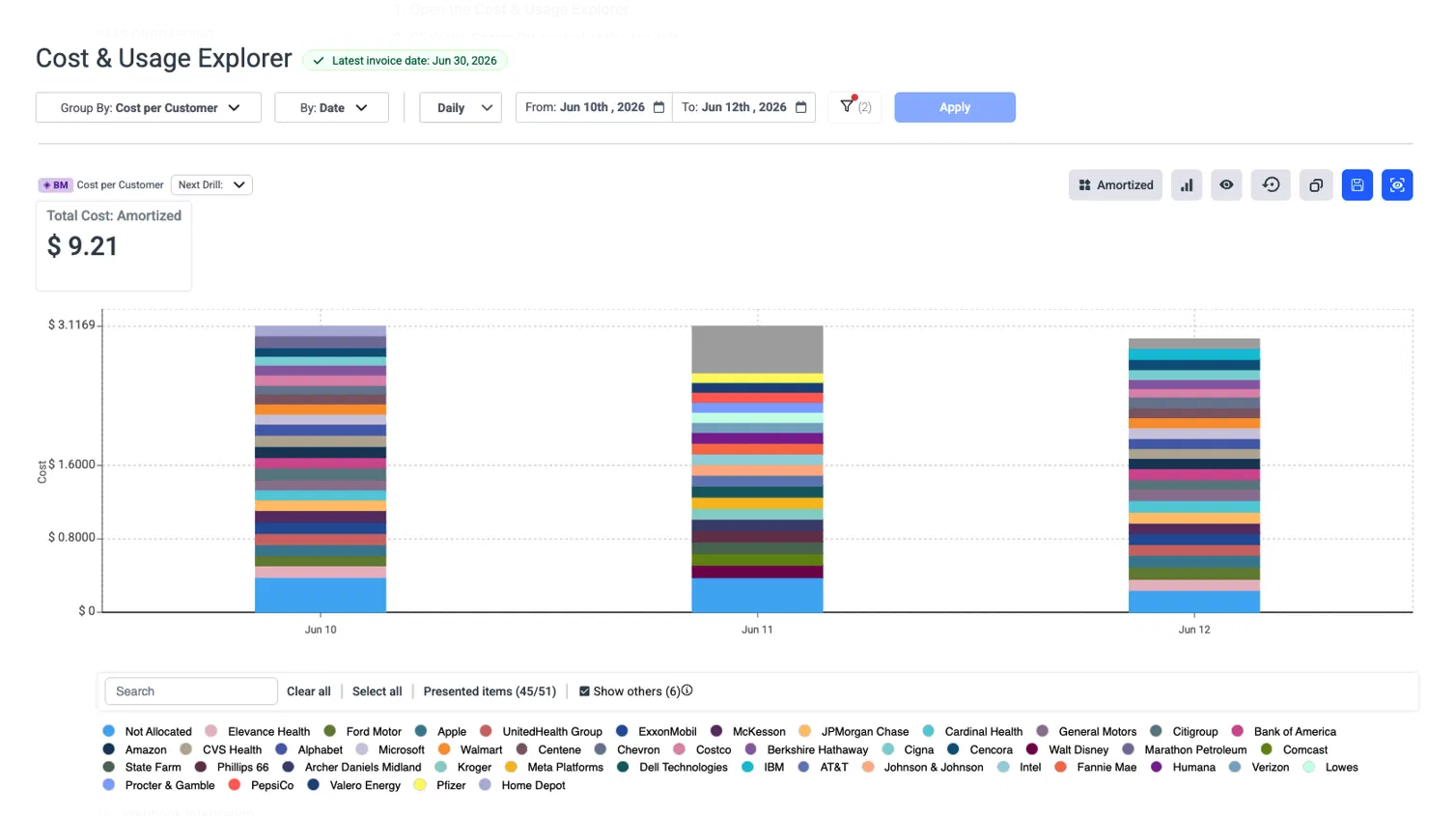
The Business Mapping is now available as a group-by dimension across the platform.
- Open the Cost & Usage Explorer.
- Click the Group By control at the top left.
- Switch to the Business Mapping tab.
- Select your mapping - in the example, Cost per Customer.
- Set the date range and any additional filters, then click Apply.
The chart now shows the filtered cost broken out per customer over time, with each customer as a colored series. Costs that had no matching usage appear as Not Allocated if the toggle was on in the mapping.
From here you can:
- Drill down with Next Drill to break each customer's cost by service, region, or any other dimension.
- Switch cost type (Amortized, Net Amortized, Unblended) using the cost-type control.
- Save the view for reuse, or set it as your Main Dashboard.
Related
- Allocate costs based on telemetry and KPIs - which method to use when
- Business Mapping: Telemetry-Based Group By
- Telemetry Pipeline Onboarding
- Unit Economics
Updated 3 months ago