
Dashboard List
The Dashboards page is the central place to view, organize, and manage all dashboards you have access to. Dashboards are organized into tabs, making it easy to find dashboards you created, dashboards shared with you, system dashboards, and templates.
Each dashboard provides quick visibility into important information, including its owner, associated accounts, labels, sharing status, and scheduled reports.
Dashboard tabs
The Dashboards page includes the following tabs:
- All Dashboards - Displays every dashboard available to you based on your permissions.
- My Dashboards - Displays dashboards you created.
- Shared with Me - Displays dashboards that other users have shared with your role.
- Umbrella - Displays system-provided dashboards maintained by the platform.
- Templates - Displays dashboards that have been saved as templates for your organization.
You can pin any tab to make it your default view when opening the Dashboards page.
Dashboard information
Each row in the dashboard list provides key information at a glance, including:
- Dashboard name ( ⭐ indicates a favorite)
- Cloud provider (data on which cloud provider exists in the dashboards)
- Dashboard owner
- Creation and last updated dates
- Labels
- Associated accounts referenced by the dashboard's panels
- Association to scheduled report
- Users or groups the dashboard is shared with
- Your permission level (for example, Editor or Viewer)
💡 If a dashboard has a scheduled report, selecting it opens the Reports page with the corresponding report already filtered for quick access.
Dashboard actions
Select the ⋮ (More Actions) menu next to a dashboard to perform available actions. The actions you see depend on your permissions and may include:
- Set as Main Dashboard
- Add or remove from Favorites ⭐
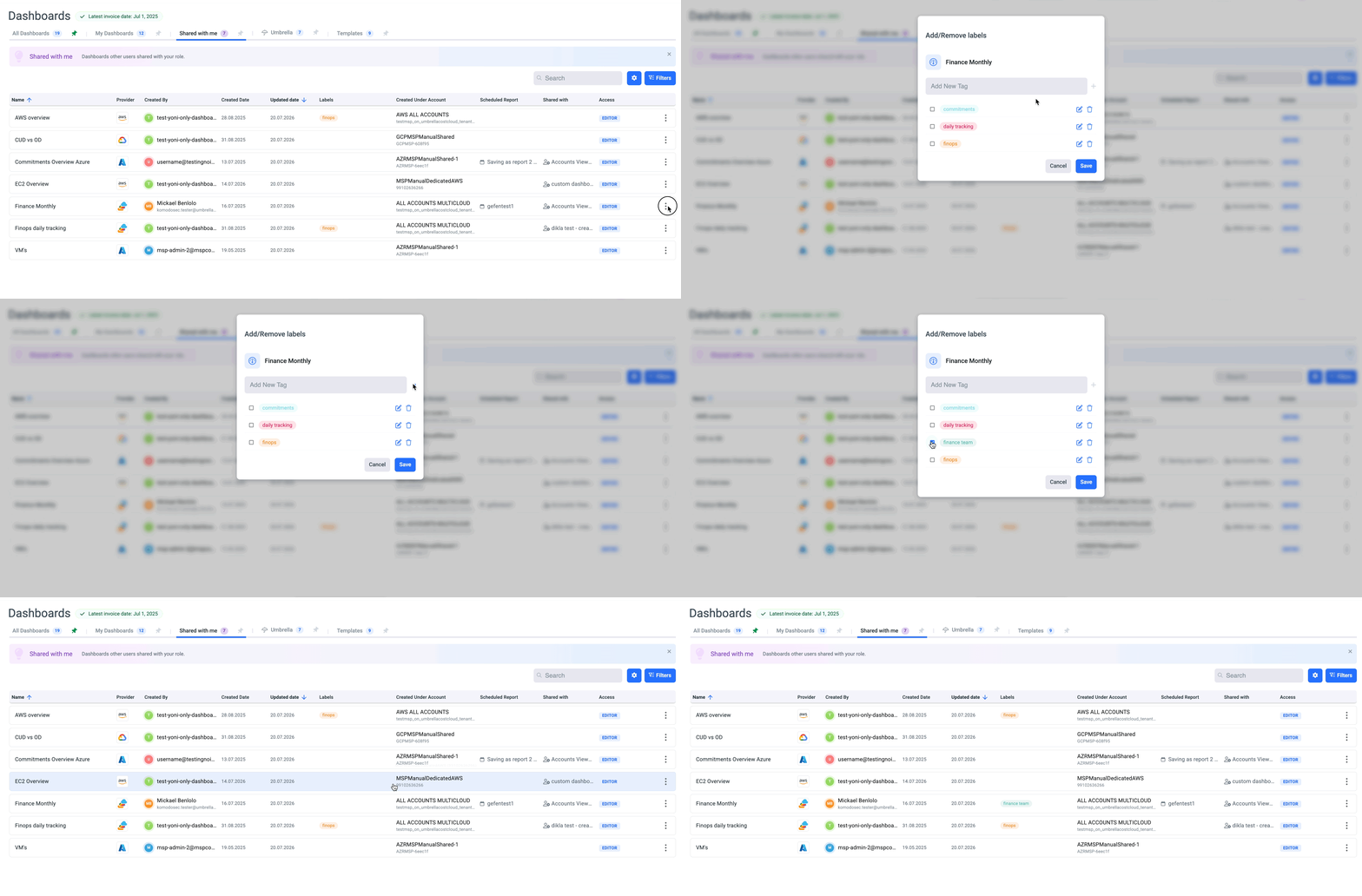
- Manage labels
- Share the dashboard
- Edit / Delete
- Clone
- Save as Template
- Schedule a report
Setting a dashboard as your Main Dashboard makes it the dashboard displayed on the application's Home page → Learn More.
Labels
Labels help organize dashboards into meaningful categories, making them easier to find and manage.
Labels are visible to all users who have access to a dashboard and can be used as filter criteria when browsing the dashboard list.
Search and filters
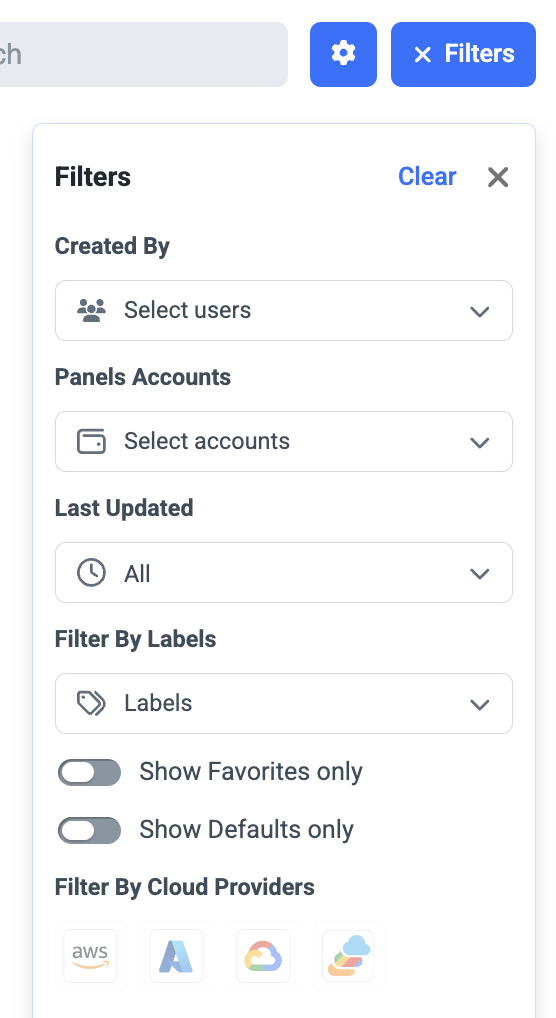
- Use the search bar to locate dashboards by name quickly.
- Use filters to narrow the dashboard list by creator, the accounts represented in the dashboard, last updated date, labels, favorites, default dashboards, or cloud provider.
Customize the list
Select the Settings (⚙) icon to see the main dashboard configuration in your organization → Learn More.
Updated 3 months ago