
Cursor
Overview
Connect a Cursor team or organization to Umbrella and get Cursor seat, usage, and spend data in the same views as your cloud and other AI spend - per-member spend, model requests, included vs. overage usage, token consumption, and seat utilization.
Two connection types are supported:
- Cursor Teams - one team at a time, via a Team Admin API key from the Cursor dashboard.
- Cursor Enterprise - all teams under an organization in one connection, with pooled usage reconciliation. Requires an Organization API key with the
usage:*scope, plus the organization ID.
Only one Cursor connection type is supported per environment at a time. You can switch later from Cloud Connections.
What Umbrella reads
Umbrella calls Cursor's read-only Admin APIs:
- Cursor Teams:
/teams/members,/teams/spend,/teams/daily-usage-data- team members, spend, and daily usage broken out by member and model. - Cursor Enterprise:
/organizations/pooled-usage,/organizations/spend- pooled usage and spend across every team in the org, reconciled against the shared usage pool.
Umbrella never accesses source code, prompts, or completions. The connection does not modify members, seats, teams, or organization settings.
Which Cursor plan is supported
| Cursor plan | Teams connection | Enterprise connection |
|---|---|---|
| Enterprise | - | Yes |
| Teams / Business | Yes | - |
| Ultra | - | - |
| Pro+ | - | - |
| Pro / Free | - | - |
Individual plans (Pro, Pro+, Ultra, Free) are not supported - they don't expose the team or organization endpoints Umbrella needs.
Before you start
- For Cursor Teams: Cursor team admin or billing owner access.
- For Cursor Enterprise: Cursor organization admin access on a Cursor Enterprise plan.
- Ability to create an admin-scoped API key in the Cursor dashboard. A personal Cursor key cannot read team- or org-level usage.
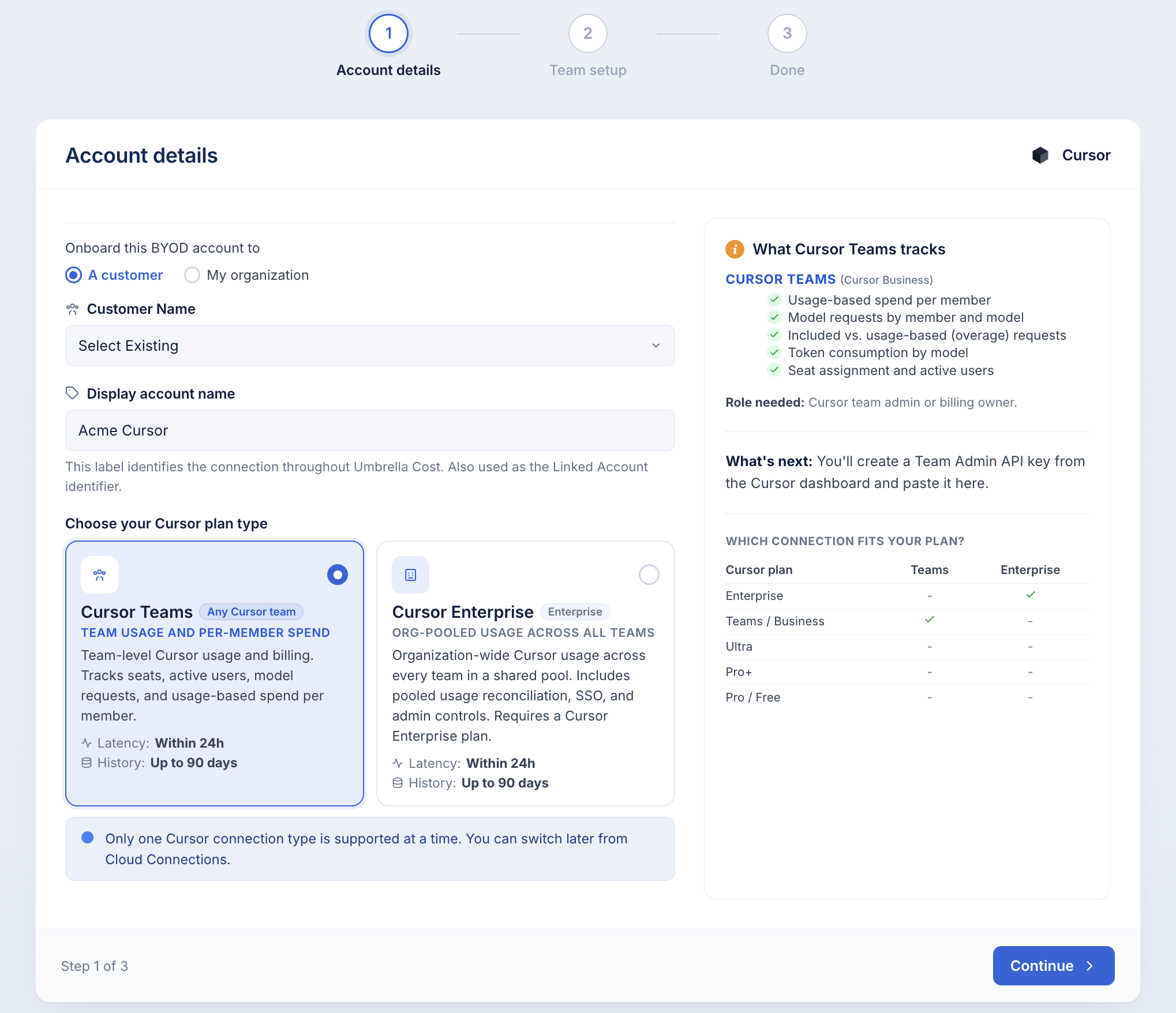
Step 1: Account details
Open Cloud Connections → Add connection → Cursor to launch the wizard.
| Field | What it is |
|---|---|
| Onboard this BYOD account to | Choose A customer (then pick the customer name) or My organization. |
| Display account name | The label this connection carries in Umbrella. Also used as the Linked Account identifier (e.g. Acme Cursor). |
| Cursor plan type | Choose Cursor Teams or Cursor Enterprise. |
Click Continue.
The rest of the wizard depends on the plan type you chose. Follow the matching section below.
Cursor Teams setup
Create the Team Admin API key
- Open the Cursor dashboard. Go to cursor.com/dashboard and sign in as a team admin.
- Open Cursor Admin API Keys. Under Settings → Cursor Admin API Keys, click Create API Key. Give it a descriptive name (e.g.
Umbrella Cost - Cursor). - Copy the key. It starts with
key_and is revealed only once. Copy it now.
Use a Team Admin key, not a personal keyA personal Cursor key can't read team-level usage or spend. You must generate the key from the team dashboard while signed in as a team admin. Members without admin rights won't see the Cursor Admin API Keys panel at all.
Fill in the connection field
| Field | Value | Where to find it |
|---|---|---|
| Admin API Key | The key_... value from the step above | Encrypted at rest by Umbrella. Sent over HTTPS Basic auth (key as username). |
Click Create connection.
Cursor Enterprise setup
Enterprise onboarding has one extra step - an optional seat contract - between account details and API key setup.
Enterprise seat contract (optional)
If you've prepaid for Cursor Enterprise seats (annual or multi-year commitment), enter the terms so amortized and net-amortized cost views reflect the true monthly burn instead of a one-time bill spike.
Enable I have a prepaid seat contract and fill in:
| Field | What it is |
|---|---|
| Number of seats | Total licensed Cursor seats in the contract. |
| Total upfront cost (USD) | The full contract amount as invoiced. |
| Effective date | First day of the contract period. Amortization starts here. |
| Term (months) | Length over which the upfront cost is spread. Options: 1, 6, 12, 24, 36 months. |
The panel previews how the contract appears in cost views:
- Unblended - the raw invoice as a single charge on the effective date.
- Amortized -
upfront / term, smoothed across the contract's life. - Per seat / month - amortized cost divided by number of seats.
Skip this step if Cursor is billed monthly without an upfront commitment. You can add a contract later from Settings → Commitments.
Enterprise onlyThe seat contract step only applies to Cursor Enterprise with upfront commitments. Monthly-billed Cursor Teams does not need it.
Create the Organization API key
- Open the Cursor dashboard as org admin. Go to cursor.com/dashboard and sign in as an organization admin.
- Create an Organization API key. Open Settings → Organization → API Keys, click Create API Key, and grant the
usage:*scope. Name it (e.g.Umbrella Cost - Cursor Enterprise). - Note your organization ID. Under Settings → Organization, copy the org ID at the top - it looks like
org_xxxxxxxx. - Copy the key. It starts with
key_and is revealed only once. Copy it now.
Requires theusage:*scopeOrganization API keys without the
usage:*scope can't read pooled usage. If you create the key without the scope, delete it and generate a new one - scopes can't be added after creation.
Fill in the connection fields
| Field | Value | Where to find it |
|---|---|---|
| Organization ID | Your org ID | Settings → Organization in the Cursor dashboard. Format: org_xxxxxxxx. Also used as the Linked Account identifier. |
| Organization API Key | The key_... value with usage:* scope | Encrypted at rest by Umbrella. Sent over HTTPS Basic auth (key as username). |
Click Create connection.
After you connect
The connection first appears in Pending Data state and flips to Healthy once the first ingest completes - typically within 24 hours. Umbrella pulls up to 90 days of historical usage on first connection; after that, usage refreshes daily.
For Enterprise connections, Umbrella reconciles per-team and per-member spend against the shared organization pool, so the breakdown adds up to the org-level invoice.
From here you can:
- Explore Cursor spend in the Cost & Usage Explorer, broken down by member, team, or model.
- Build a dimension to organize spend by engineering team or product group.
- Enable anomaly alerts on Cursor usage-based spend against baseline.
- Track adoption through seat utilization and model request trends.
Key rotation
Cursor Admin API keys do not expire automatically, so rotation is on your own schedule. To rotate cleanly:
- Create a replacement key in the Cursor dashboard with the same scope.
- Update the key in Umbrella under Cloud Connections → [your connection] → Edit.
- Delete the old key from the Cursor dashboard.
Rotating quarterly is a reasonable baseline; align to your own credential-hygiene policy.
Troubleshooting
Authentication fails immediately. Confirm the key was generated from the team or organization dashboard (not a personal key), and that it starts with key_. For Enterprise, confirm the key was created with the usage:* scope - the scope can't be added after creation.
No team-level data appears (Teams). Confirm you signed in as a team admin when creating the key. Members without admin rights can generate personal keys that don't return team endpoints.
No pooled-usage data appears (Enterprise). Confirm the key has the usage:* scope and the Organization ID matches your org (format: org_xxxxxxxx, found under Settings → Organization).
Wrong org ID. Copy the org ID directly from Settings → Organization rather than typing it - it's a fixed identifier assigned by Cursor, not a slug you can guess.
Updated about 2 months ago