
User Tags
AI User Tags
Overview
User Tags let you map AI users - by email, API key name, or workspace member ID - to business dimensions such as Team, Product, Department, or Cost Center. Once uploaded, those dimensions become available as group-by and filter options across AI cost views, so you can break down AI spend by the same organizational structure you already use for cloud costs.
AI cost data from providers like Anthropic, OpenAI, and AWS Bedrock arrives with a user identifier but no business context. Without user tags, there is no way to answer questions like "How much is the Platform team spending on AI?" or "Which product line drives the most token consumption?" User Tags close that gap with a single CSV upload.
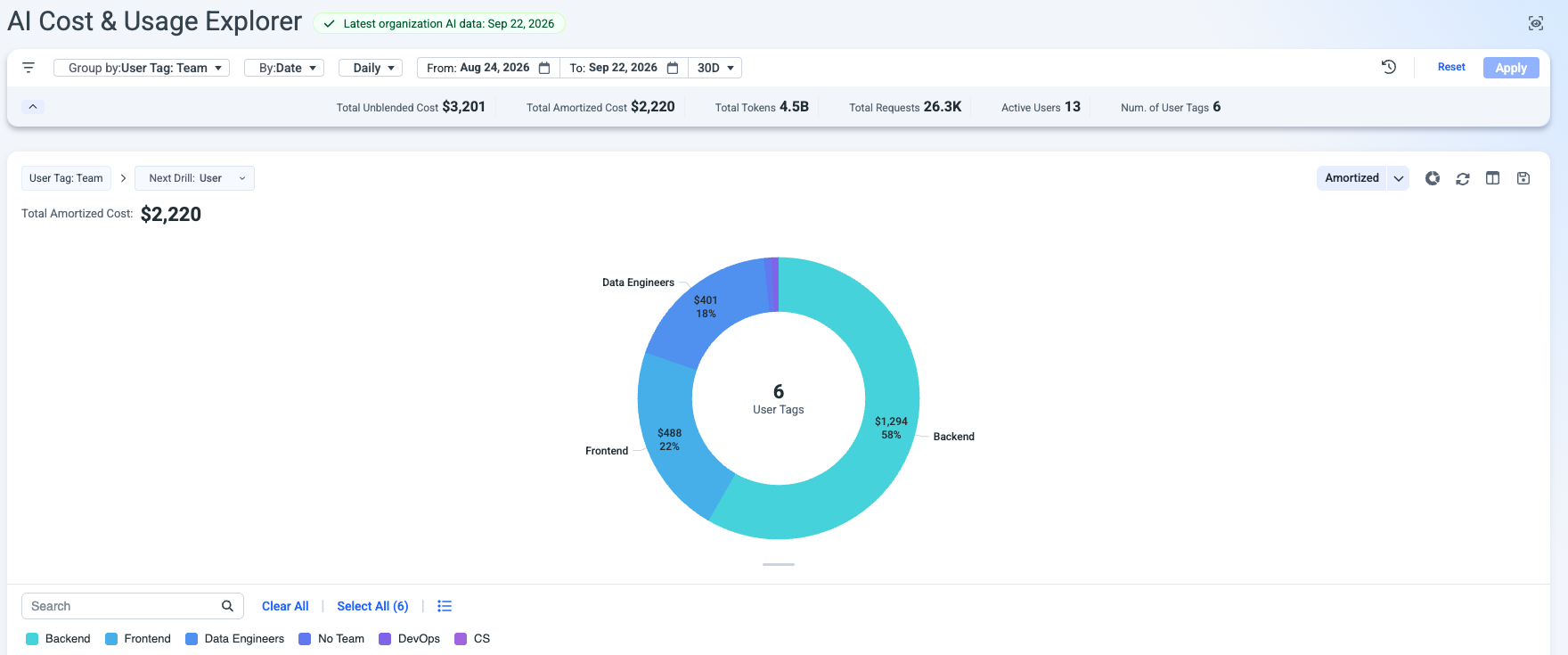
How user tags work
You upload a CSV that maps each user identifier to one or more tag keys and values. Umbrella joins these tags to AI cost records at query time using the user identifier from the cost feed. The enriched dimensions then appear with a "User Tag:" prefix in dimension pickers across all supported views - the same pattern used by cloud Enrichment Tags today.
User tags apply across all AI providers connected to your account. If the same user email appears in both Anthropic and OpenAI cost feeds, the tag mapping applies to both. The enrichment is user-centric, not provider-centric.
CSV format
A user can be mapped to more than one tag value under each tag key.This supports common use cases where a user belongs to multiple teams or groups.
The CSV has three columns - one row per unique combination:
| Column | Description |
|---|---|
user_id | The user identifier as it appears in the AI cost feed (email, API key name, or workspace member ID) |
tag_key | The business dimension name (e.g. Team, Product, CostCenter, Department) |
tag_value | The value to assign (e.g. Platform-Engineering, Chatbot-v2, CC-4400) |
Rules:
- Several tag keys per user are allowed. A single user can have rows for Team, Product, and Department.
- Several values per tag key are also allowed - this differs from cloud Enrichment Tags. For example, one user can be mapped to Team=Platform and Team=Chatbot.
- Duplicate rows (identical
user_id+tag_key+tag_value) are ignored. - Keys and values are case-sensitive.
- Rows with an empty value are ignored.
TemplateClick Download CSV template on the User Tags page to get a pre-formatted file with the correct column headers.
Upload a user tags mapping
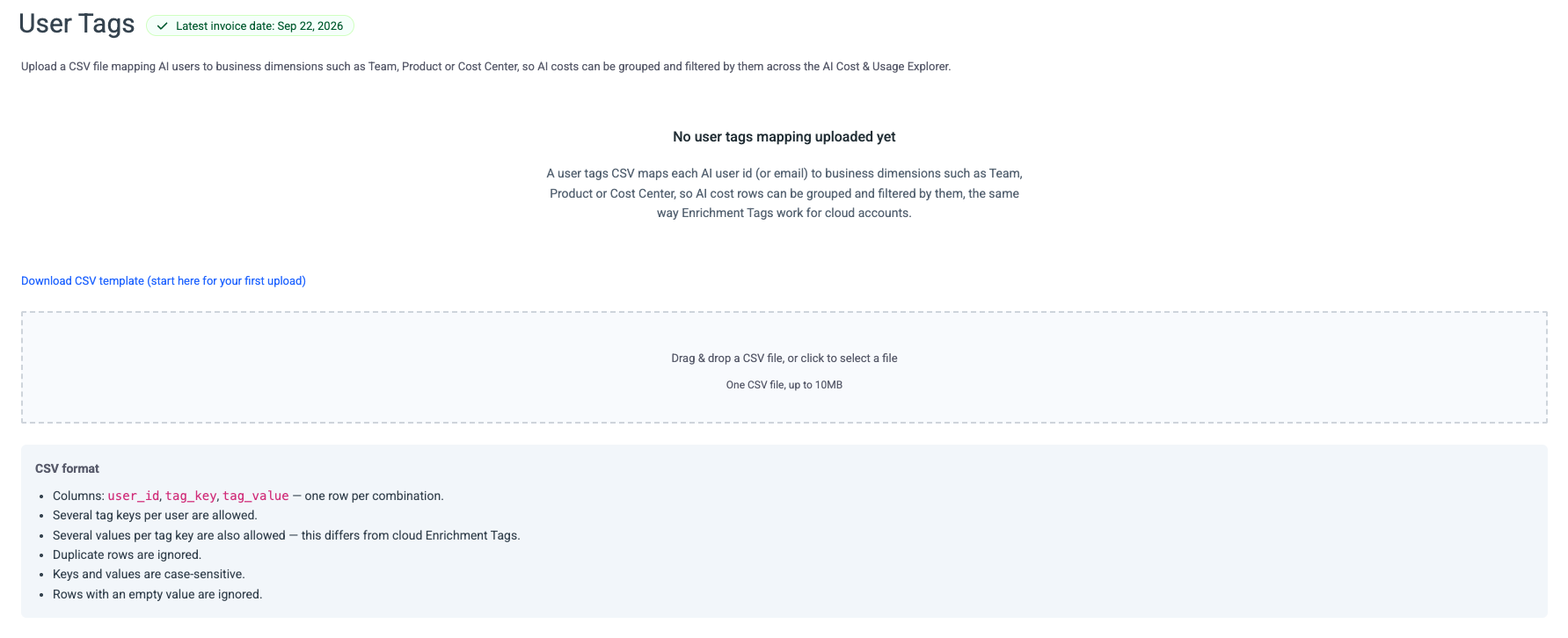
- Navigate to the User Tags page.
- ** Optional ** Click Download CSV template if this is your first upload, and populate it with your user-to-dimension mappings.
- Drag and drop your CSV file into the upload area, or click to select a file.
Once the upload completes, the page displays a summary card showing the file name, upload timestamp, total row count, and the detected tag keys.
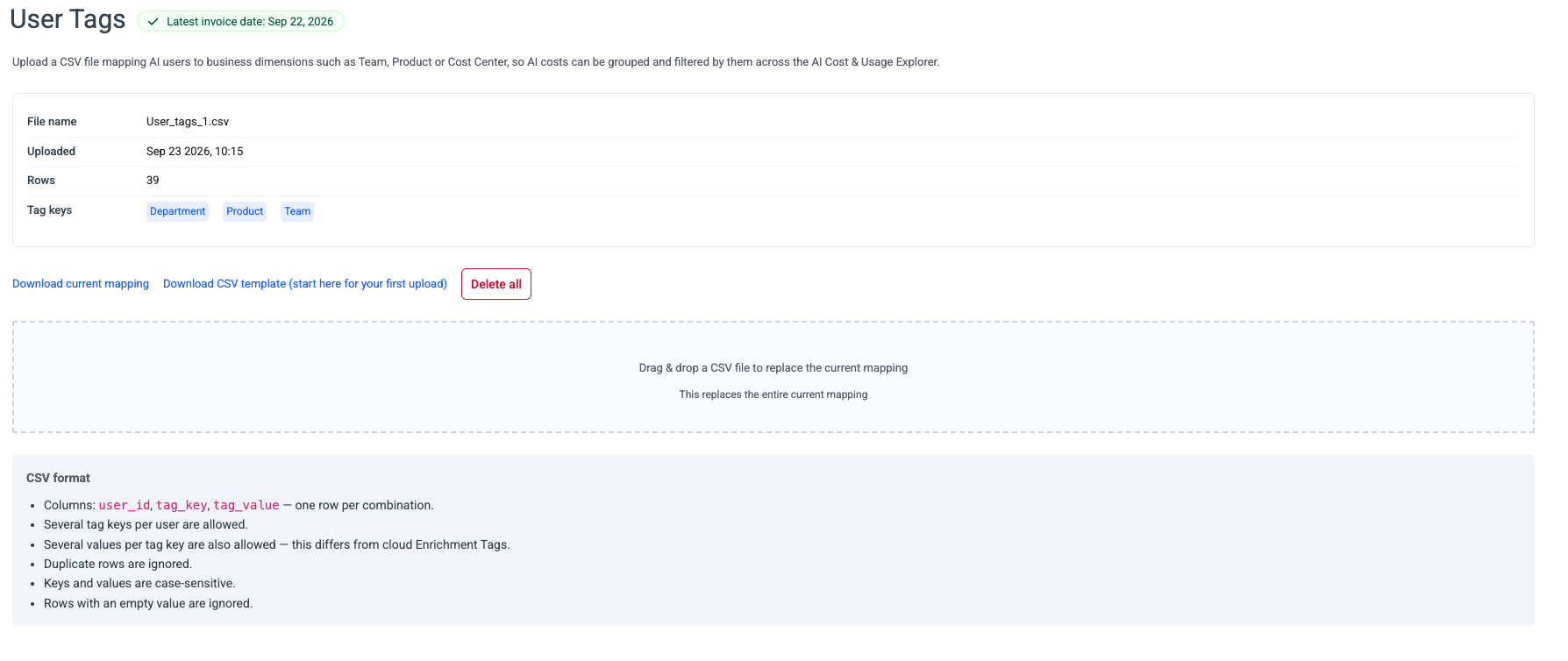
Loaded User tags
Manage your mapping
After an initial upload, three management actions are available:
Download current mapping - exports the active mapping as a CSV, useful for auditing or as a starting point for edits.
Replace the mapping - drag and drop a new CSV file to replace the entire current mapping. The new file overwrites all existing user tag data. There is no merge - if you need to add rows, download the current mapping, append, and re-upload the complete file.
Delete all - removes all user tag mappings. This action clears the mapping entirely.
Replace is a full overwriteUploading a new CSV replaces the entire current mapping. Any user-tag combinations not included in the new file will be removed.
Where user tags appear
Once uploaded, user tag dimensions are available in:
- AI Cost & Usage Explorer - as group-by and filter dimensions
- AI Business Mapping
- User Activity Efficincy score can be set by user tags.
User tag dimensions display with a "User Tag:" prefix in dimension pickers to distinguish them from native cloud tags and cloud Enrichment Tags.
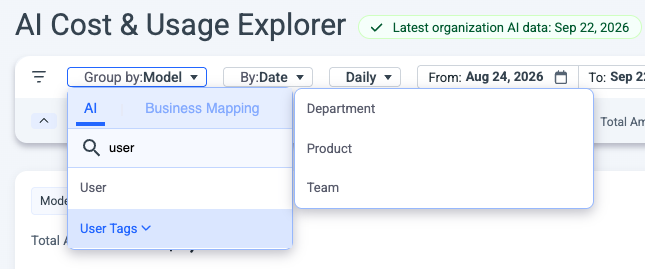
Multi-value behavior
Unlike cloud Enrichment Tags (which enforce one value per key), User Tags allow multiple values per tag key for the same user. When a user is mapped to multiple values:
- Group-by: the user's full cost appears under each mapped value. For example, if a user is tagged with Team=Platform and Team=Chatbot, their cost shows under both groups.
- Filter: filtering by Team=Platform returns all cost for users tagged with Platform, regardless of whether those users also carry other Team values.
- Totals: summing across a group-by that includes multi-mapped users may exceed actual total spend, since the same cost appears under multiple values.
Updated 12 days ago