
Datadog
Overview
Connecting Datadog to Umbrella lets you see your Datadog cost and usage alongside your other cloud and AI spend. Once connected, Datadog data flows into Umbrella's cost dashboards, giving you a single place to track, analyze, and optimize all your infrastructure and tooling costs.
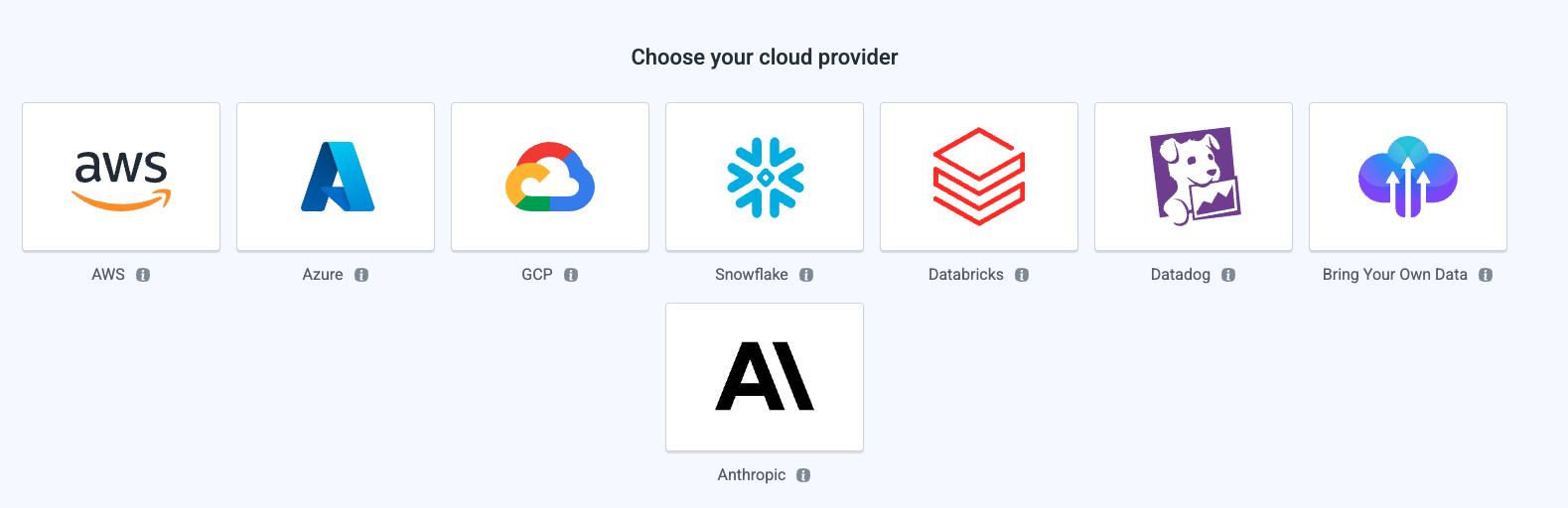
Before you start
You'll need the following from your Datadog account:
- A Datadog API key - found in Datadog under Organization Settings → API Keys
- A Datadog application key with both
usage_readandbilling_readpermissions - found under Organization Settings → Application Keys - The application key must belong to a root or parent organization (child org keys won't work)
- Your Datadog region (site) - this is the host in your Datadog URL (e.g.
app.datadoghq.comis US1,app.datadoghq.euis EU1)
Not sure which region you're on?Check the URL you use to log in to Datadog. If it's
app.datadoghq.com, you're on US1. If it'sapp.datadoghq.eu, you're on EU1. See Datadog sites for the full list.
How to connect
The onboarding wizard walks you through three steps.
Step 1: Add Datadog details
- Enter a Display Account Name - this is how the Datadog account will appear throughout Umbrella (dashboards, filters, reports). Choose something recognizable, especially if you plan to connect multiple Datadog organizations.
- Select your Region from the dropdown. This must match the Datadog site your organization uses, or the connection will fail at validation.
- Click Next to continue.
Step 2: Grant access
- Enter your Datadog API Key and Application Key.
The application key must have both of these scopes:
| Permission | Why Umbrella needs it |
|---|---|
usage_read | Read usage metrics (e.g. host counts, indexed logs volume, ingested spans) to calculate cost |
billing_read | Read billing and pricing data to map usage to actual cost |
- Click Validate Connectivity to confirm your credentials and region. Umbrella will test the connection in real time - if validation fails, double-check that the keys are correct, the application key has both permissions, and the region matches your Datadog URL.
- Once validation succeeds, click Next to continue.
Step 3: Process data
After completing the wizard, Umbrella begins ingesting your Datadog cost and the data will be available as part of the multicloud.
Updated about 2 months ago