
Dashboard Snapshots
Dashboards whose panels are computed after each data update. Opened from here, they load those results; opened from any other tab, they load like any other dashboard.
Overview
Dashboard Snapshots make heavy dashboards open almost instantly. Instead of running every panel's query when you open a dashboard, Umbrella calculates the results ahead of time - after each data update - so they're ready the moment you arrive.

How snapshots work
When you enable snapshots on a dashboard, Umbrella begins calculating panel results in the background after each data update. Every user still sees only the data their own permissions allow - snapshots respect data access the same way live dashboards do.
Users who share the same data access share one snapshot. If permissions change, the update applies right away.
What gets snapshotted
| Panel type | Behavior |
|---|---|
| Cost & Usage, Kubernetes, Assets | Included in the snapshot |
| Recommendations, Budgets, KPIs, Commitments, SP/RI Utilization, AI, Unit Economics | Always load live |
Any panel without a snapshot loads live, so the dashboard is always complete.
When snapshots refresh
- First visit: the first time someone opens the dashboard from the Dashboard Snapshots tab, it loads live while the snapshot is prepared. It's usually ready within about an hour.
- Data updates: the snapshot refreshes automatically after each data update (usually once a day). The "data as of" timestamp moves forward.
- Dashboard changes: added or edited panels and changed saved filters are picked up within about an hour. Until then, the changed panels load live.
- Inactivity: if no one in a user group opens the dashboard from the tab for 14 days, that group's snapshot is dropped. Their next visit triggers a new one.
Enable or disable Dashboard Snapshots
PermissionsAnyone who can edit the dashboard can enable snapshots. To turn them off, choose Disable Dashboard Snapshots from the same menu.
- Go to the Dashboards list.
- Open a dashboard's ⋮ menu.
- Choose Enable Dashboard Snapshots.
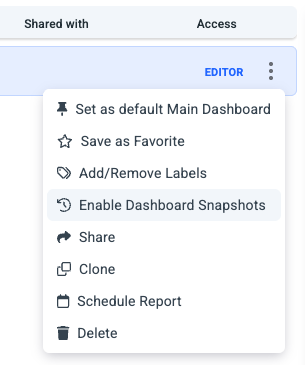
Once enabled, the dashboard appears in the Dashboard Snapshots tab of the list, and a small blue clock icon appears beside its name in other tabs.
Where you open it mattersOpen the dashboard from the Dashboard Snapshots tab to get the snapshot. Opening it from any other tab, the navigation menu, a bookmark, or a scheduled report loads it live. The top bar then shows an Open dashboard snapshot link to switch.
Top-bar states
The bar at the top of the dashboard tells you which state you're in:
| Top bar | What it means |
|---|---|
| Dashboard Snapshot · data as of Oct 6, 07:10 | The snapshot is ready. Panels show pre-calculated results from the indicated data update. Link: Open live. |
| Dashboard Snapshot · being prepared | No snapshot exists yet for your data access. The dashboard loads live this time and the snapshot will be ready within about an hour. Link: Change dates or filters. |
| Live · dashboard snapshot limit reached | This dashboard already keeps snapshots for the maximum number of user groups, so it loads live for you. Link: Change dates or filters. |
All three links open the same dashboard live and fully interactive.
What you can do in the snapshot view
The snapshot shows the dashboard's saved dates and saved filters. It is read-only.
Available: view panels, open full screen, use the magnifier, download CSV, copy a panel to another dashboard.
Not available: change dates or filters, add/edit/move/remove panels, refresh a panel, rename the dashboard. Use the link in the top bar to switch to live for these actions.
Limits
- At 20 dashboards, Enable Dashboard Snapshots is greyed out. Its tooltip reads: "Dashboard Snapshots can be enabled on up to 20 dashboards per organization. Disable them on one to enable another."
- An 11th user group sees Live · dashboard snapshot limit reached. A place frees up automatically when another group hasn't opened the dashboard for 14 days.
- Only saved dates and filters are kept. Other date ranges are not snapshotted.
The organization-wide count includes dashboards you can't see, so the option can be greyed out even when your own Dashboard Snapshots tab shows fewer than 20.
Updated 41 minutes ago