
Commitments Prerequisites
The Azure Commitment page gives you visibility into your Azure Reservations and Savings Plans in one place - how well each commitment is being used, how much it's covering, and what it's costing or saving you.
To see this data, you must provide Umbrella with reader permissions on the plan order as described below.
Important Note for CSP (Cloud Solution Provider) AccountsAll permissions must be granted on the customer side. Ensure you complete the following configuration:
Customer Side: Create the App Registration and assign it to the appropriate Service Principal (SP) / Resource Instance (RI) as described below.
Umbrella Side: Add the newly created customer App Registration to the Umbrella Setting → App Registration page.

Cost and Saving data for FOCUS accountsFields such as Net Savings, Total Waste, On-Demand Equivalent Spend rely on detailed cost data and are only available for Azure accounts that have a FOCUS export.
You can migrate your account using the following guide.
Prerequisites
Before commitment data can appear on this page, you should provide reader permissions on the plan order IAM as described below:
-
Sign in to the Azure Portal.
-
Navigate to the Reservations or Savings Plans page.
-
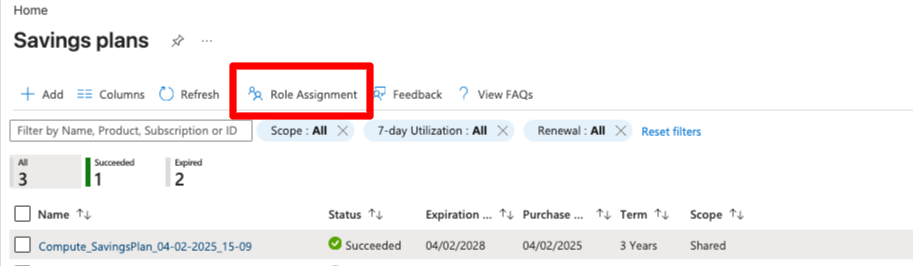
Click on Role Assignment (if you do not have permission at the tenant level, you should provide permission to each plan separately; see 3.a):
-
Click on the specific plan (SP or RI).
-
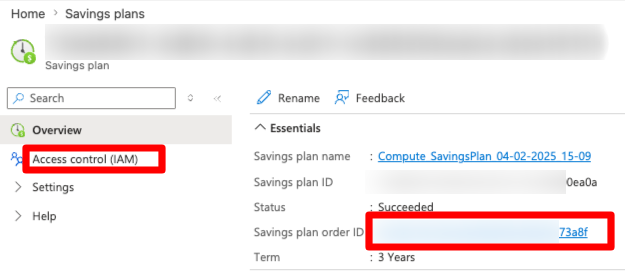
Click on the Savings plan/reservation order ID, and then, from the left menu, click on Access control (IAM).
-
-
Select Add → Add role assignment.
-
Choose the Reader role (Savings Plan Reader or Reservation Reader).
-
Under the Members tab, select the Service Principal used for the integration.
-
Save the role assignment.
-
Repeat for each order (or apply at the parent Billing scope, if your Azure setup supports it, to cover all current and future orders at once).
Without Reader access on both the Savings Plan and Reservation orders, the page will not be able to pull utilization or coverage data for the corresponding tab.
Updated 3 months ago